You pay for Claude.
You use it every day.
And you are still doing your boring computer work by hand.
Renaming files one by one. Copying numbers from PDFs into spreadsheets. Hunting for that one invoice at tax time. Turning a voice note into a post.
Your Claude subscription includes a tool that does all of this for you. Most people never open it because of one word in its name.
That word is “Code.”
Today I’m going to fix that.
How I Found This
Last week I went looking for how people actually use Claude Code outside of coding.
I went through a lot of real examples from people who use it every day.
People were sorting tax invoices.
Cleaning up their laptops.
Turning voice notes into articles.
Building landing pages.
Writing full hiring plans.
None of them were writing code.
That changed how I see the tool.
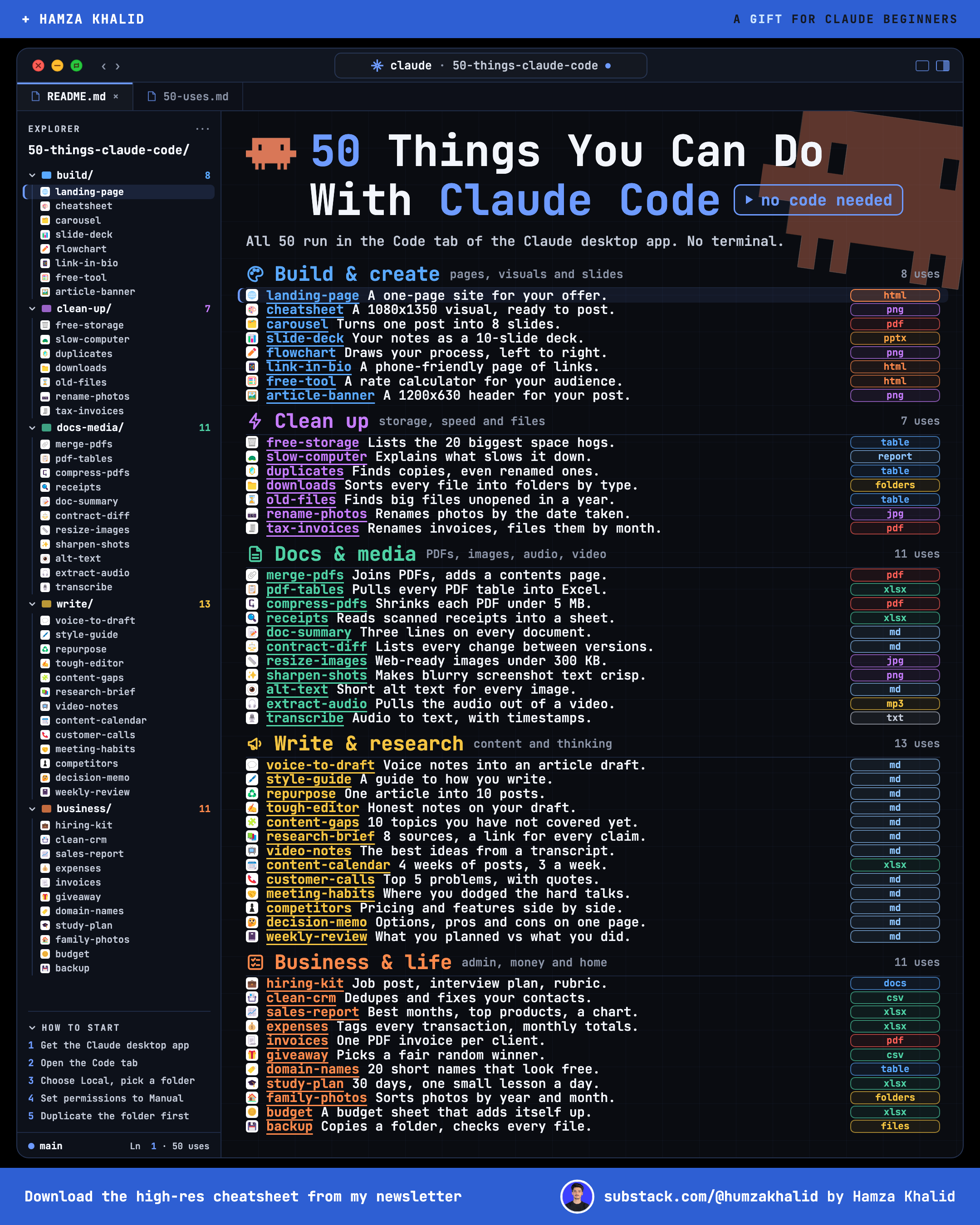
So I turned it into a list for you.
Fifty uses.
Each one in plain English. Each one with a prompt you can paste today.
What Changes After This Issue
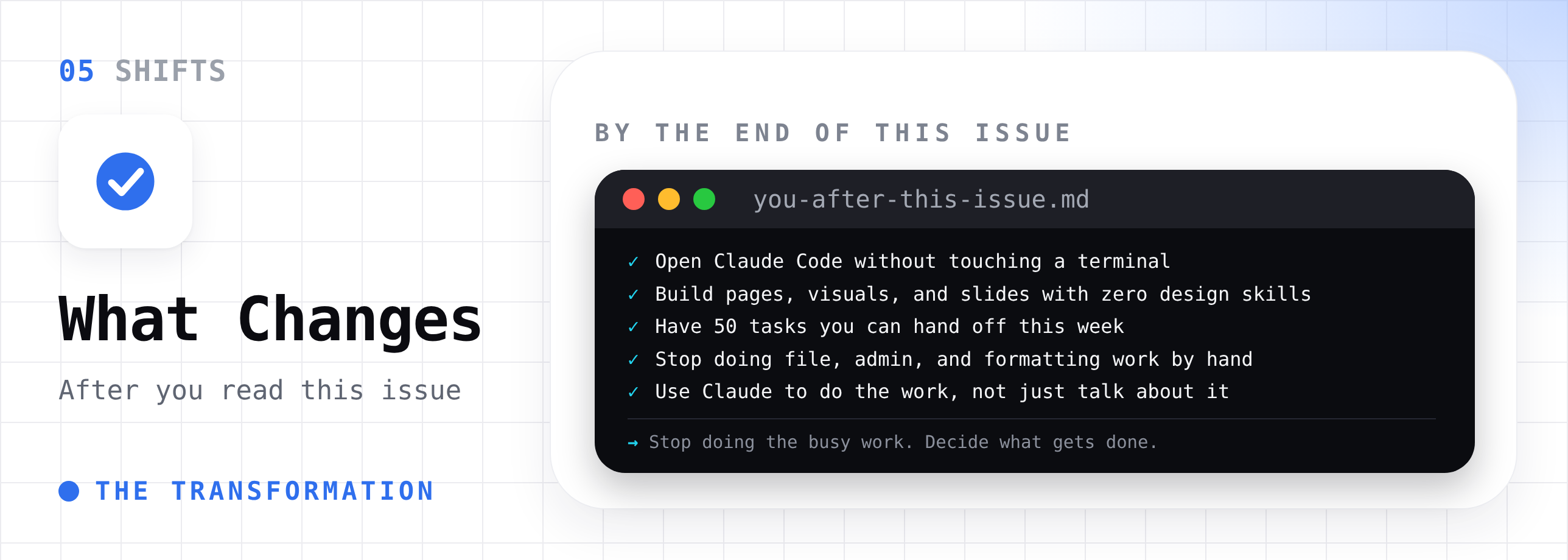
By the end of this issue, you will:
→ Know how to open Claude Code without touching a terminal
→ Build landing pages, visuals, and slides without design or coding skills
→ Have 50 tasks you can hand off this week
→ Stop doing file work, admin work, and formatting work by hand
→ Think of Claude as something that does the work, not something that only talks about it
You stop being the person doing the busy work. You become the person who decides what gets done.
Why This Works
Normal Claude lives in a chat window.
You paste things in. It answers. You copy things out.
Claude Code works directly on your computer.
You point it at a folder, and it can open your files, create new ones, rename them, move them, and install the small free tools it needs to finish the job.
It can even build web pages and images, then open them so you see the result.
A simple way to think about it:
→ Claude in chat = a smart friend you text
→ Claude Code = a smart assistant sitting at your computer
Three facts worth knowing before you start:
Claude Code is included in the Claude Pro, Max, Team, and Enterprise plans. The free plan does not include it.
You do not need the terminal. The Claude desktop app has Claude Code built in, under the Code tab.
It asks before it acts. You can set it to ask for your approval before every change.
The One Rule Before You Start
Always work on a copy first.
Before you ask Claude to rename, move, or delete anything, duplicate the folder.
Let Claude work on the copy.
Check the result.
Then run it on the real thing.
This one habit makes every prompt below safe to try.
The 50 Use Cases of Claude Code
I grouped them into eight areas.
The first one is my favorite: pages, visuals, and slides you can build without writing a single line of code.
Then come the time savers for files, documents, writing, research, and admin.
Part 1: Build and Create With AI
You never touch the code here. Claude writes it, runs it, and hands you the finished page, image, or file.
You just describe what you want.
1. Build a landing page
Build a one-page landing page for my newsletter "AI In Public." It teaches solopreneurs how to use AI in their daily work. Include a headline, a short subheading, three benefits, a testimonial section with clearly marked placeholder quotes, and an email signup button. Use a clean, modern design with lots of white space. Save it as one file called index.html and open it in my browser so I can see it.
Once one page feels easy, you can go much bigger.
I built a full 3D website with Claude, step by step, here:
How to Build a 3D Website Using Claude Code

You opened Claude Code, typed "build me a modern site," and hit enter.
2. Create a cheat sheet visual
Create a cheatsheet image called "7 Claude Prompts for Beginners." Make it 1080 by 1350 pixels for LinkedIn. Use a cream background, black text, and one coral accent color. Put each prompt in its own numbered box with a one-line explanation. Save it as cheatsheet.png and show me the result.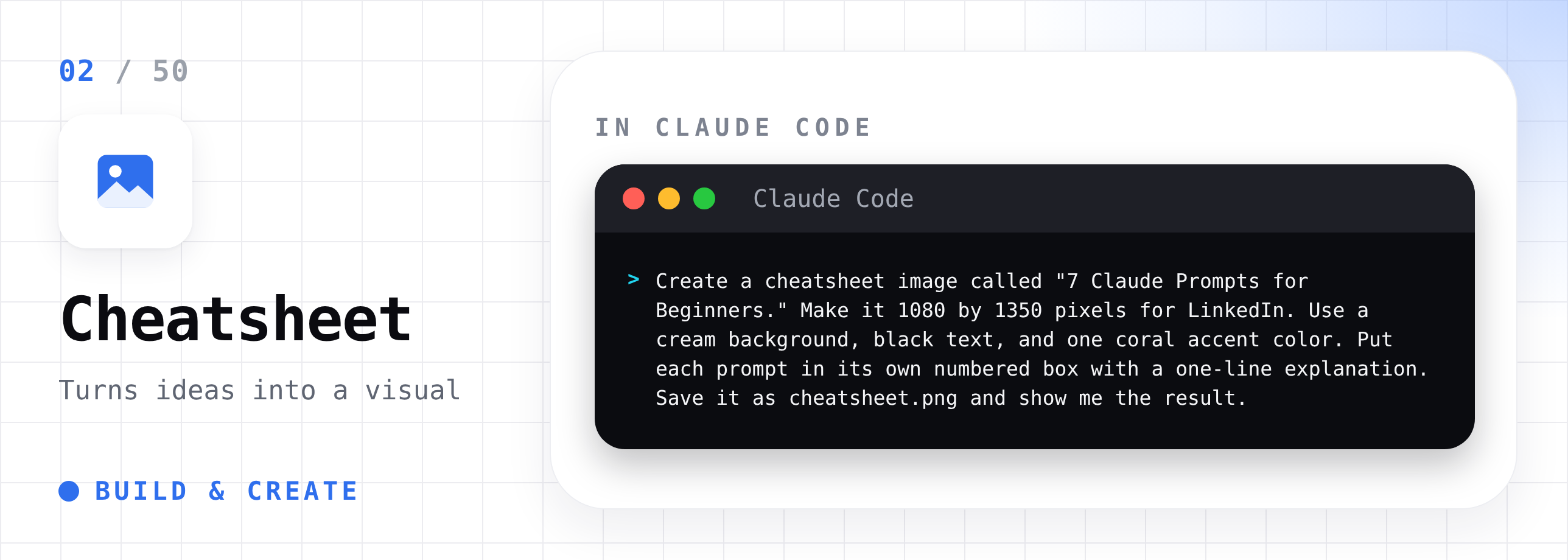
3. Turn a post into a LinkedIn carousel
Read post.md. Turn it into a LinkedIn carousel of 8 slides, each 1080 by 1350 pixels. Slide 1 is a bold hook, slides 2 to 7 hold one idea each, and slide 8 is a call to follow me. Keep text large and short. Save it as one PDF called carousel.pdf.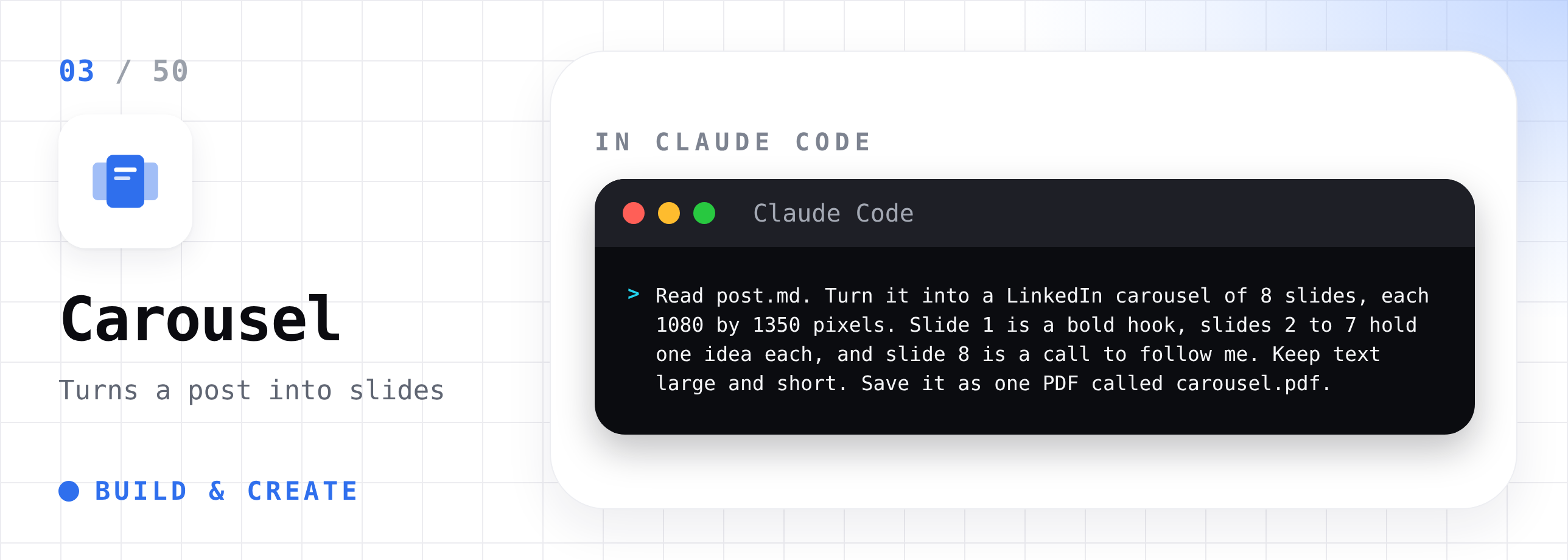
4. Make a slide deck from your notes
Read notes.md. Turn it into a 10-slide presentation for a client meeting. One idea per slide, short bullet points, and a simple clean design. Save it as an editable PowerPoint file called client-deck.pptx.
5. Draw a diagram of your process
Read process.md. It describes how I go from idea to published newsletter. Turn it into a clear flowchart with boxes and arrows, left to right. Save it as process-diagram.png.
6. Build a link-in-bio page
Build a simple link-in-bio page for me. Name: Hamza Khalid. Tagline: "We test AI in public, so you stay ahead in private." Add buttons for my newsletter, LinkedIn, and X. Make it look good on a phone. Save it as one file called links.html and open it so I can check it.
7. Create a free tool for your audience
Build a simple calculator page for freelancers. They enter their monthly income goal, hours they want to work per week, and weeks off per year. The page shows the hourly rate they need to charge. Make it clean and easy to use on a phone. Save it as rate-calculator.html and open it.
8. Make a banner for your article
Create a banner image for my newsletter article, 1200 by 630 pixels. Title text: "50 Things Claude Code Can Do." Use a dark background, large white bold text, and one simple icon of a laptop. Save it as banner.png and show me the result.
If you want your visuals to look designed, not just generated, I broke down how Anthropic’s own team uses Claude Design here:
How to use Claude Design like Anthropic Engineer.

I tested it end-to-end. Here’s the complete playbook, with every limit, every condition, and every mistake included.
I spent two days testing these with my laptop and a coffee cup. If this helped you, buy me a coffee.
Part 2: Clean Up Your Computer
9. Free up storage
Your laptop says the disk is full, and you have no idea what is taking up the space.
Find what is using the most storage on my computer. Show me the 20 biggest folders and files in a simple table with their sizes. Do not delete anything. Then tell me which ones are usually safe to remove and which ones I should keep.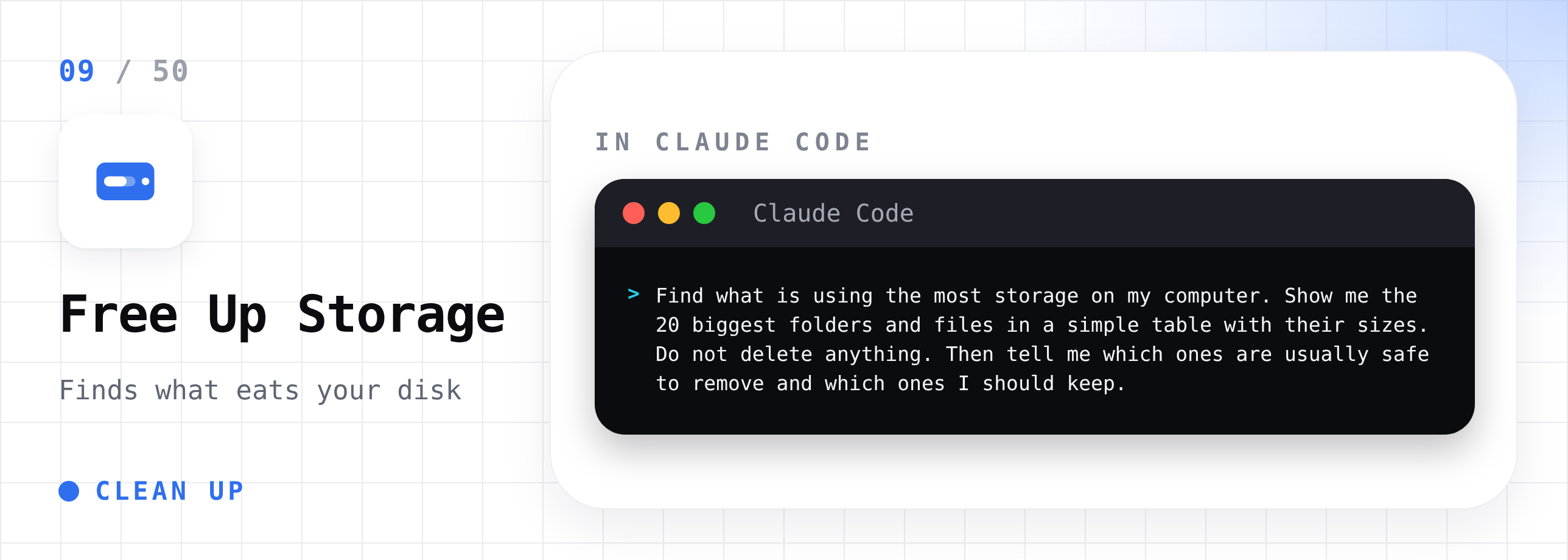
10. Find out why your computer is slow
My computer feels slow. Check memory use, disk space, and which apps are using the most CPU right now. Explain what you find in plain English, like I am not technical. Suggest fixes, and tell me the risk of each one before I do anything.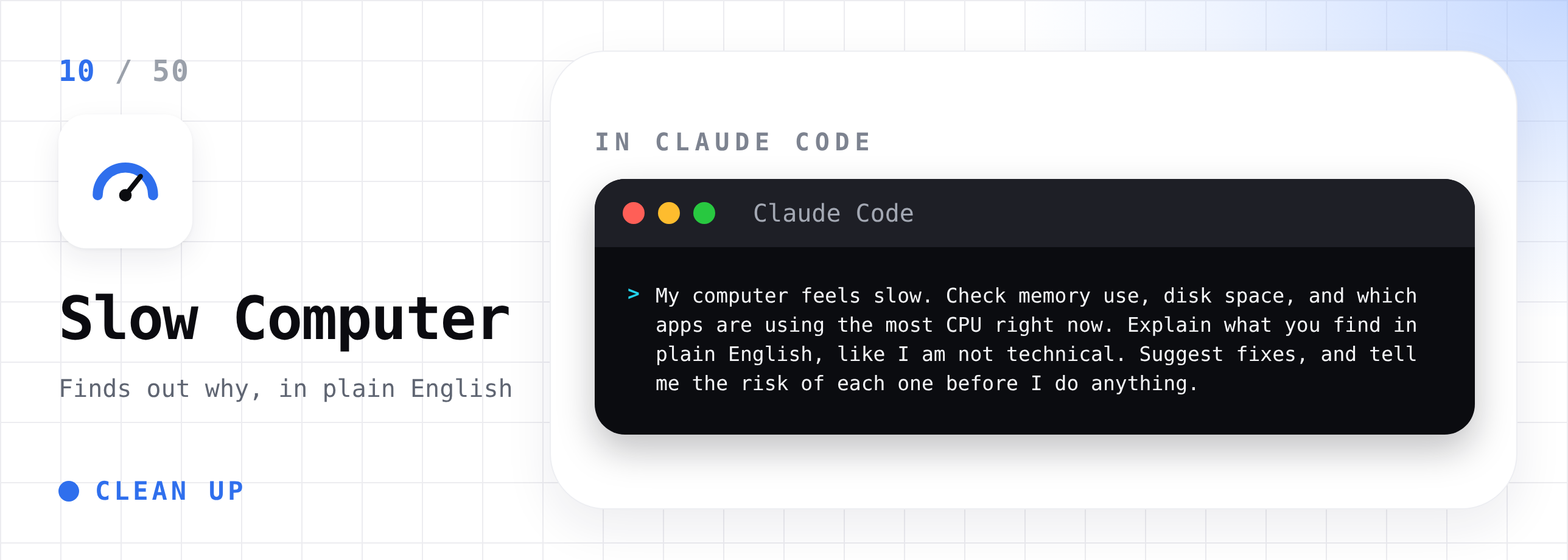
11. Find duplicate files
Look through this folder and find duplicate files, even if they have different names. List each group of duplicates with their sizes and locations. Do not delete anything. Recommend which copy to keep in each group.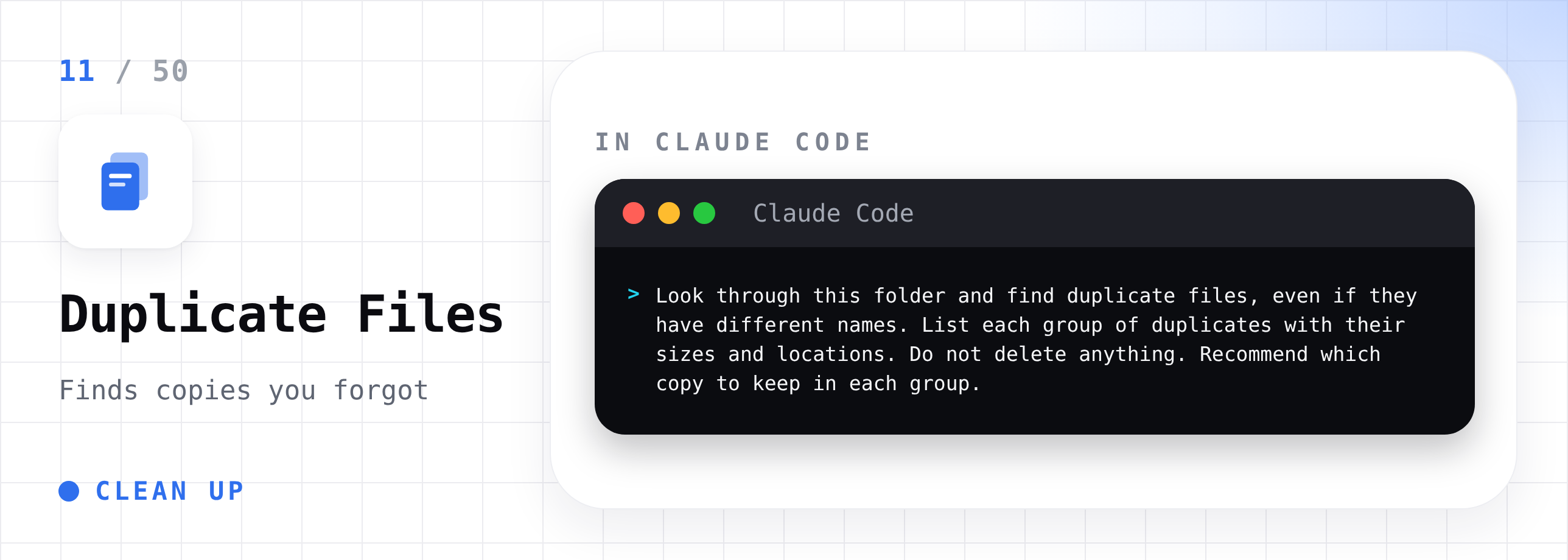
12. Organize your Downloads folder
Organize every file in this folder into subfolders by type: Documents, Images, Videos, Audio, Spreadsheets, Installers, and Other. Show me the plan first. Wait for my approval before moving anything.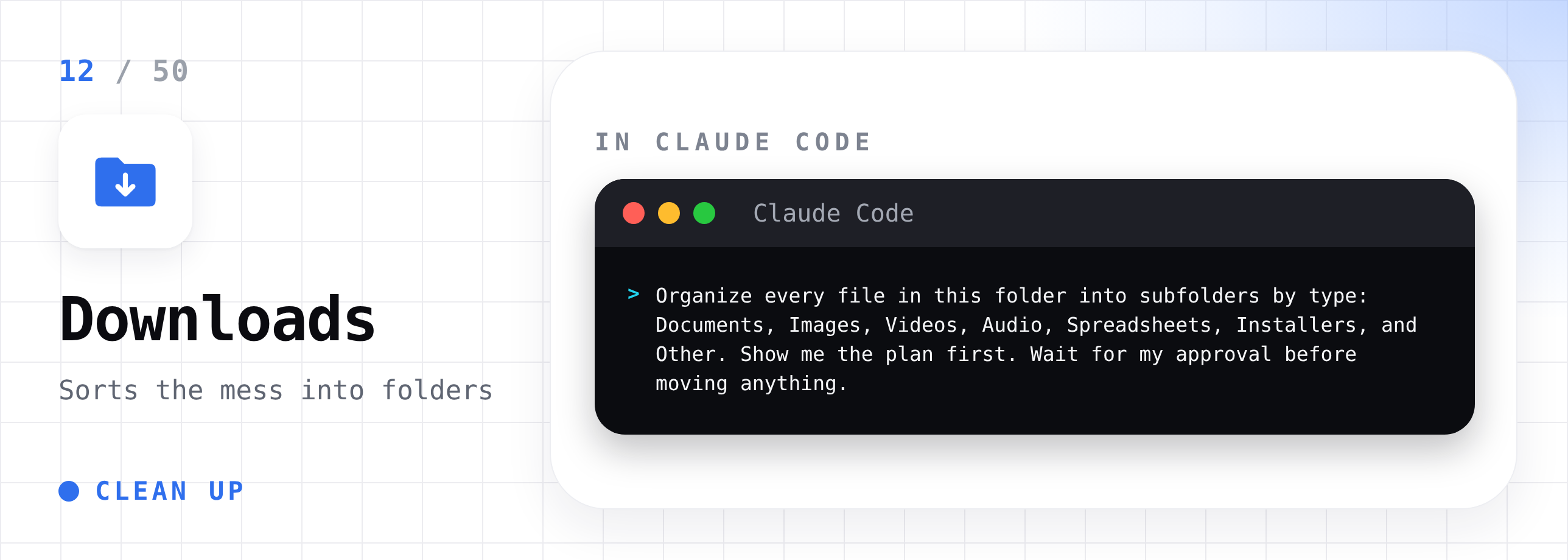
13. Find old files you forgot about
List every file in this folder that I have not opened in over a year and is larger than 50 MB. Show the name, size, and last opened date in a table. Do not delete anything.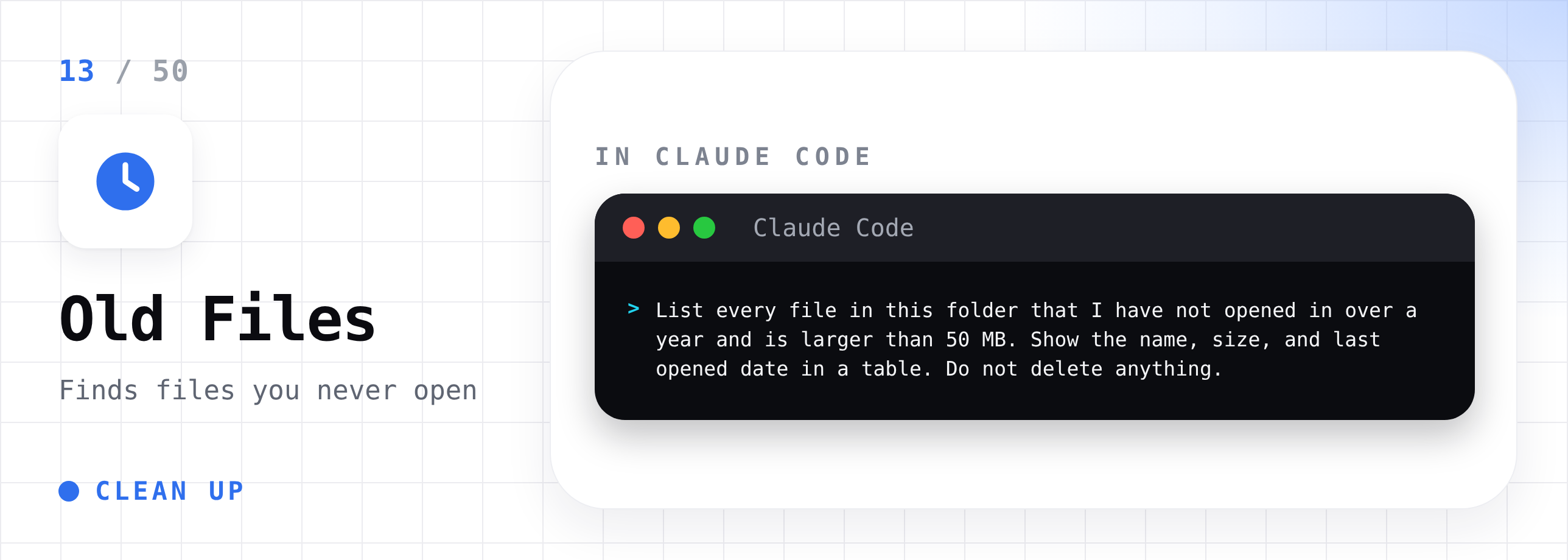
14. Rename messy photo files
Rename every photo in this folder using the date it was taken, in this format: 2026-11-12_001.jpg. Read the date from the photo's own data, not the file name. Show me five examples before renaming the rest.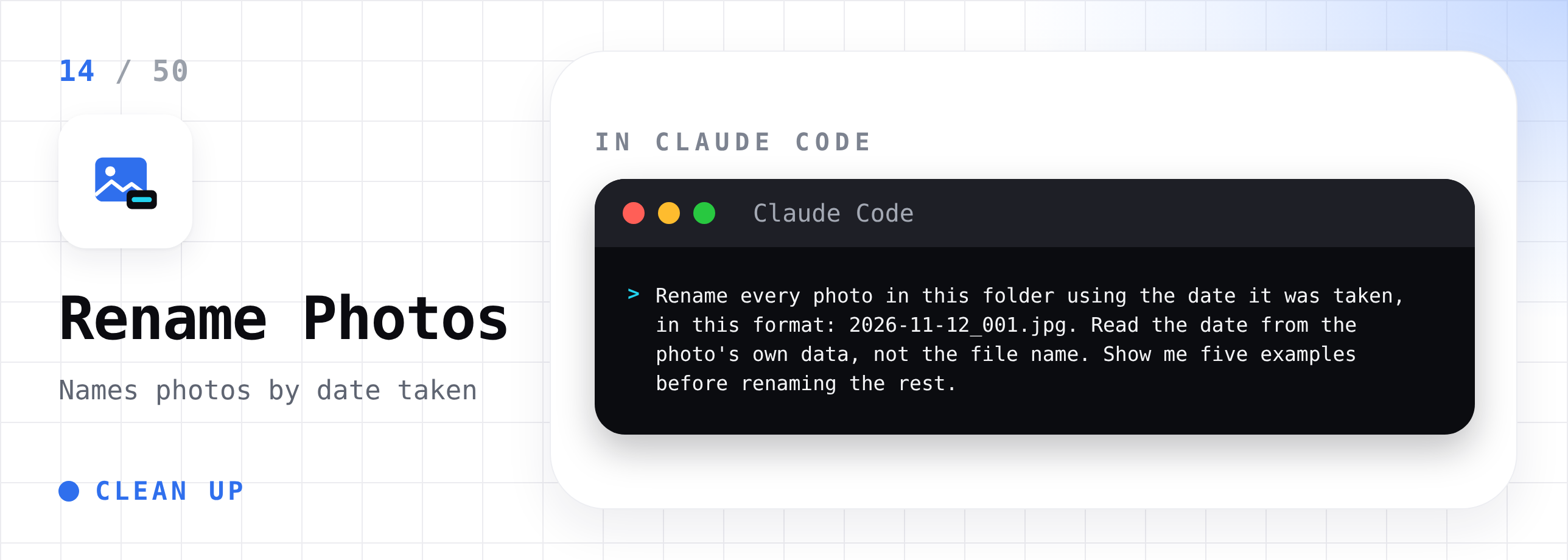
15. Sort invoices for tax season
Read every PDF in this folder. For each invoice, find the date, the company name, and what it was for. Rename each file like this: 2026-03-14 Adobe - Invoice - Creative Cloud.pdf. Then move each file into a folder named after the month. Show me the first five before doing the rest.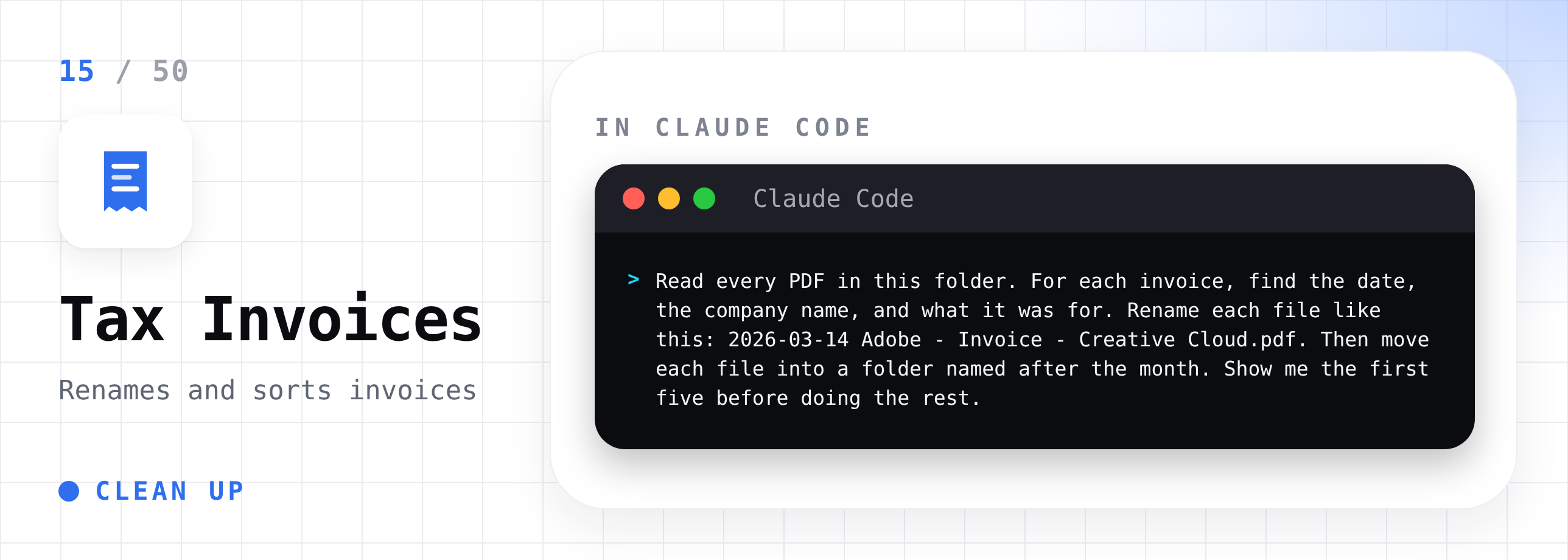
Part 3: PDFs and Documents
16. Merge PDFs into one file
Combine all the PDFs in this folder into one PDF called combined.pdf, in alphabetical order by file name. Add a simple contents page at the start that lists each original file and the page it starts on.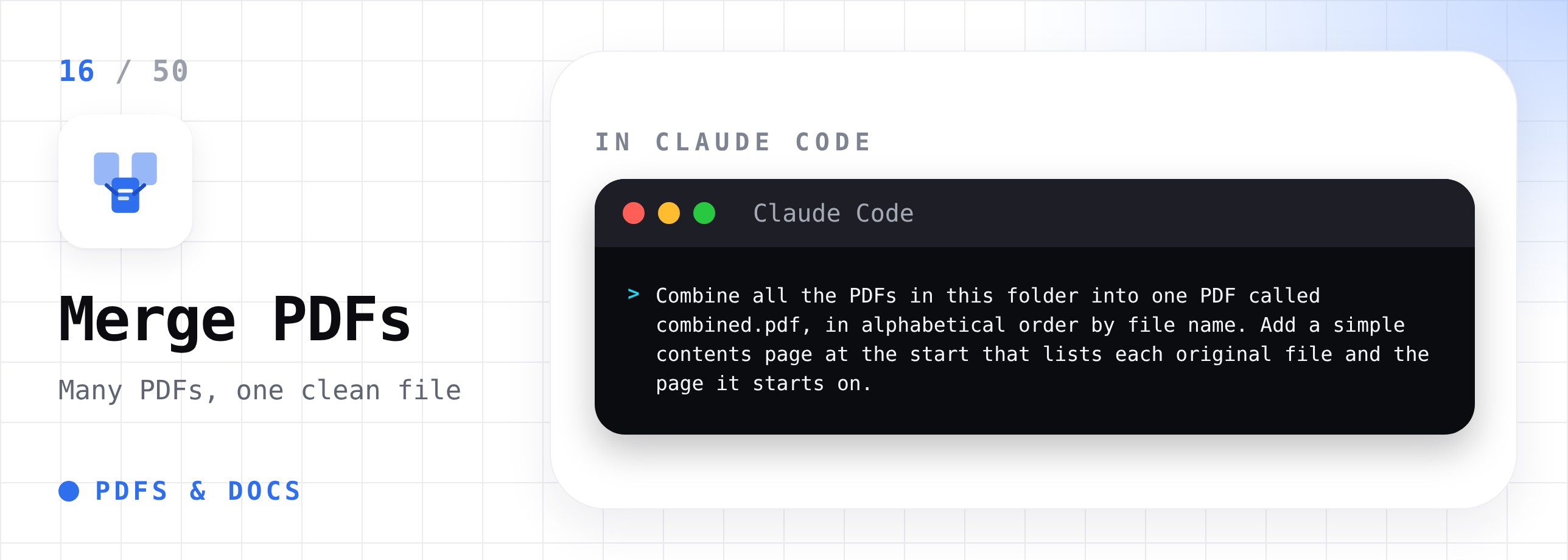
17. Pull tables out of PDFs into a spreadsheet
Find every table in report.pdf and put each one into its own sheet in a new Excel file called tables.xlsx. Keep the column headers. Tell me if any table looked hard to read so I can check it.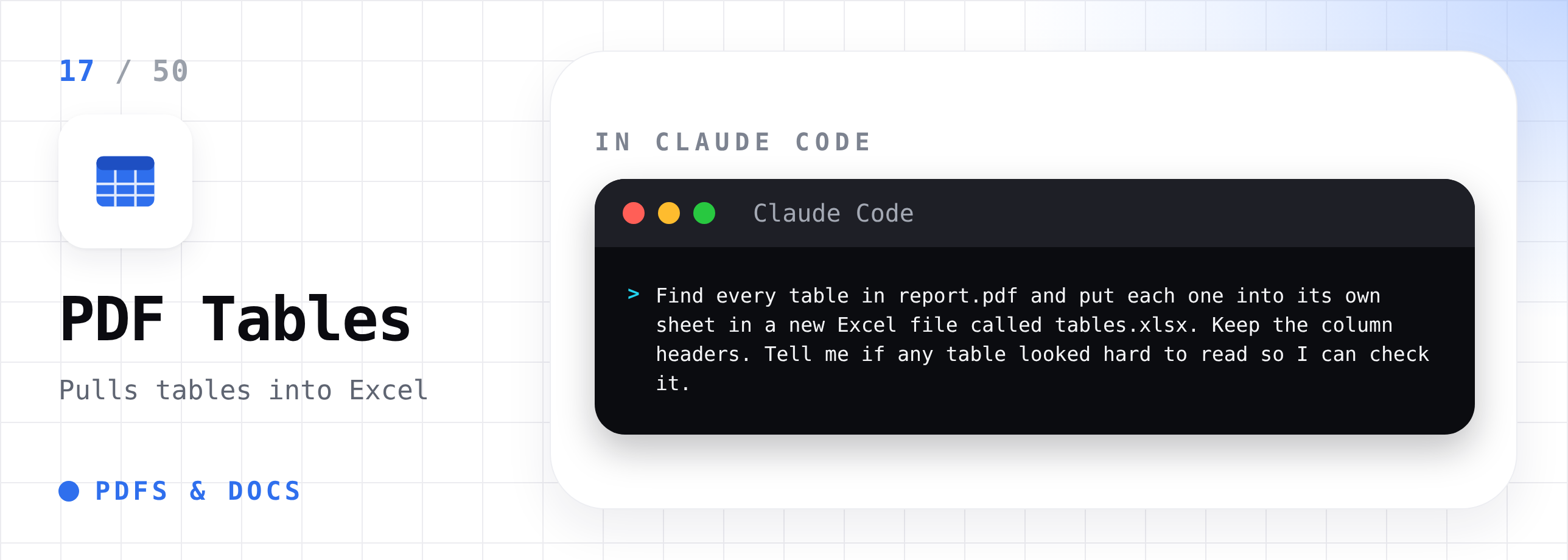
18. Make PDFs small enough to email
Compress every PDF in this folder so each one is under 5 MB. Save the smaller versions in a new folder called compressed. Keep the originals untouched. Show me the before and after sizes.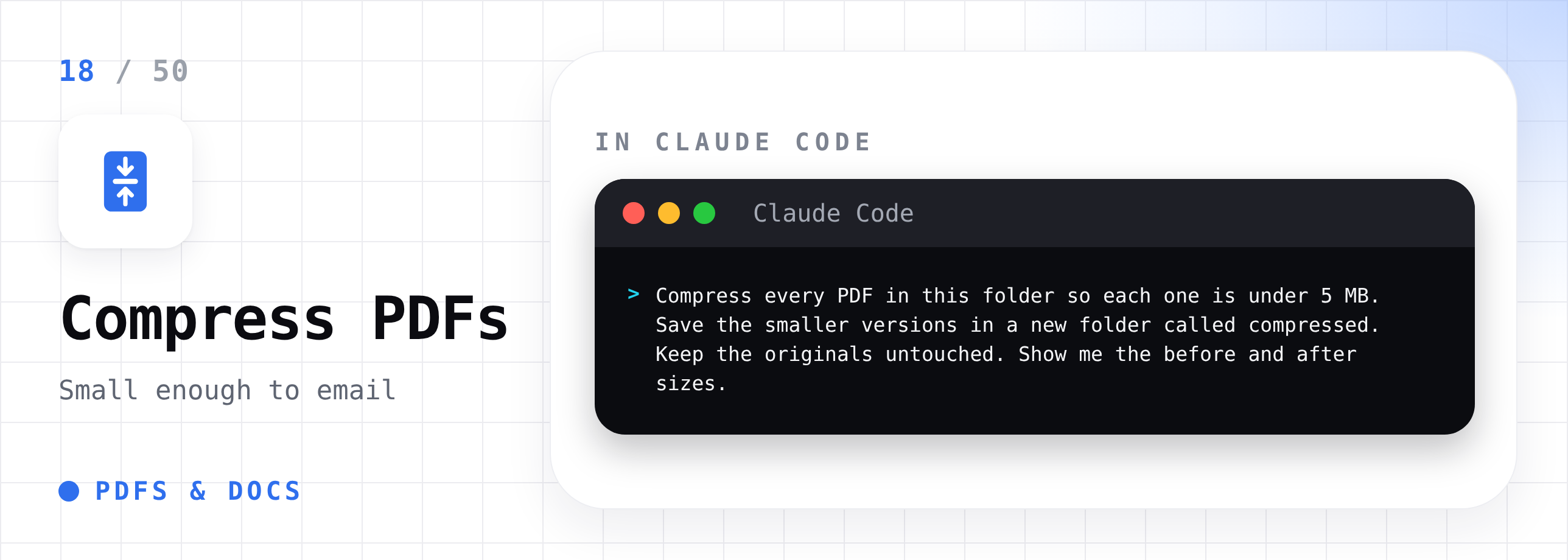
19. Turn scanned receipts into searchable text
These are scanned receipts. Read the text from each one. Create a spreadsheet called receipts.xlsx with columns for date, store, total, and file name. Flag any receipt where you were not sure about the total.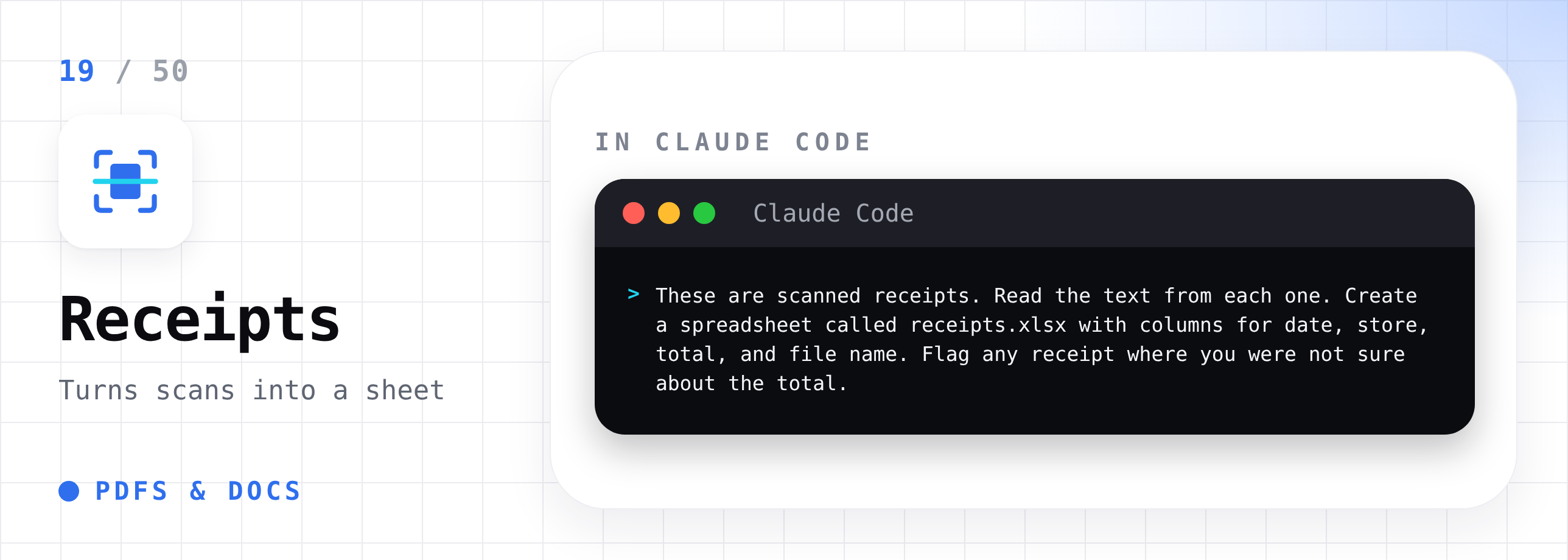
20. Summarize a folder of documents
Read every document in this folder. Write one summary file called summary.md. For each document, give me the title, a three-sentence summary, and any dates or deadlines mentioned.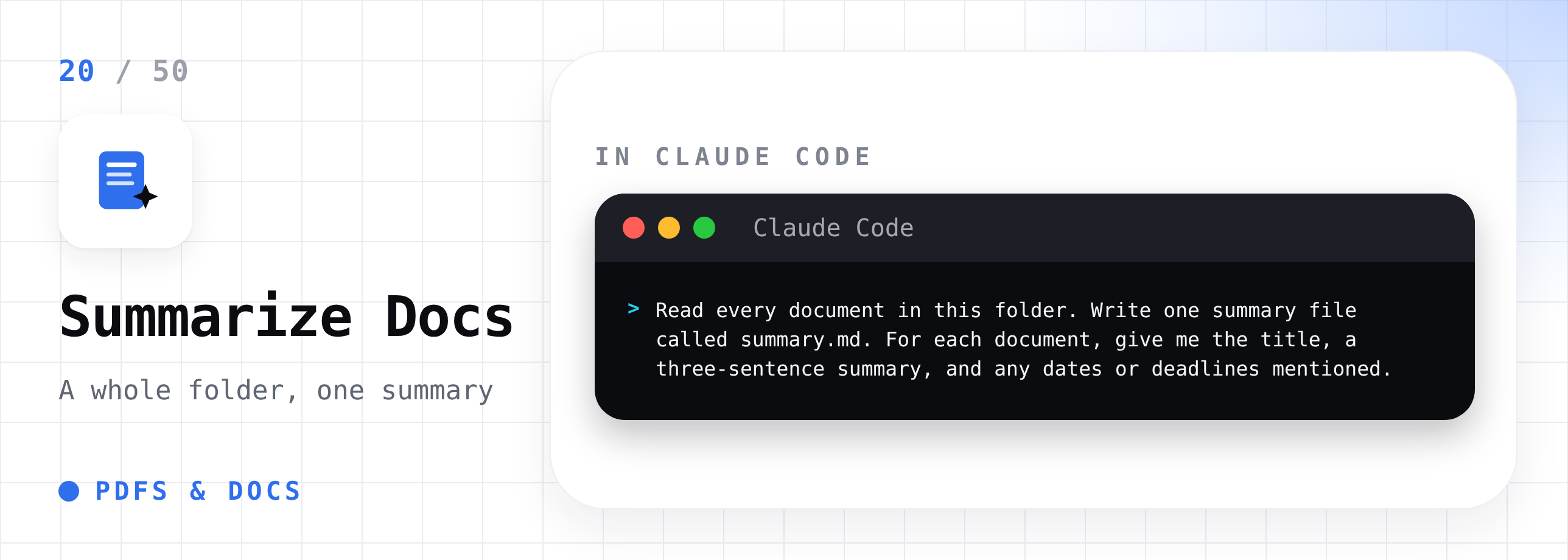
21. Compare two versions of a contract
Compare contract-v1.pdf and contract-v2.pdf. List every change between them in plain English: what was added, what was removed, and what was reworded. Put the changes that affect money, dates, or obligations at the top.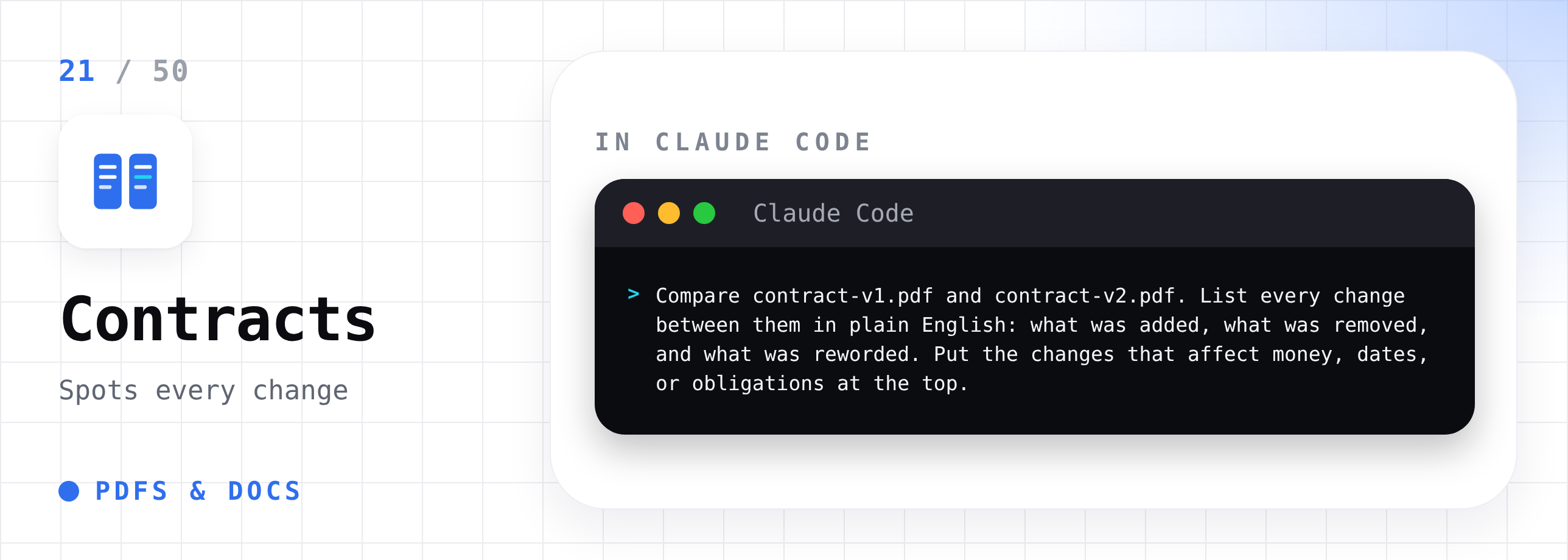
Part 4: Images, Audio, and Video
22. Resize images for your website
Resize every image in this folder so the longest side is 1600 pixels. Compress them for the web so each one is under 300 KB. Save them in a new folder called web-ready. Keep the originals.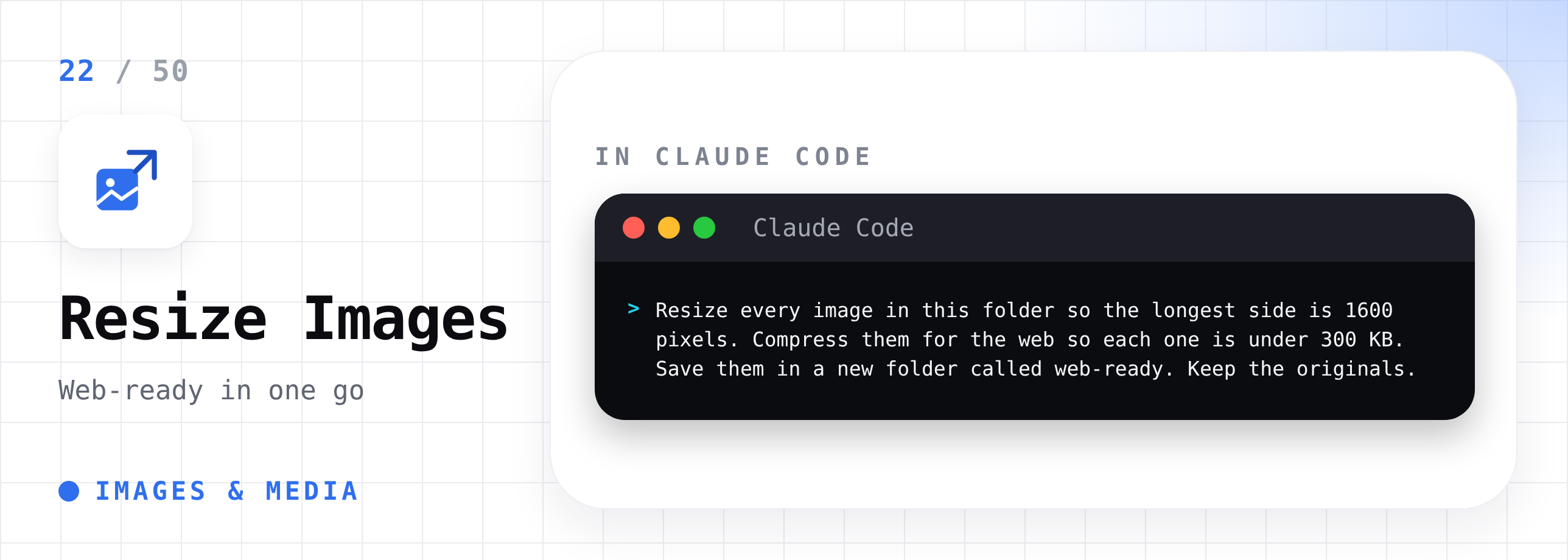
23. Clean up blurry screenshots
Improve the quality of every screenshot in this folder. Make the text sharper and easier to read. Save the improved versions in a new folder called sharper so I can compare them with the originals.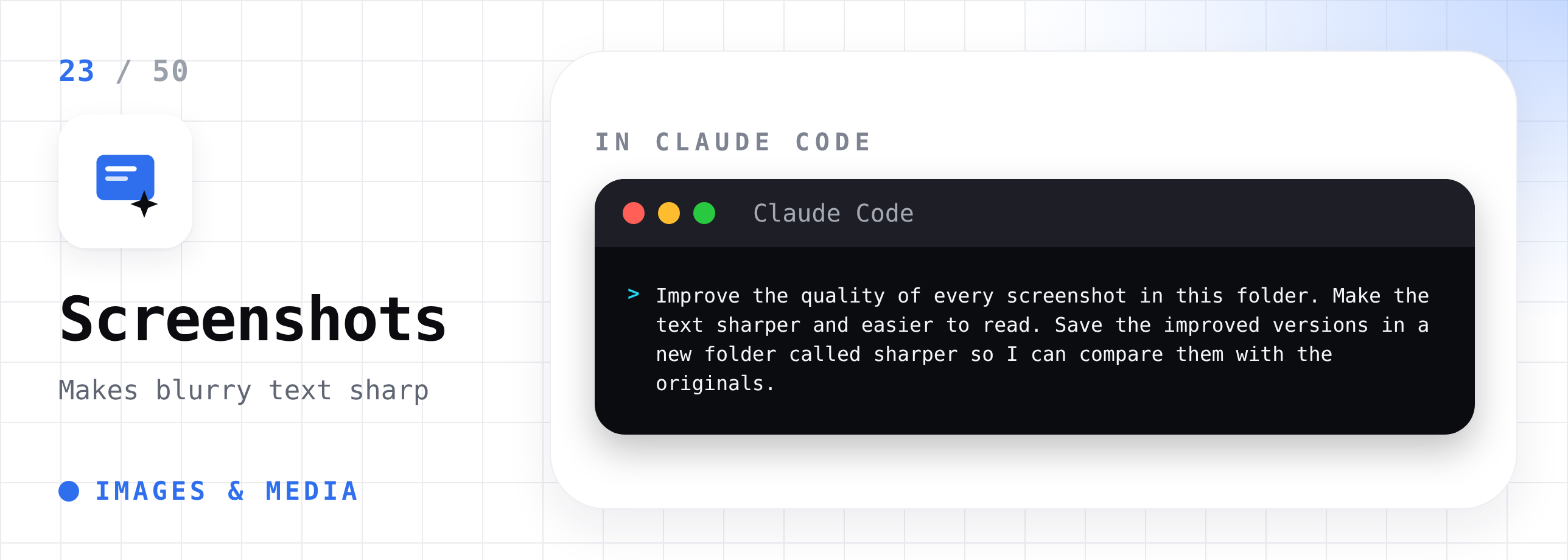
24. Write alt text for your images
Look at every image in this folder. Write short, clear alt text for each one, under 125 characters, describing what is in the image. Save it all in a file called alt-text.md with the file name next to each description.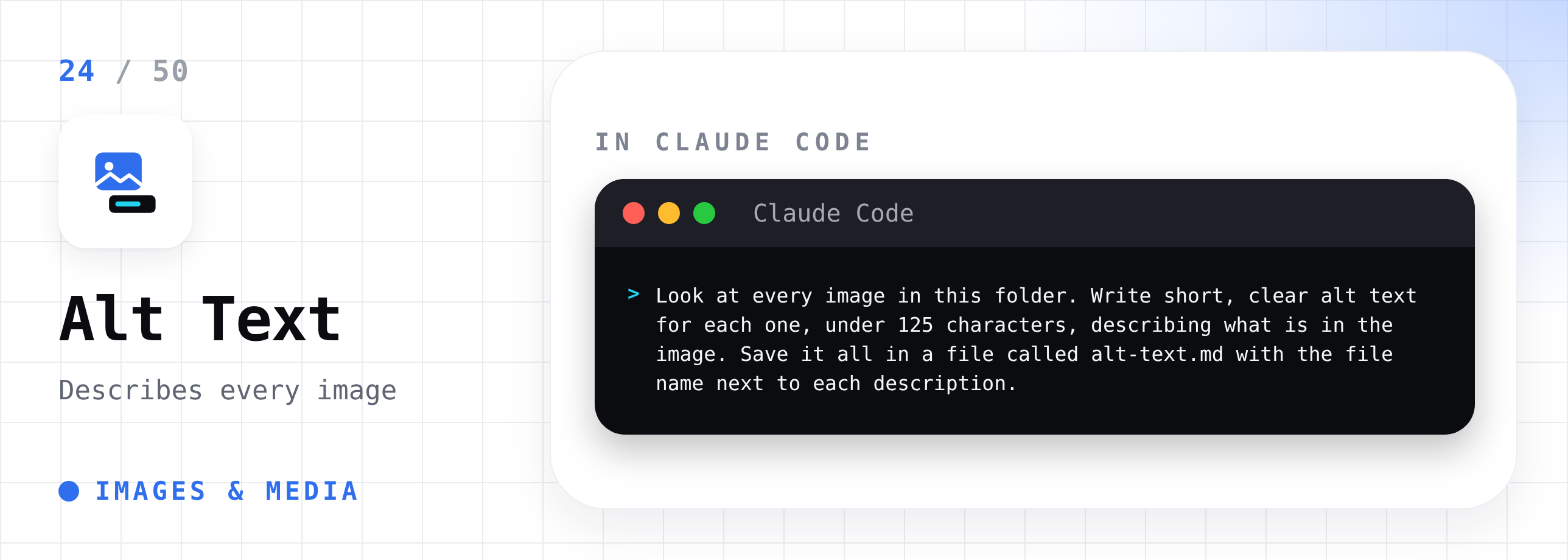
25. Pull the audio out of a video
Extract the audio from interview.mp4 and save it as interview.mp3 at good quality. Do not change the original video.
26. Transcribe audio files
Transcribe every audio file in this folder into text. Save each transcript as a .txt file with the same name as the audio file. Add timestamps every minute.
You’re halfway through the list, and my coffee cup is empty again. If these prompts look useful, refill my coffee cup.
Part 5: Writing and Content
27. Turn voice notes into a draft
This folder has my voice note transcripts. Read all of them. Group my ideas into themes. Then write a first draft of an article on the strongest theme, using my own words and phrases wherever possible. Save it as draft.md.
28. Build a style guide from your own writing
Read every post in this folder. These are my best posts. Write a style guide called my-voice.md that describes how I write: sentence length, words I use often, how I open posts, how I end them, and things I never do. Use real examples from my posts.This one is worth doing first. Every writing prompt after it gets better when Claude can read it my-voice.md.
29. Repurpose one article into many posts
Read newsletter.md and my-voice.md. Turn the newsletter into 5 LinkedIn posts and 5 X posts in my voice. Each post should cover one idea from the newsletter. Save them in a file called posts.md.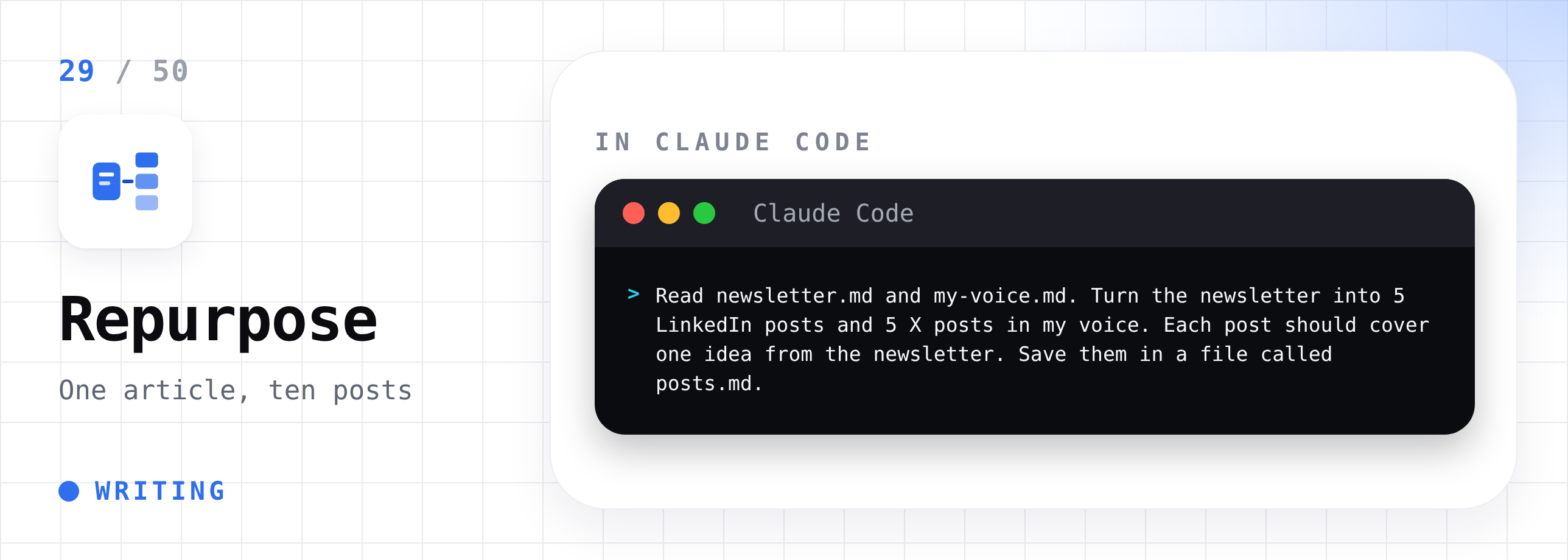
30. Get honest feedback on a draft
Read draft.md. Act as a tough editor. Tell me where the hook is weak, where I lose the reader, which sentences are too long, and which claims need proof. Do not rewrite it. Just give me the feedback, section by section.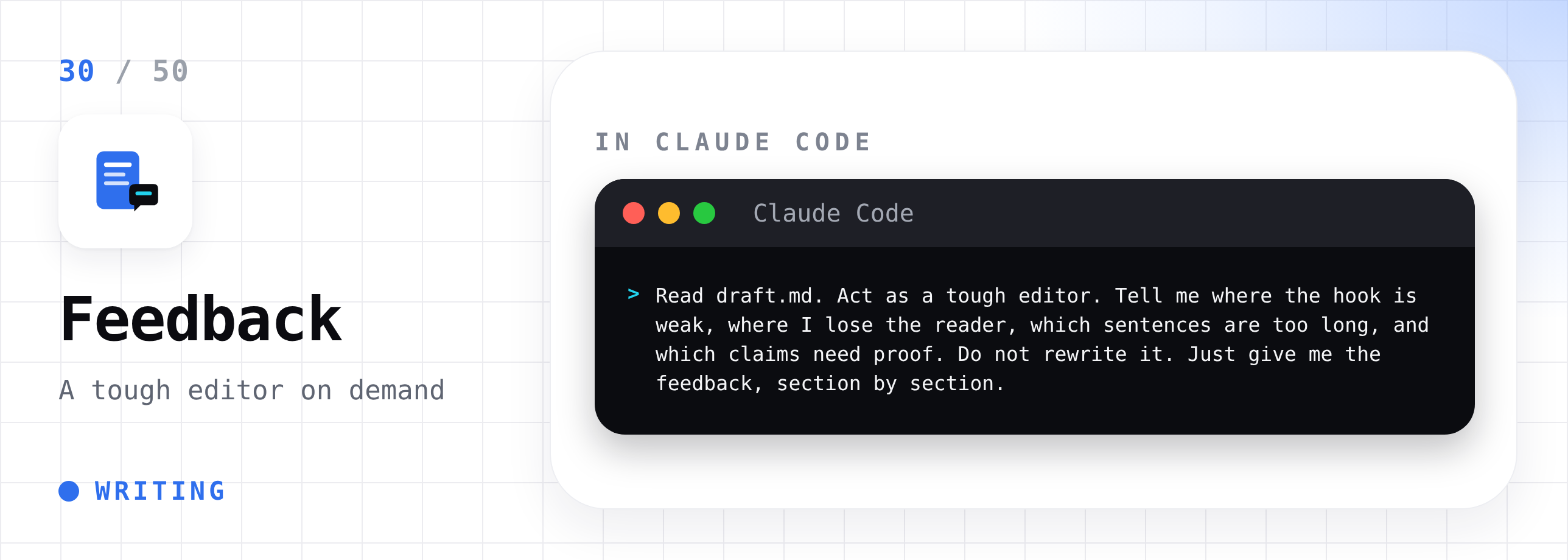
31. Find gaps in your content archive
Read every article in this folder. List the topics I have already covered. Then list 10 topics my readers would want that I have not written about yet, based on what I already cover.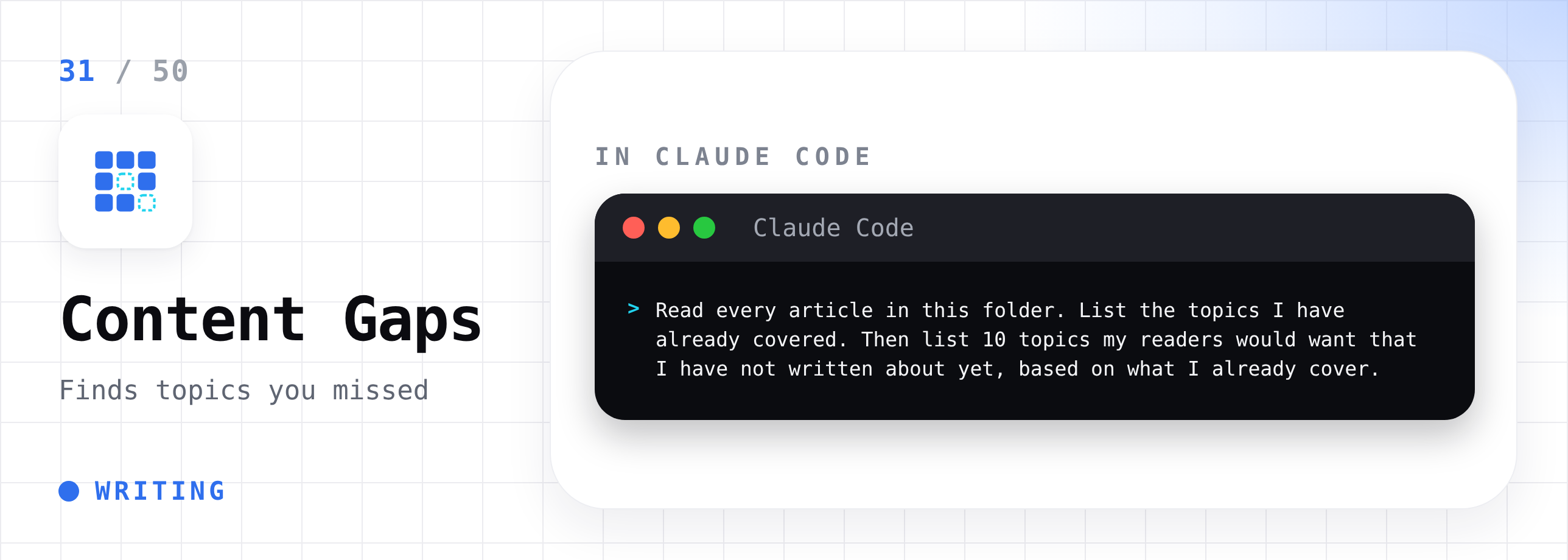
32. Research a topic with sources
Research the topic "how solopreneurs use AI for customer support." Find at least 8 recent sources. Write a research brief called research.md with the main findings, and a link for every claim. Mark anything you could not confirm.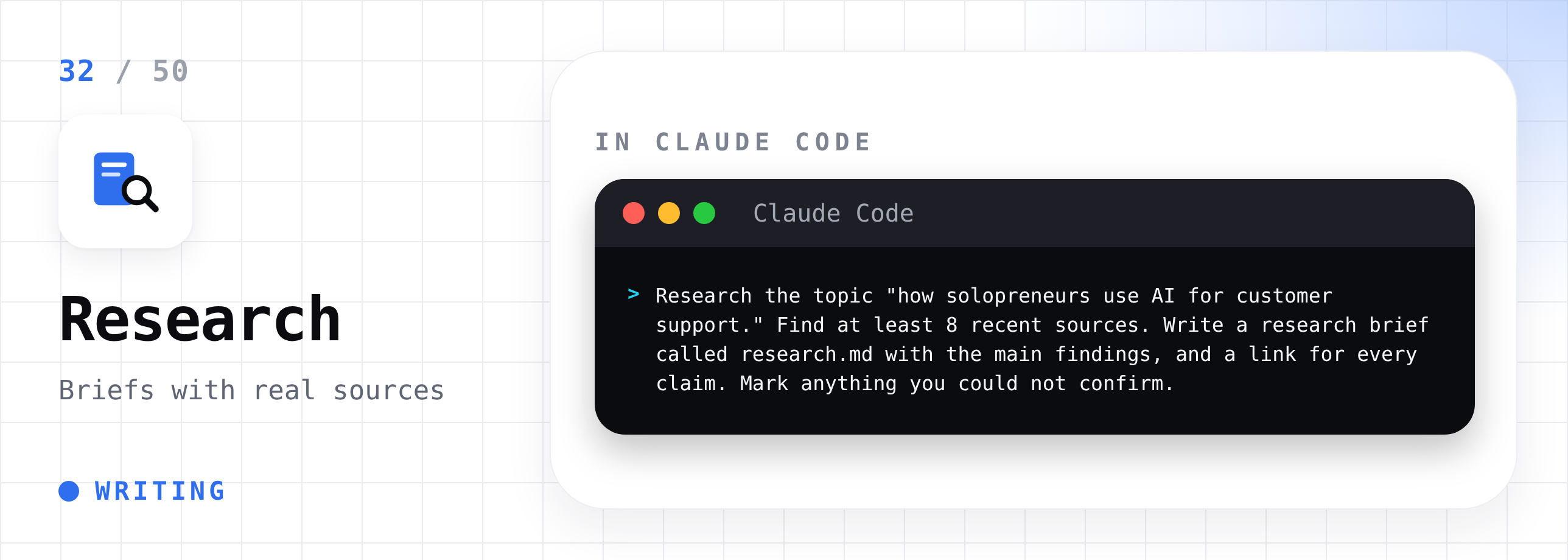
33. Turn a long video transcript into notes
Read transcript.txt. Pull out the 5 most useful ideas, any tools or books mentioned, and any steps I could actually follow. Save it as notes.md with clear headings.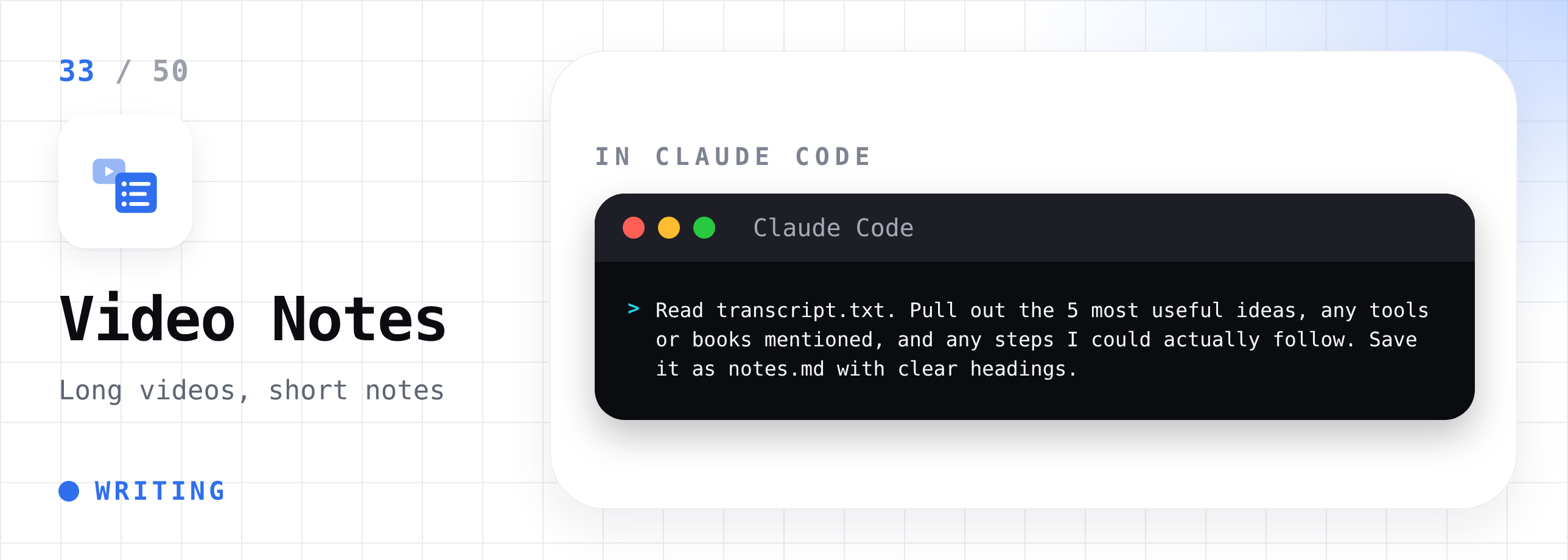
34. Plan a month of content
Read my-voice.md and the topics list in topics.md. Build a 4-week content calendar with 3 posts per week. For each post, give a working title, the main point, and the format. Save it as a spreadsheet called content-calendar.xlsx.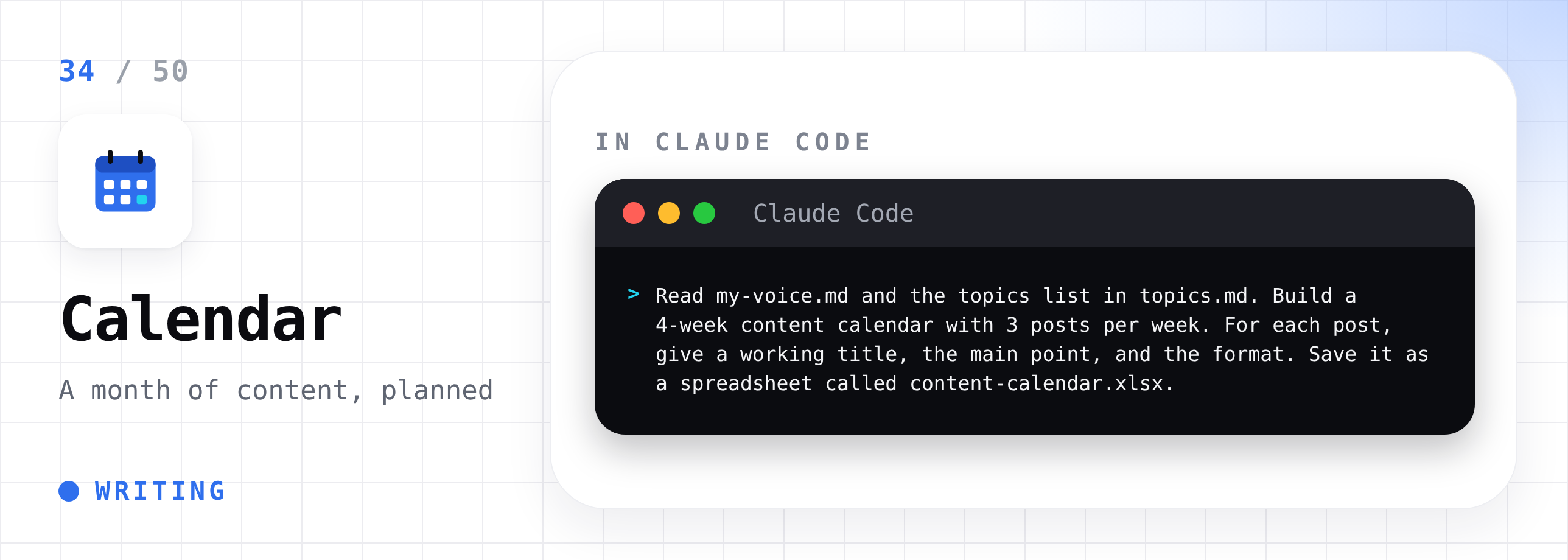
These eight prompts cover the full writing cycle.
If you want more for your daily work, here are the 15 Claude prompts that save me 30 hours:

I spent two days testing these so your friends don’t have to. If you know someone who uses Claude, send this list to them.
Part 6: Research and Thinking
35. Find patterns in customer calls
This folder has transcripts of my customer calls. Read them all. List the top 5 problems customers mention, how many calls mention each one, and one short quote per problem. Save it as customer-insights.md.
36. Spot habits in your own meetings
These are transcripts of my meetings. Find every moment where I avoided a hard conversation, changed the subject, or agreed too quickly. Show me the moment and explain what I could have said instead.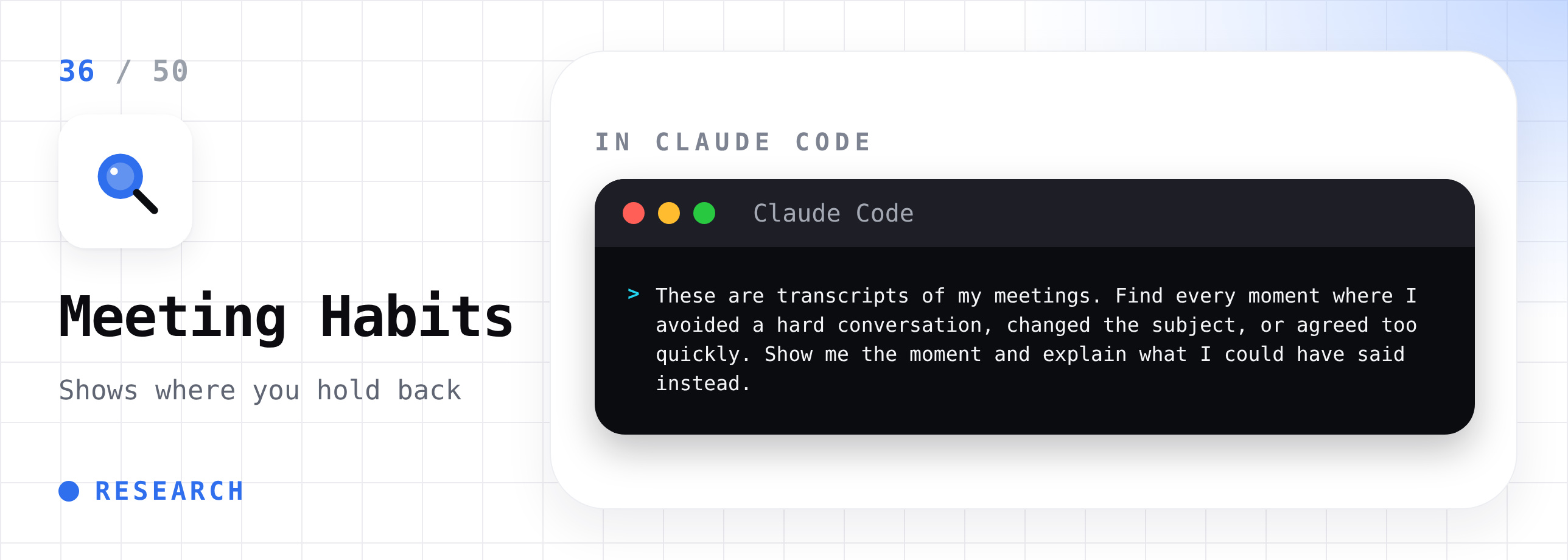
37. Compare competitors
Visit the websites of these three companies: notion.com, coda.io, and clickup.com. Compare their pricing, main features, and who they say they are for. Put it in a table in a file called competitors.md.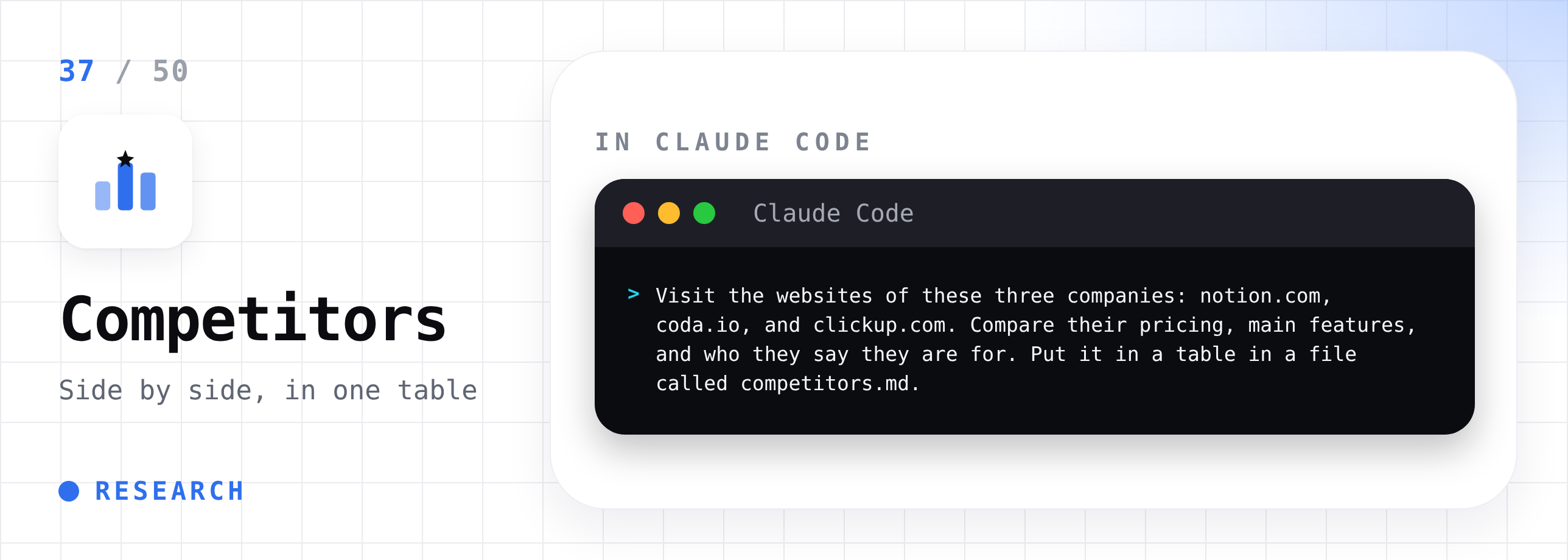
38. Write a decision memo
I am deciding whether to move my newsletter from a free model to a paid model. Ask me 5 questions first. Then write a one-page decision memo with the options, the pros and cons of each, and the questions I still need to answer. Save it as decision.md.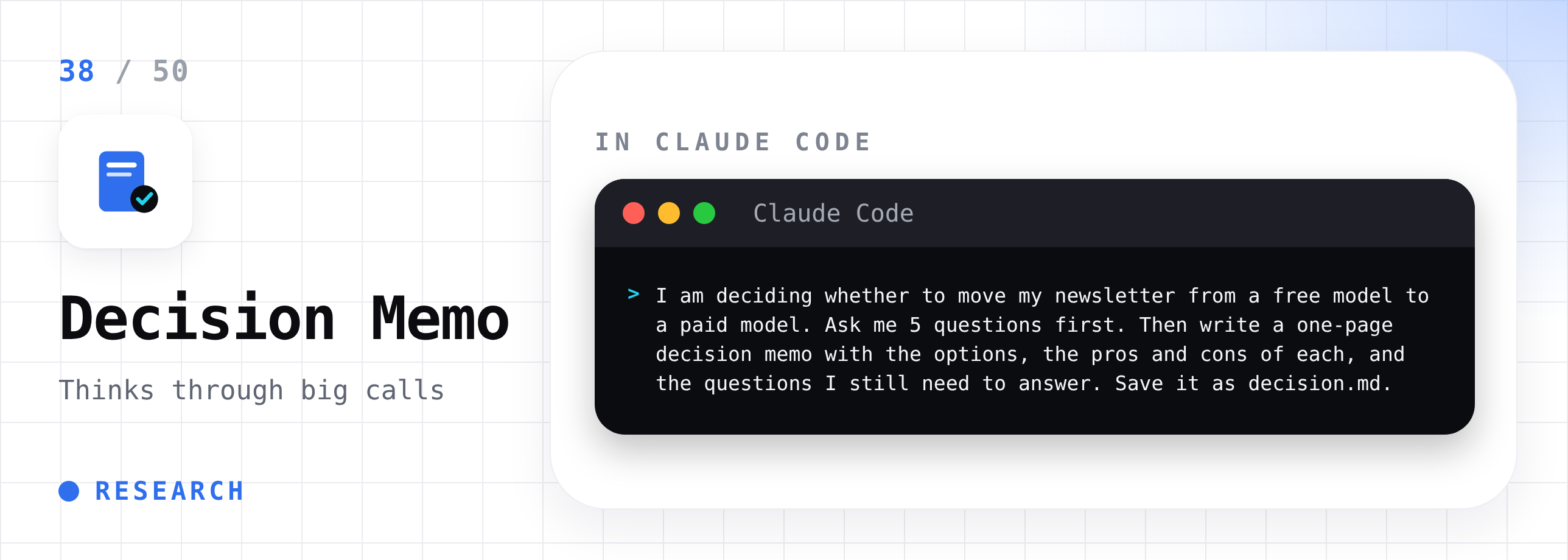
39. Run a weekly review of your journal
Read my journal entries from the past 7 days in this folder. Compare what I said I would do with what I actually wrote about doing. List the gaps, any patterns you notice, and 3 small changes for next week.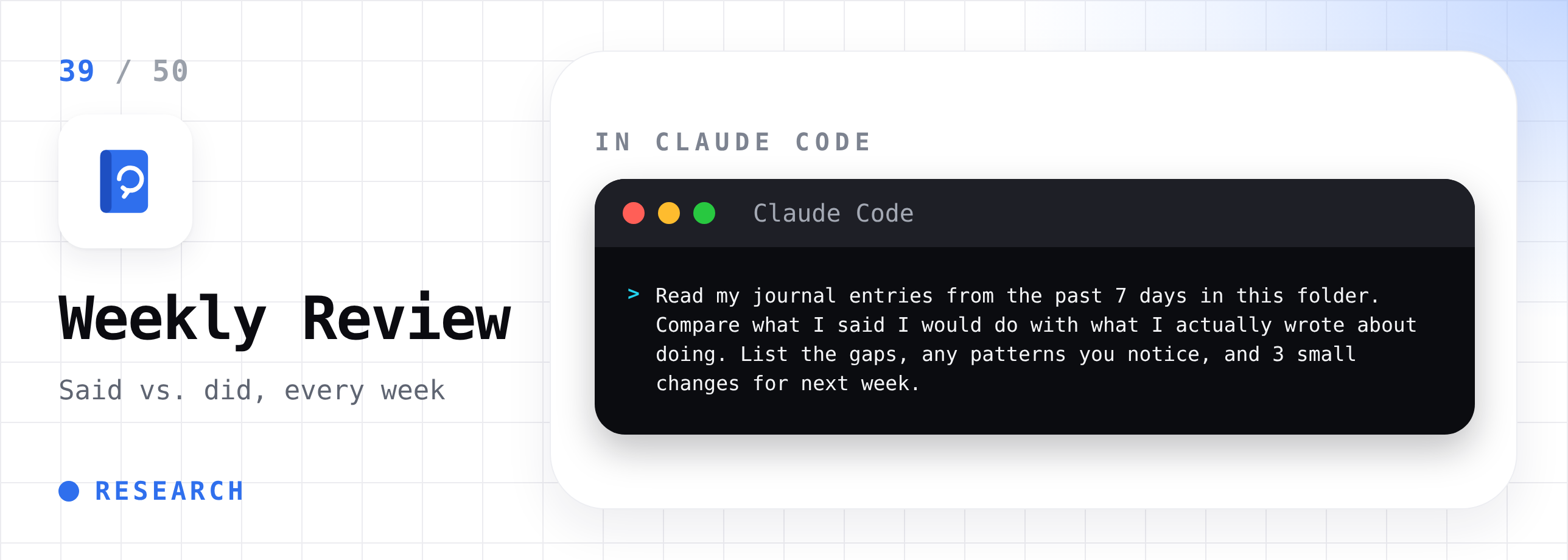
Part 7: Business and Admin
40. Write a full hiring kit
This folder has our current job descriptions and two examples from other companies. Write a full hiring kit for a new role called Content Marketing Manager: the job description, a 4-stage interview plan, interview questions for each stage, and a scoring rubric. Save each part as its own file.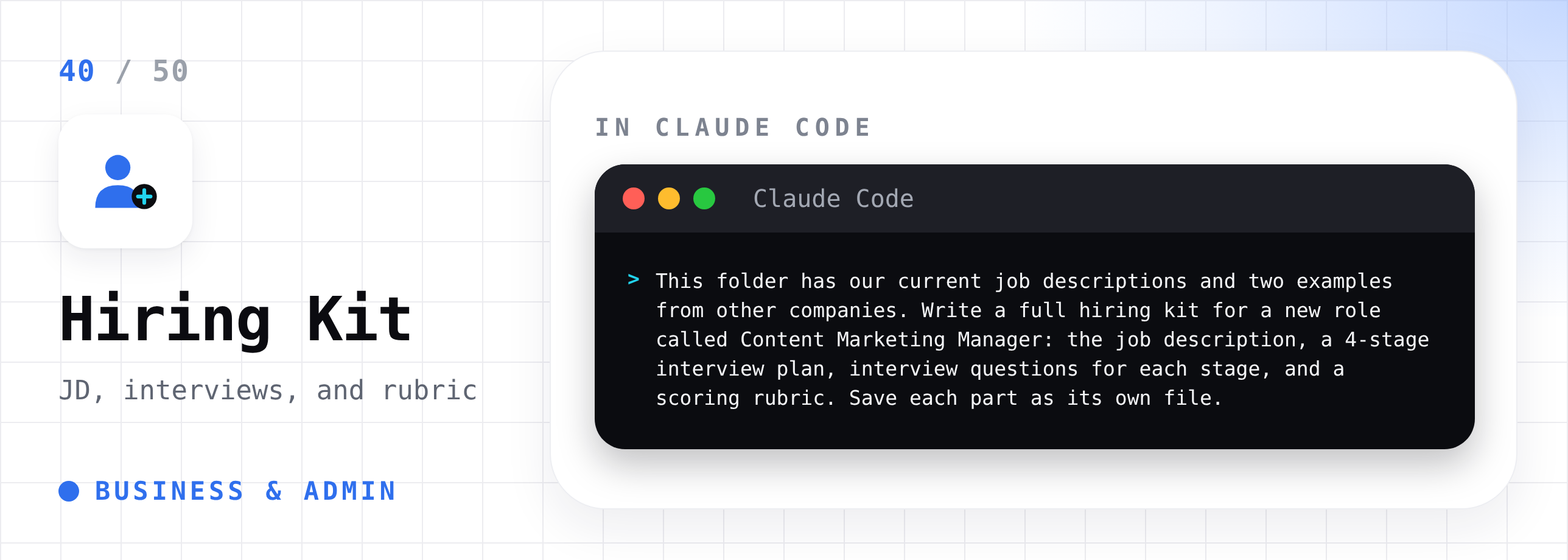
41. Clean up a messy CRM export
Clean up contacts.csv. Remove duplicate rows, fix capitalization in names, remove empty rows, and keep only these columns: company, name, email, last contacted. Save the clean version as contacts-clean.csv. Tell me how many rows you removed and why.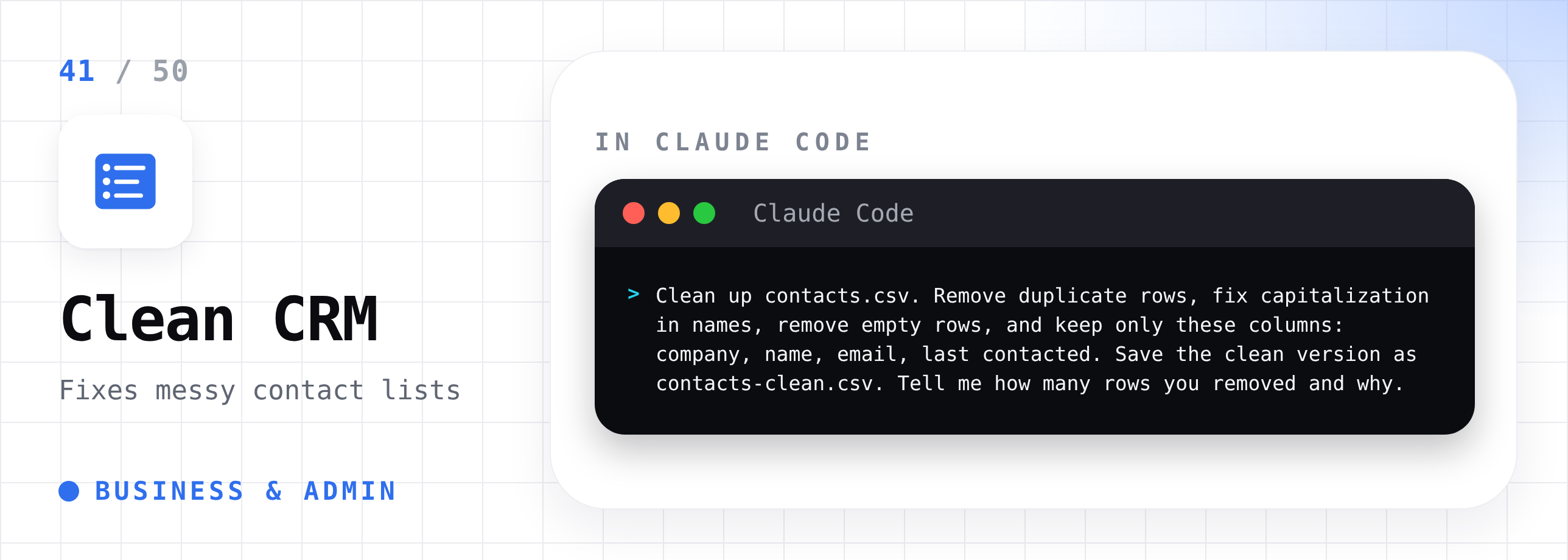
42. Analyze your sales spreadsheet
Read sales.xlsx. Tell me my best and worst months, my top 5 products by revenue, and any trend I should know about. Add a new sheet with a simple chart of monthly revenue. Explain everything in plain English.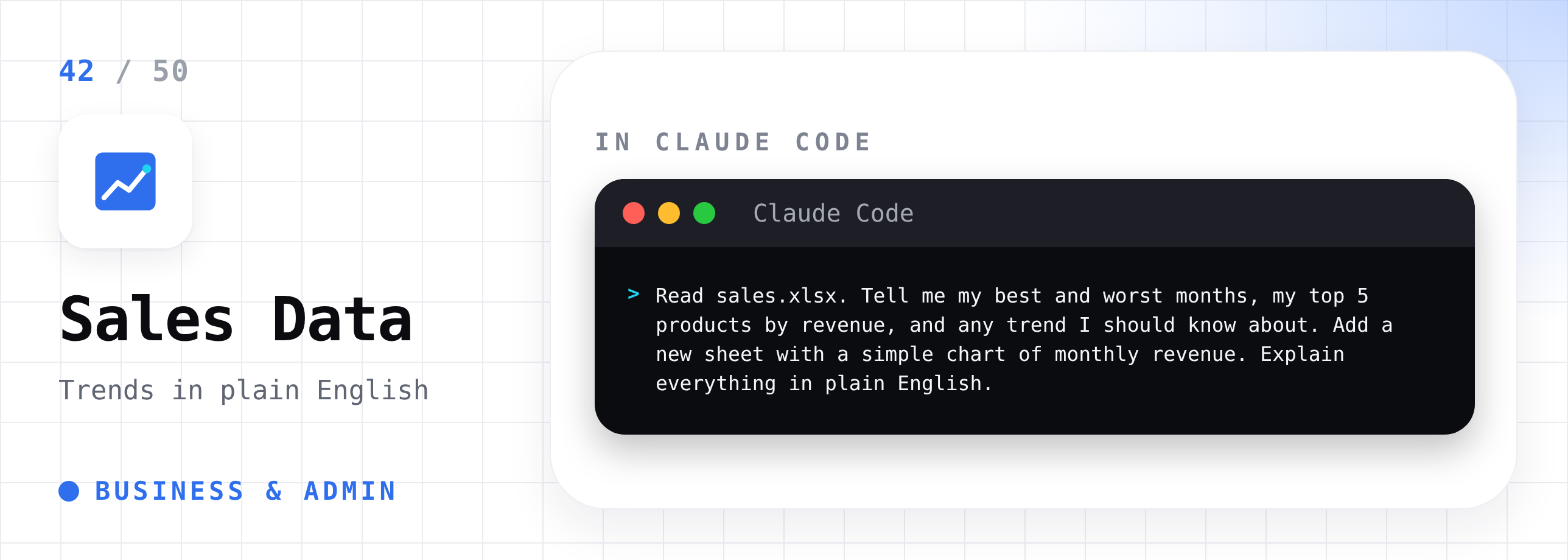
43. Categorize your expenses
Read bank-export.csv. Put each transaction into a category: Software, Food, Travel, Rent, Marketing, or Other. Add a new column for the category. Then create a summary showing total spend per category for each month.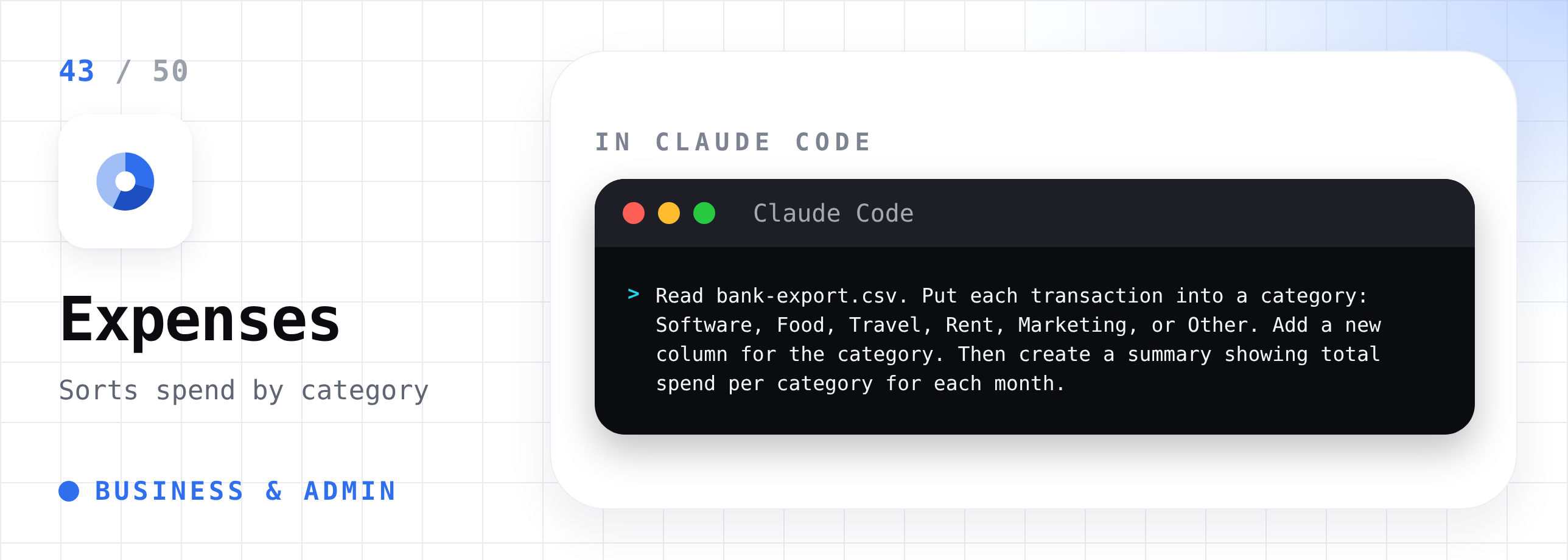
44. Create invoices from a template
Use invoice-template.docx and the client list in clients.xlsx. Create one invoice per client, filling in their name, address, amount, and today's date. Save each invoice as a PDF named after the client.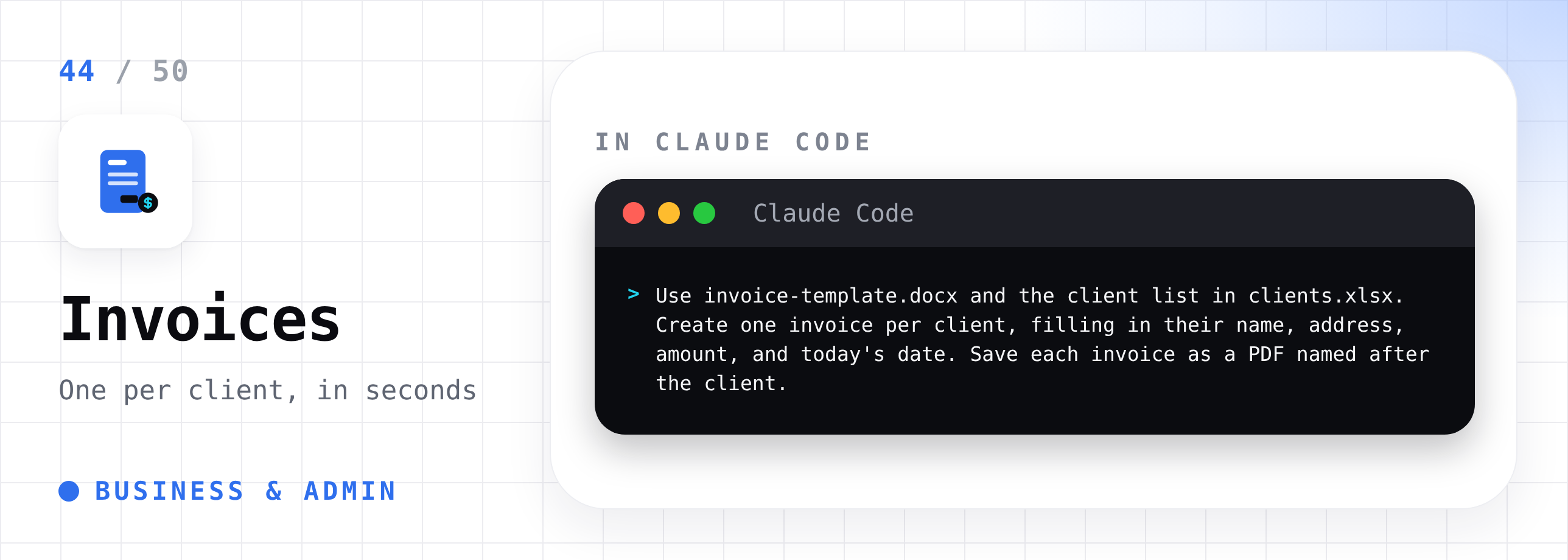
45. Pick a fair giveaway winner
Read entries.csv. Remove duplicate emails so each person only has one entry. Then pick one random winner and show me the row number, name, and email. Explain how you picked it so I can share that it was fair.
46. Brainstorm available domain names
I am launching a newsletter about AI for small business owners. Suggest 20 short domain names across .com, .co, and .ai. Check which ones look available to register and show only those in a table.
Part 8: Personal Life
47. Build a study plan
I want to learn the basics of personal finance in 30 days. Build a day-by-day study plan with one small lesson per day and one free resource for each lesson. Save it as a spreadsheet called study-plan.xlsx.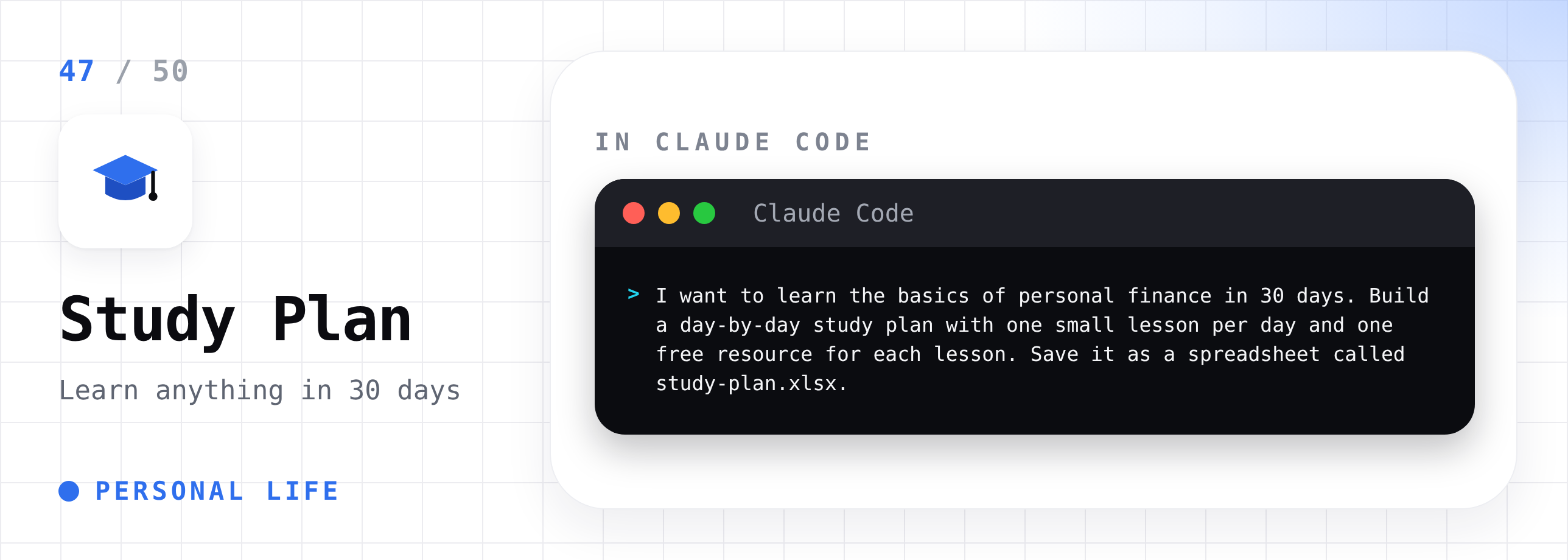
A plan only works if the learning sticks.
I shared my full method for learning faster with Claude here:
Learn Anything Faster With Claude

You read an article. You watch a tutorial. You highlight half the page.
48. Organize family photos by year
Sort every photo in this folder into folders by year and month, like 2024/03-March, using the date each photo was taken. Show me the plan first and wait for my approval.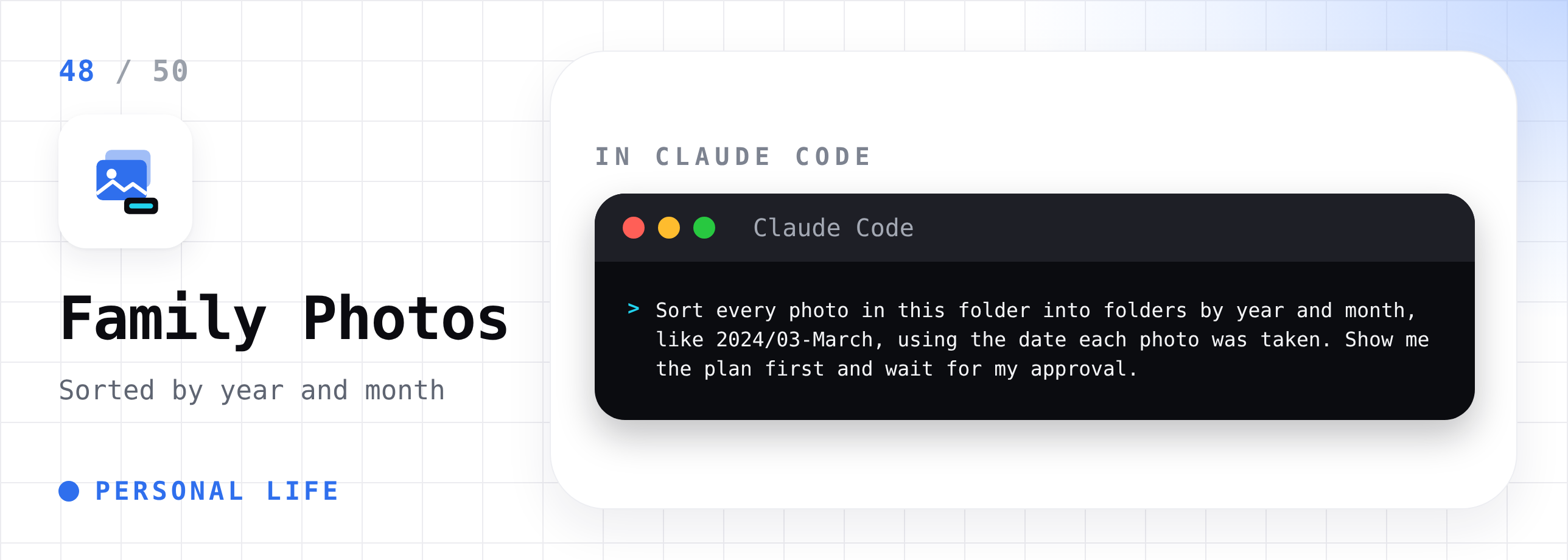
49. Make a simple monthly budget
Create a monthly budget spreadsheet called budget.xlsx with income, fixed costs, variable costs, and savings. Add formulas so the totals update on their own. Include a short guide on the first sheet explaining how to use it.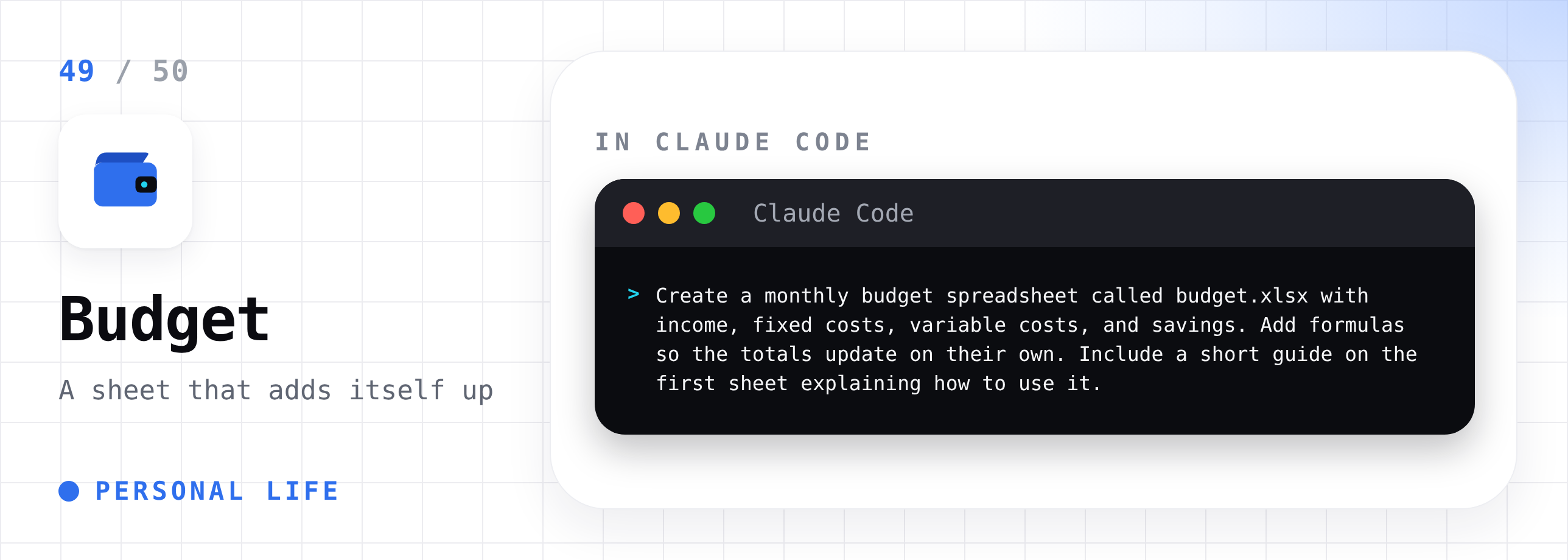
Want Claude to go past the spreadsheet and actually help you plan your money?
Here is how I use Claude as a financial advisor:

50. Back up your important folders
Copy everything in my Documents folder into a new folder called Backup-2026-11-12 on my external drive. Check that every file copied correctly. Tell me how many files were copied and if any failed.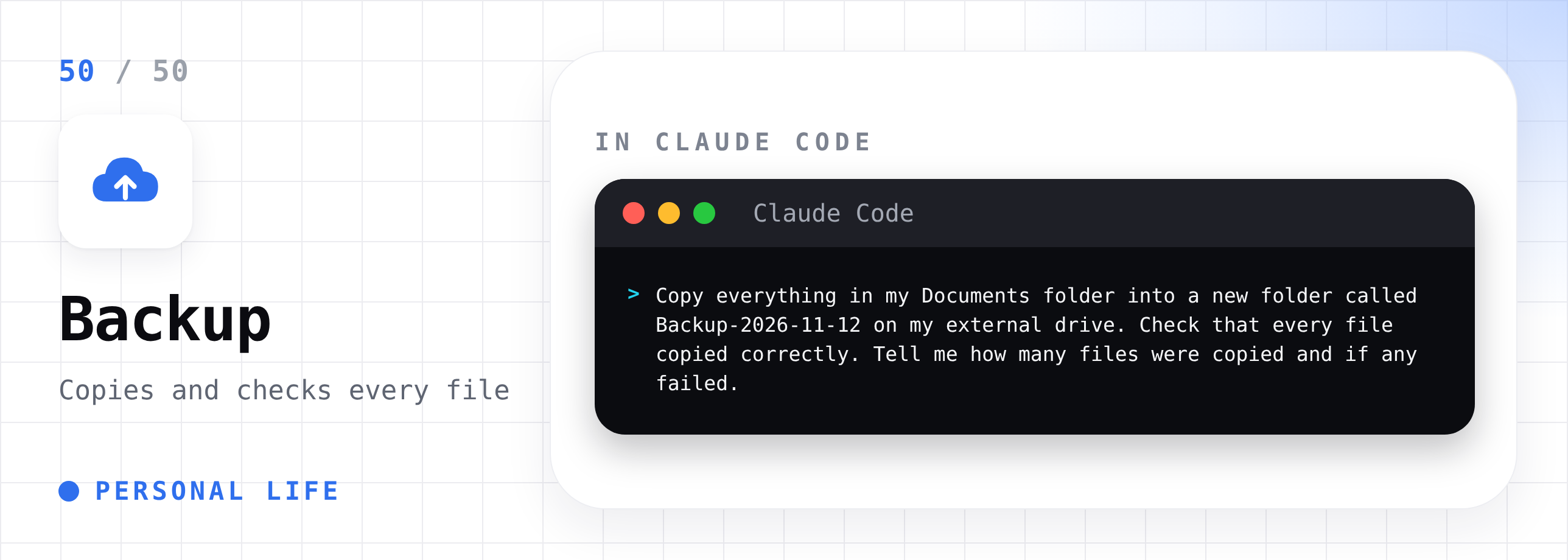
This guide took me two days and a lot of coffee to put together. If it helped you, share it with one friend.
Slow Down for a Second
Here is the mistake I see people make with a list like this.
They read all 50. They save the page. They try none of them.
Do not do that.
Pick one task that annoyed you this week.
Just one.
Open the Code tab, point it at a copy of the folder, and paste the prompt.
The first time Claude finishes a job you would have spent an hour on, something clicks.
You stop seeing Claude as a chatbot.
You start seeing every boring task as something you can hand off.
That shift is the real value here. The prompts are just the door.
Once you trust it with small jobs, the next step is letting it finish bigger ones without you watching every move.
I wrote about that here:

Make It Faster: Save Your Favorites as Skills
Once you find a prompt you use every week, you should not paste it every time.
Claude Code lets you save repeatable instructions as skills.
Then you type a short command, and Claude runs the whole thing.
I walked through how to build your first skill here:

Recap Checklist
☐ Download the Claude desktop app
☐ Open the Code tab
☐ Choose Local and open a folder
☐ Set permission mode to Manual
☐ Duplicate your folder before any rename, move, or delete
☐ Pick one task from the 50
☐ Paste the prompt and approve each change
☐ Save the prompts you use most as skills
We tested it in public. Now go use it in private.
Two days, one laptop, and too many coffee cups went into this issue. If you want the next one, keep my coffee coming.
PS. Which of these 50 tasks eats up the most of your time right now?
Hit reply and tell me.
The most common answer becomes a full step-by-step issue.