

Let me ask you something, honestly.
Have you ever opened Claude Code, typed something in, got a great answer, and then watched it completely forget everything you just told it 10 minutes later?
You’re not imagining it. It’s not a bug. It’s a setup problem.

And the fix takes 5 minutes.
By the end of this issue, you’re getting a complete, copy-paste starter kit, a ready-to-use folder setup you can drop into any project and start using immediately. No technical background needed.
THE AI VAULT IS OPEN
Every guide, kit, template, and prompt library I’ve built - in one place. Organized. Searchable. Growing every week. Here’s how access works:
Paid Members: Get one specific guide related to the newsletter from the Vault every issue. Yours for a week.
Founding Members: Full access to everything inside the Vault. Every guide. Every kit. Every drop. Forever.
We’re 2-3 months away from 10K+ subscribers. The moment we hit that number, we’re launching a private free community - exclusively for AI In Public readers.
Last month, I rebuilt a project from scratch after losing 4 hours to this exact problem.
I had Claude Code running. It was doing great work. Then the session got long, context got messy, and it started making decisions that contradicted everything I’d told it earlier.
I’d given Claude no memory. No rules. No guardrails.
It was like hiring a brilliant assistant and forgetting to tell them who they work for.
Here’s the setup I use now. It’s the difference between Claude Code that forgets and Claude Code that actually works.
Quick note: Anthropic published the official Claude Code docs here
→ docs.anthropic.com
What I’m showing you is the production setup they don’t walk you through.
If this is useful, forward it to one person who’s been struggling with Claude Code. It takes 10 seconds.
What changes when you actually set this up?
Right now: You open Claude Code, type a request, get a good answer, and watch it forget everything 10 minutes later. Every session starts from zero. You repeat yourself constantly. You’re not building anything - you’re just prompting.
After one week with AI In Public: You have a working CLAUDE.md, a folder structure, and at least one Skill running. Claude stops forgetting. Your sessions have rules. You feel the difference immediately.
After one month with AI In Public: You have a personal system. Hooks that protect your work. Specialists that run automatically. A second-opinion checker that catches mistakes before they cost you. You’re not prompting Claude anymore - you’re managing it.
After one year with AI In Public: Claude Code is part of how you work. Not a tool you open occasionally. A system running in the background of everything you build, write, and ship. You’ve automated the repetitive parts. You’re ahead of 95% of people who still treat it like a chat box.
That’s the gap this issue closes.
What’s Actually Going On
Most people think Claude Code is just a smarter ChatGPT for coding.
It’s not. It’s closer to a full employee.
The problem is: most people give it zero onboarding. No instructions. No rules. No context about what you’re building or how you work.
The fix is what I call the 5-layer setup. Think of it like building your AI assistant a proper workspace instead of just handing them a keyboard and walking away.
Here’s what each layer does:
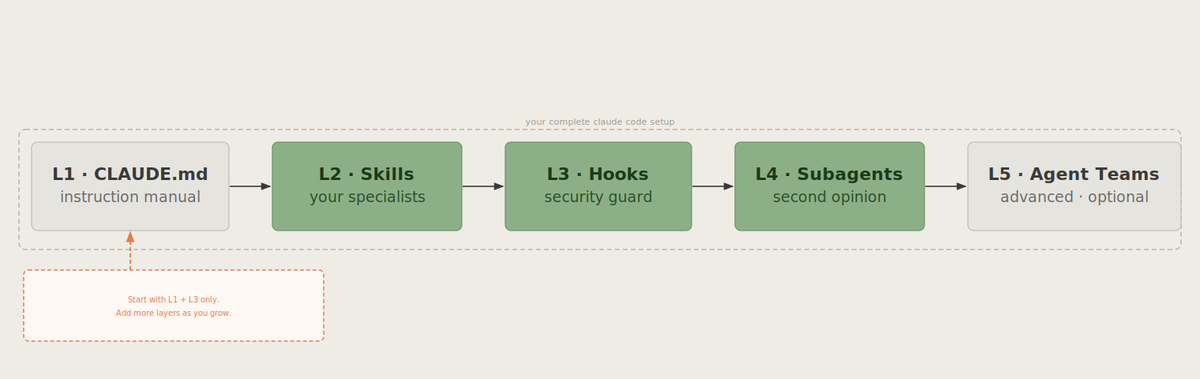
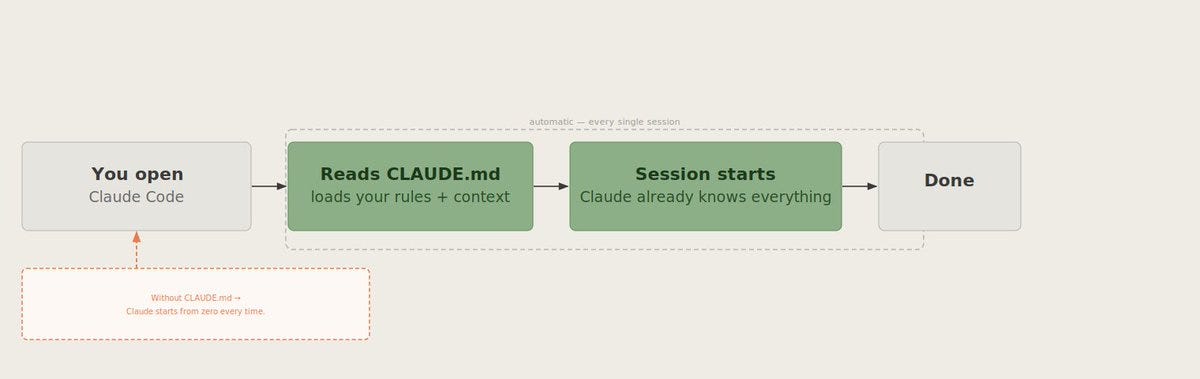
Layer 1 - The Instruction Manual (CLAUDE.md): A document Claude reads at the start of every single session. It’s where you write your rules, your preferences, and your project details. Think of it like the onboarding doc you’d give a new team member on their first day.
Layer 2 - The Specialists (Skills): Pre-trained mini-experts you can summon for specific jobs. One for reviewing your work. One for writing descriptions. One for running tests. Claude calls them automatically when it recognises the right moment.
Layer 3 - The Security Guard (Hooks): Non-negotiable rules that can never be skipped. Things like: never delete these files. Never send anything without checking first. Always run a check before finishing. Unlike regular instructions, hooks cannot be ignored.
Layer 4 - The Second Opinion (Subagents): A fresh copy of Claude that reviews the work with zero bias. It doesn’t know what your main session is doing. So it catches mistakes that the main session might miss.
Layer 5 - The Team (Agent Teams): Multiple Claude sessions working together, sharing tasks, and messaging each other. This is the most powerful setup and the newest. You probably won’t need it on day one. But it exists.
Step 1: Build the Folder
Before you do anything else, your project needs a home.
Think of this like setting up a new office. You need a place for instructions, your specialists, your security rules, and your tools.
Here’s the folder setup that works:
your-project/
├── CLAUDE.md                    ← The instruction manual
├── .claude/
│   ├── settings.json            ← Shared rules (everyone on your team sees these)
│   ├── settings.local.json      ← Your personal rules (private, not shared)
│   ├── skills/
│   │   ├── review/SKILL.md      ← Your "quality checker" specialist
│   │   ├── testing/SKILL.md     ← Your "bug finder" specialist
│   │   └── writing/SKILL.md     ← Your "description writer" specialist
│   └── agents/
│       └── reviewer.md          ← Your "second opinion" checker
├── hooks/
│   └── safety-rules.sh          ← The security guard rules
└── src/                         ← Your actual work goes here
How to set it up:
Create a new folder for your project
Copy this structure into it (we’ll fill in the details in the next steps)
The .claude/ folder is where all the Claude-specific stuff lives
Note: You can do the same step with Claude's code.
Step 2: Write Your Instruction Manual (CLAUDE.md)
This is the most important step.
CLAUDE.md is the document Claude reads before it does anything. Every single session. It’s your chance to tell Claude who you are, what you’re building, how you like to work, and what lines it should never cross.
Here’s a real, copy-paste template you can use right now:
# What This Project Is
[Write one sentence about what you're building]
Example: "This is a newsletter system that turns my notes into Substack posts."

# My Tools
- I write in [your writing tool]
- I publish on [your platform]
- I store files in [where your files live]

# My Rules — Read These Every Session
1. Never delete any file without asking me first — because I don't have backups
2. Always show me what you're going to do before you do it — because I need to approve changes
3. Keep responses short and clear — because I'm not technical and long answers confuse me
4. If you're not sure about something, ask — because guessing is worse than asking
5. Never change the design or layout without my permission — because branding matters

# What I'm Currently Working On
[Write a quick note about your current project or task]

# Things That Have Gone Wrong Before
[Optional: list anything Claude has messed up in past sessions so it doesn't repeat it]
How to fill it in:
Run
/initOpen the file, it creates, and replace the generic text with your real info
Keep it under 200 lines; the shorter and clearer, the better. Claude follows it
Step 3: Set Up Your Security Guard (Hooks)
Regular instructions are great. But some rules need to be absolute.
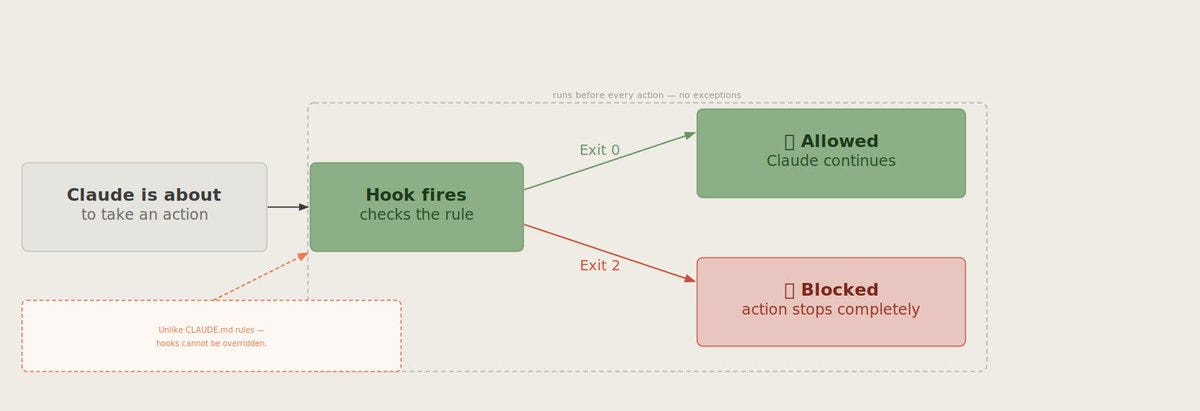
That’s what Hooks are. Think of them as a security guard who stands at the door of every action Claude takes. Before Claude does anything, the guard checks the rule. If the rule says no, it stops.
Here’s what hooks look like in plain English:
Rule 1 - The Before Check (PreToolUse): Before Claude makes any changes, check if it’s about to touch something important. If yes, stop and ask me first.
Rule 2 - The After Check (PostToolUse): After Claude makes a change, automatically run a quality check and flag anything that looks off.
Rule 3 - The Notification (Notification): When something important happens, send me a heads-up so I know what’s going on.
Here’s what your safety rules file actually looks like inside:
{
  "PreToolUse": [{
    "matcher": "any file change",
    "hooks": [{
      "type": "command",
      "command": "./hooks/check-before-changing.sh"
    }]
  }],
  "PostToolUse": [{
    "matcher": "any write",
    "hooks": [{
      "type": "command",
      "command": "./hooks/check-after-changing.sh"
    }]
  }]
}
Translation: Before touching anything, run a check. After touching anything, run another check.
The exit codes work like a traffic light. Code 0 = green, go ahead. Code 2 = red, stop completely.
Slow down here for a second
I know this step looks like the most technical part. It isn’t. The key thing to understand is this: hooks are the one part of your setup that Claude genuinely cannot ignore. Everything else, your CLAUDE.md, your rules, your preferences, Claude can technically override if it decides it knows better. Hooks cannot be overridden. That’s why they matter. Set them up once and forget about them.
Step 4: Create Your Specialists (Skills)
Here’s where things get genuinely exciting for non-technical people.
A Skill is a pre-written specialist that Claude summons automatically when it recognises the right moment. You’re not training a model. You’re just writing a plain-English description of an expert you’d like to have on call.
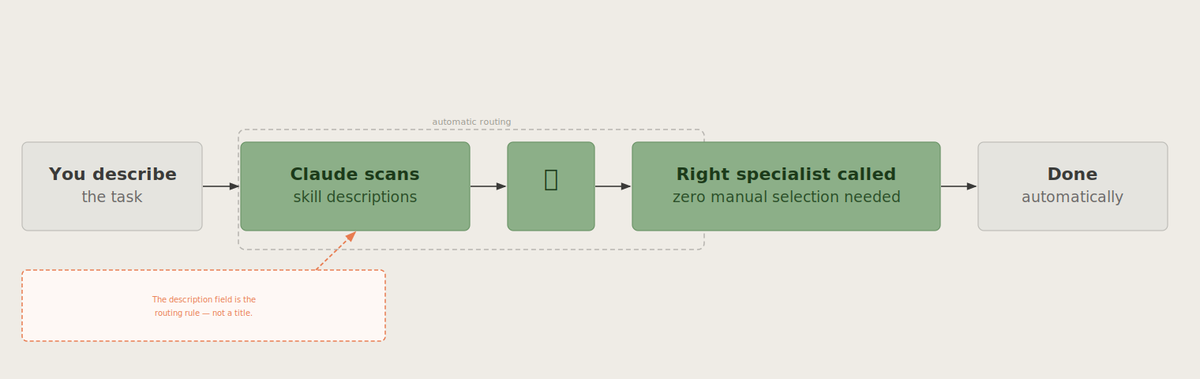
Here’s a real example. This is a “quality reviewer” Skill:
Name: quality-reviewer

What this specialist does:
Reviews any work I've created and checks for:
- Spelling and grammar mistakes
- Anything that sounds confusing or unclear
- Missing information
- Anything that doesn't match my usual style

How to use this: Call it after any major piece of work is finished.

What to look for: Read the work carefully. List any problems. Don't fix them — just flag them.

What to return: A short list of issues found. Rate each one as minor, medium, or major.
That’s it. Claude reads this and knows exactly what kind of specialist it’s talking to.
The magic part: you can have a specialist for anything. A “tone checker” that makes sure everything sounds like you. A “headline writer” who rewrites your titles to be more engaging. A “simplifier” that turns complex text into readable text. You write the job description once. Claude automatically calls the specialist whenever needed.
Share this and get rewarded
Go to AI In Public → scroll to the Leaderboard section → copy your referral link → share it with anyone.
Every signup through your link moves you up the board and unlocks real rewards.
At the end of every month, we check the leaderboard.
The top 3 get our best guide - DMed directly, no opt-in required.
Step 5: Set Up Your Second Opinion (Subagents)
This is the quality gate most people never use. And it’s the one that catches the most mistakes.
A Subagent is a completely fresh copy of Claude that looks at the finished work with zero context from your main session.
Think of it like asking a colleague to review your work before you send it. Except the colleague is fast, never gets tired, and has no reason to tell you what you want to hear.
Here’s what a simple subagent setup looks like:
Name: second-opinion-checker

What this reviewer does:
Looks at finished work and checks if it's actually good.
Has no knowledge of how the work was created.

What to check:
- Does this actually answer what was asked?
- Is there anything missing?
- Does this look like quality work to someone seeing it for the first time?

Important rule: This reviewer can only read. It cannot make changes.
Report findings only.
The rule that matters: Your second-opinion checker should never be allowed to make changes. It reads and reports. That’s it. If it can edit, it becomes part of the problem instead of the solution.
Step 6: Run the Daily Workflow
With your setup in place, every Claude Code session follows the same simple pattern.
Morning startup:
Open your project folder → type "claude" → press EnterBefore Claude writes anything: Press Shift + Tab to enter Plan Mode. This makes Claude tell you exactly what it’s going to do before it does it. Review the plan. Approve it. Then let it work.
During the session: Type /compact every 10-15 minutes. This compresses the conversation so Claude doesn’t get confused by too much history.
When you finish a task: Save your work and start a fresh session for the next task. Don’t let one session run forever. Fresh sessions mean fresh thinking.
The two keyboard shortcuts worth memorising:
Shift + Tab → Plan Mode (Claude shows you the plan first)
Esc Esc → Rewind (undo the last thing Claude did)
That’s the whole daily pattern. Plan. Approve. Execute. Check. Save. New session.
Real Use Cases (For Non-Technical People)
Content creators: Use the quality-reviewer Skill after every piece of content. Use the tone-checker Skill to make sure everything sounds like you, not like AI. Use the headline-writer Skill to get 5 title options for every post.
Business owners: Use CLAUDE.md to store your brand rules, your customer persona, and your product details. Claude will reference these automatically in every session without you having to repeat them.
Newsletter writers: Use Hooks to make sure Claude never publishes anything without your review. Use a Subagent to check every issue for clarity before it goes live.
Freelancers: Create a separate CLAUDE.md for each client. Switch between them when switching projects. Claude will automatically adapt to each client’s rules and preferences.
These are the use cases that matter. Start with one that fits your work. Add more as you go.
In 20 Seconds
→ Create the folder structure before you do anything else.
→ Write your CLAUDE.md instruction manual with real rules
→ Set up Hooks for the rules that can never be broken.
→ Add Skills for any task you repeat more than three times.
→ Use a Subagent to check finished work before it leaves
Save this. Screenshot it. Come back to it.
WHAT’S WAITING INSIDE:
Paid Members: One hand-picked AI Vault guide every issue, chosen for what we covered today.
Founding Members: Full AI Vault access. Every guide. Every kit. Forever. Plus, first access to the private community at 10K subscribers.
Everything above is free. What’s below is for paid subscribers.
