You sit down after a long day and open Netflix.
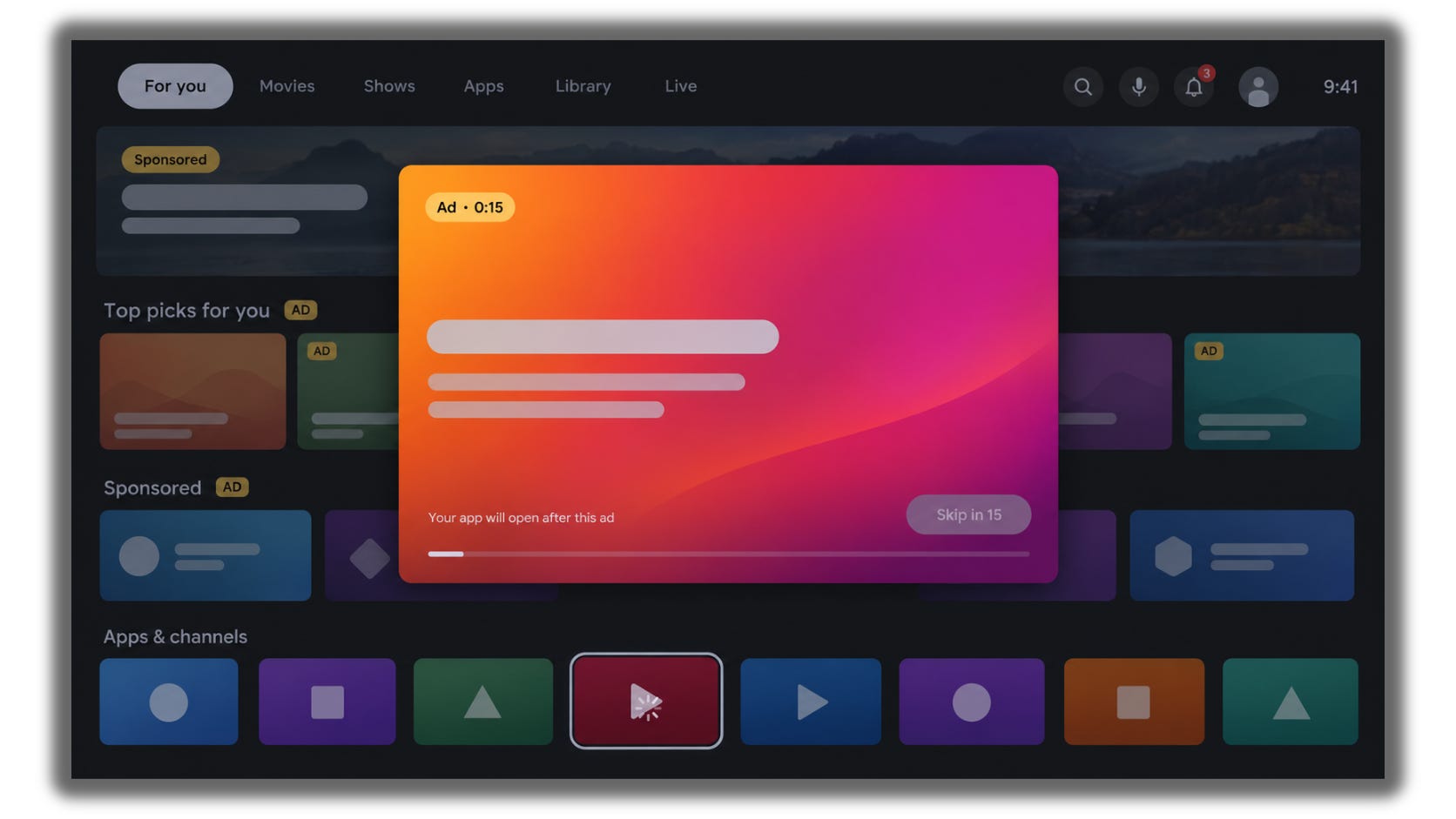
Before it even loads, your TV plays an ad.
Then come the “recommended” rows you never asked for, the sponsored apps you never installed, and a menu that freezes for two seconds every time you click.
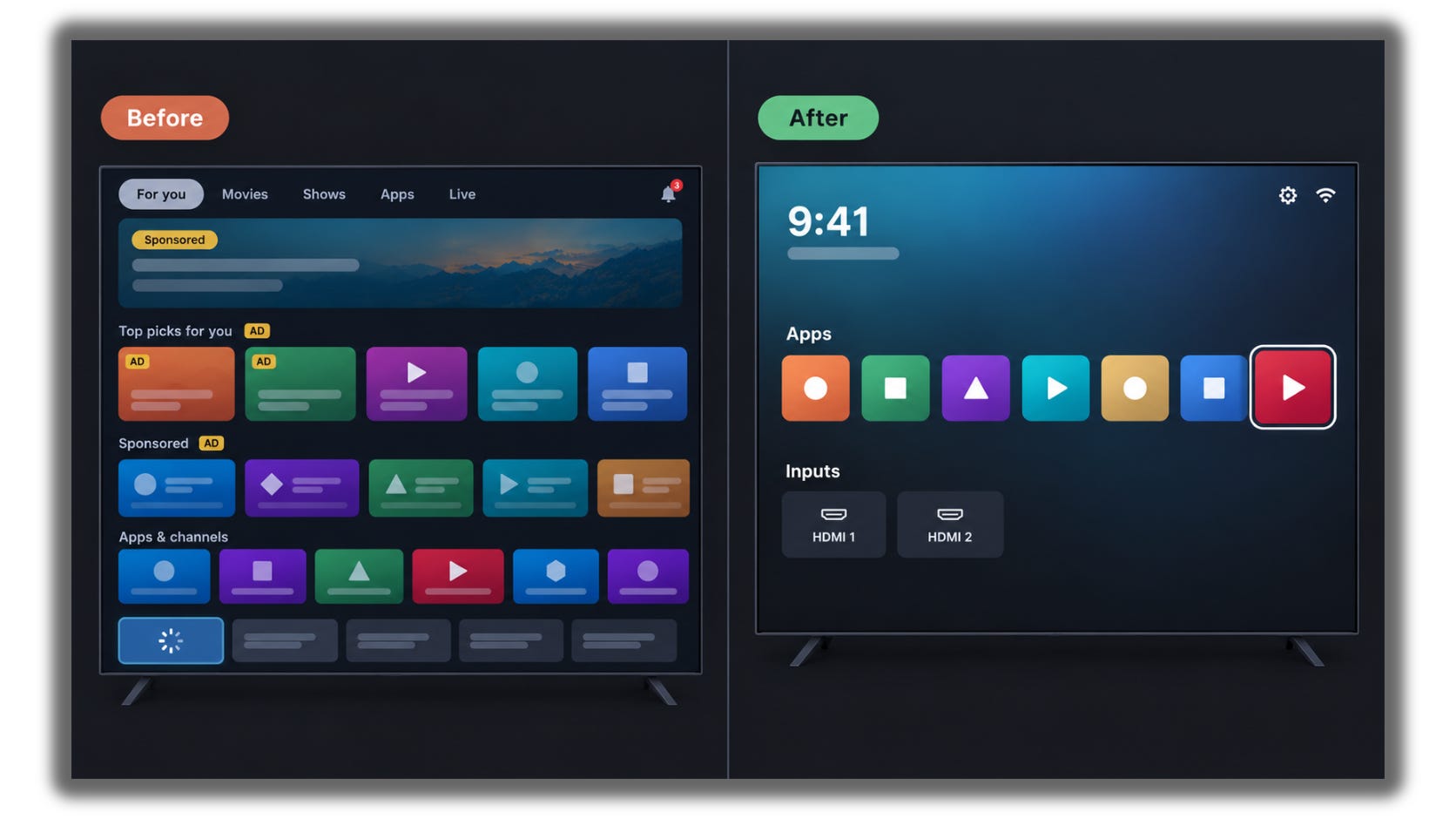
Your TV shows you ads, tracks what you watch so it can sell better ads, and runs dozens of background apps that slow the menus down.
So I opened Claude Code on my laptop, pointed it at my Android TV, and cleaned it up in one afternoon.
Here’s exactly how I did it, with every prompt ready to copy.
How It Works
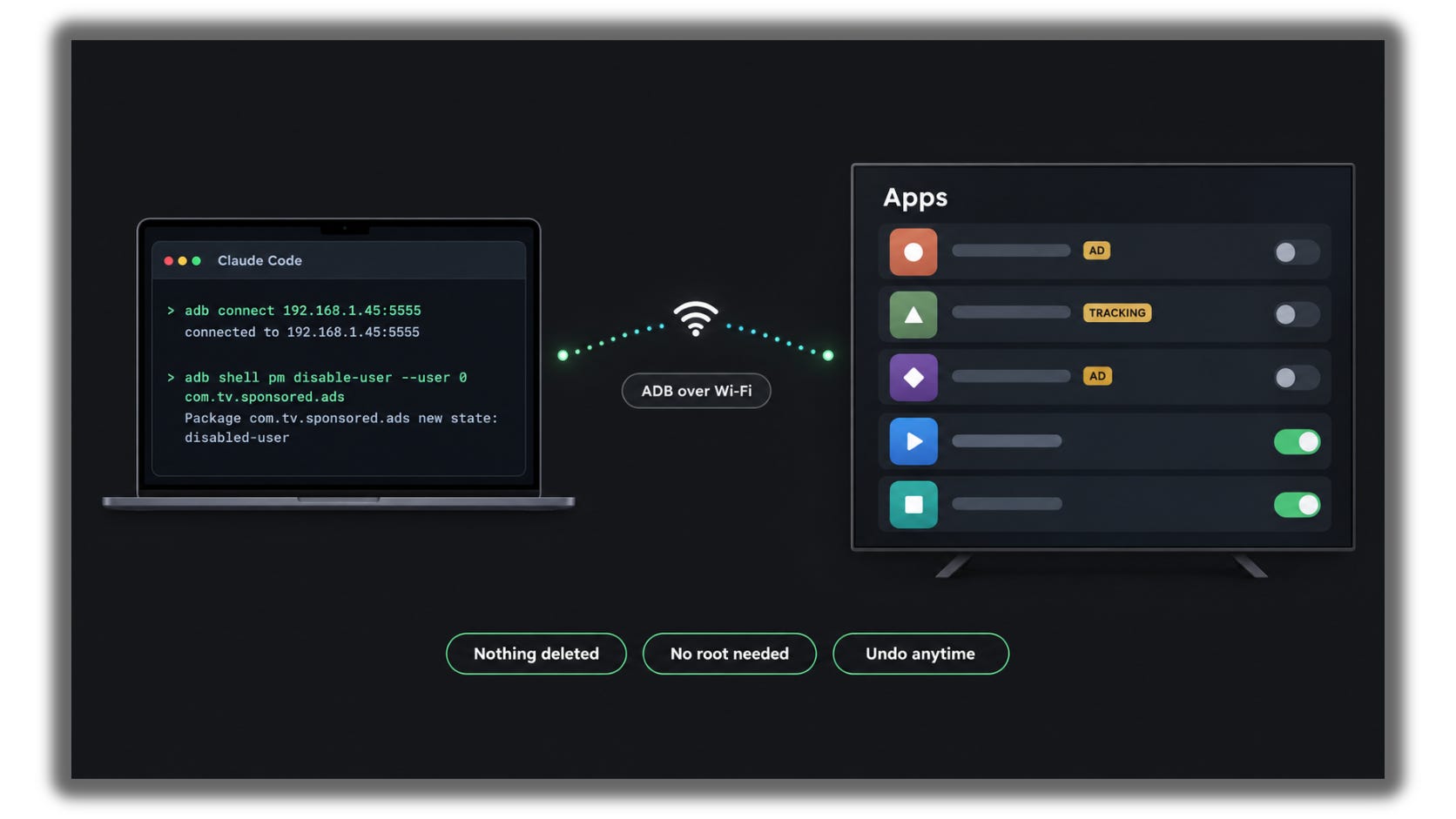
Android TVs have a hidden tool called ADB (Android Debug Bridge).
ADB lets your laptop send commands to the TV over Wi-Fi.
Claude Code uses ADB to find the ad and tracking apps and switch them off.
Nothing gets deleted. Every app can be switched back on later.
No rooting, no hacking. You use a setting the TV already has.
The whole thing took my whole day.
Know someone who yells at their TV every time an ad pops up? Send them this before they throw the remote.
What You Need
An Android TV or Google TV
A laptop on the same Wi-Fi as the TV
Claude Code
Your TV remote
So let’s begin cleaning our TV and make it ad-free.
I spent a whole day and a pot of coffee testing this so you wouldn’t have to. If it helped, buy me a coffee.
Step 1: Check Your TV
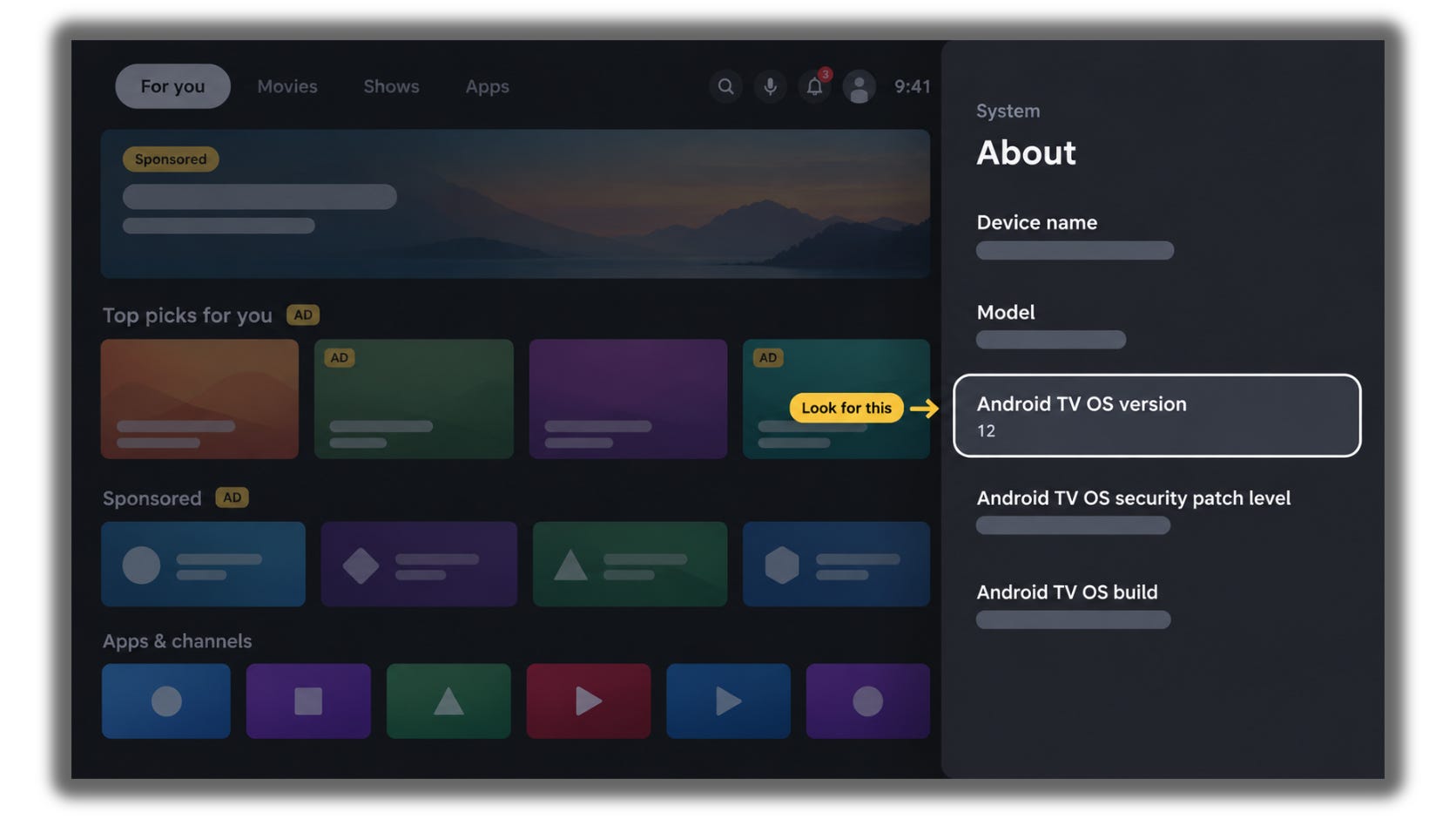
Open Settings on your TV.
Go to Device Preferences → About (on Google TV: System → About).
Look for the words Android TV or Google TV.
If you see one of them, keep going. If not, skip to “Where This Won’t Work” at the end.
Step 2: Try the Free Fix First
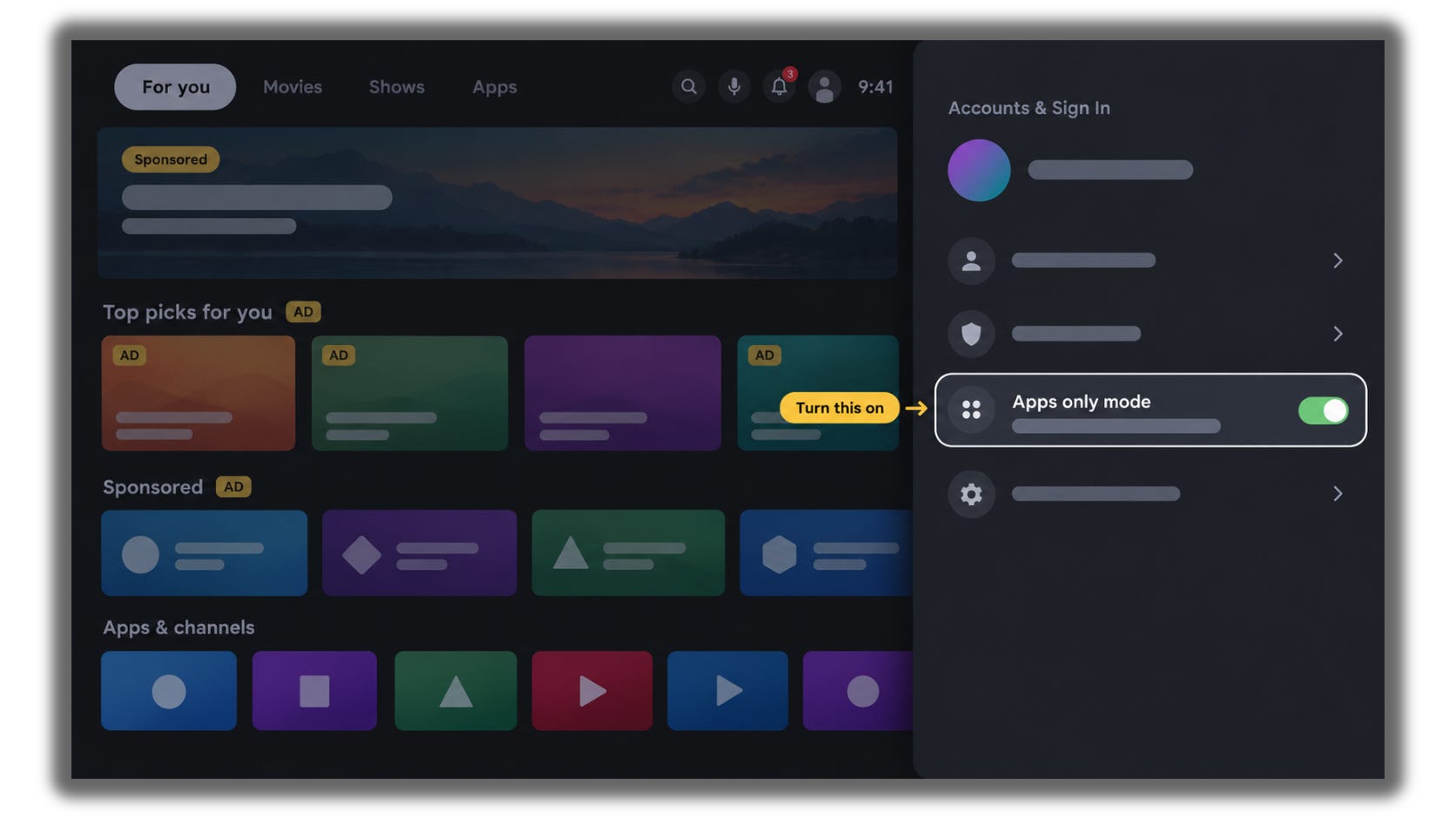
Go to Settings → Accounts & Sign In.
Pick your profile.
Turn on Apps only mode.
This hides most sponsored rows on Google TV.
If that’s enough for you, you can stop here.
Step 3: Turn On Developer Options
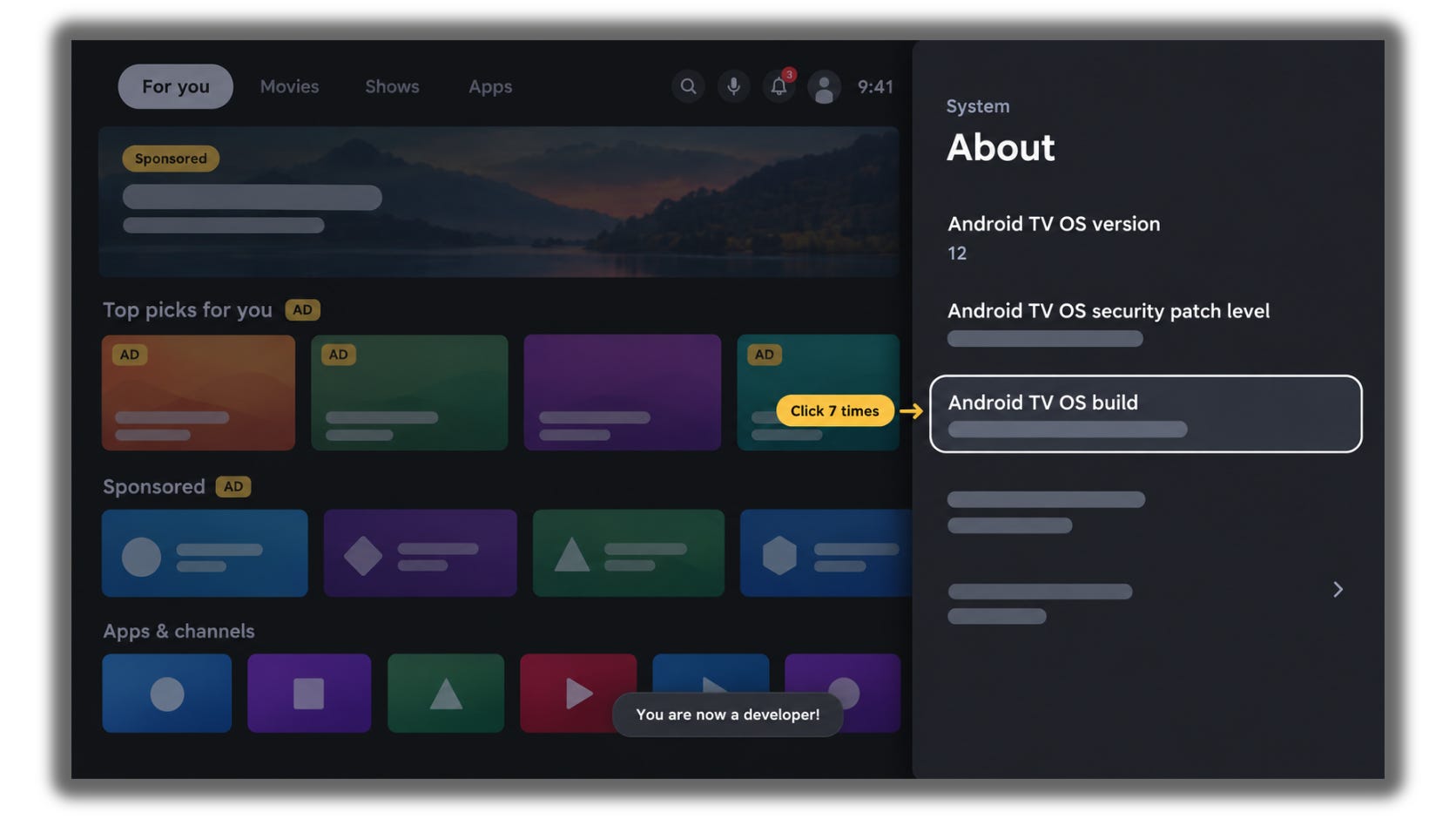
Go to Settings → Device Preferences → About (Google TV: System → About).
Scroll down to Build (Google TV: Android TV OS build).
Click it 7 times.
You’ll see “You are now a developer.”
Step 4: Turn On Debugging
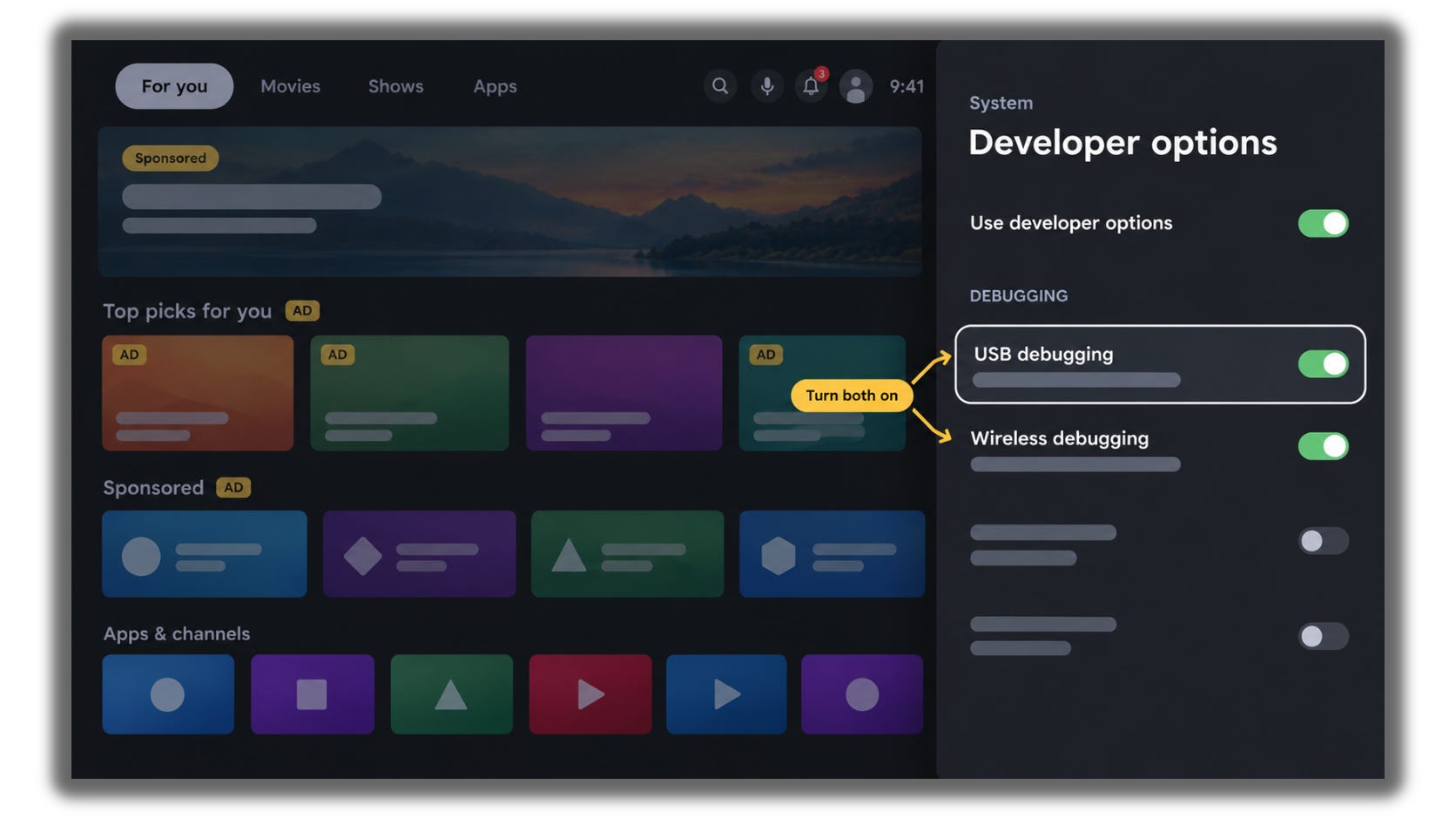
Go back to Settings and open the new Developer options menu.
Turn on USB debugging.
If you see Network debugging or Wireless debugging, turn that on too.
Step 5: Find Your TV’s IP Address
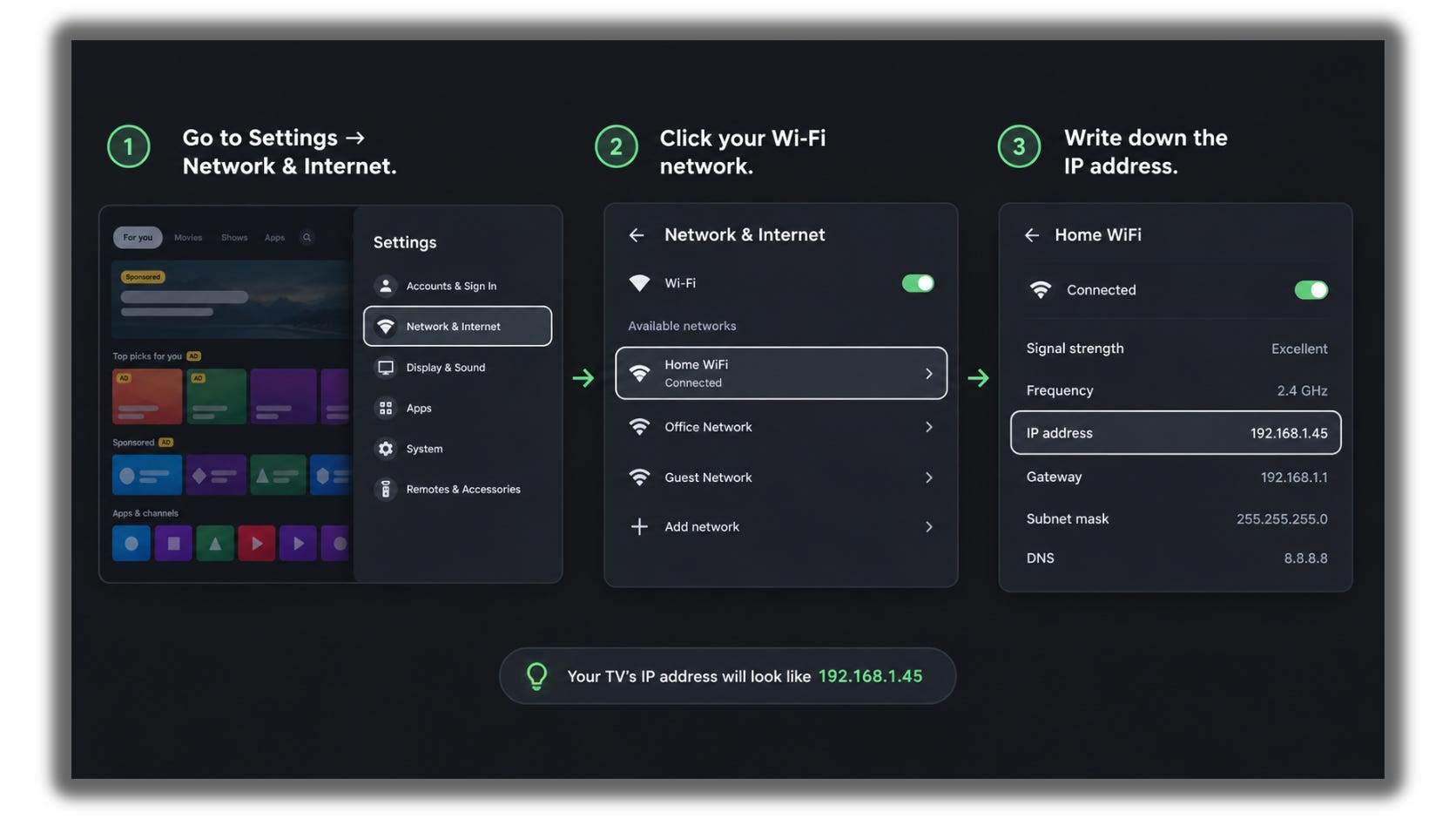
Go to Settings → Network & Internet.
Click your Wi-Fi network.
Write down the IP address. It looks like
192.168.1.45.
My coffee went cold three times while I tested every step of this guide. If it saved you an afternoon, then refill my coffee cup.
Step 6: Connect Claude Code to the TV
On your laptop, open the terminal.
Type
claudeand press Enter.Paste this prompt, using your TV’s IP address:
I want to clean up my Android TV.
Its IP address on my Wi-Fi is 192.168.1.45.

Check if ADB is installed on this computer. If not, install it and tell me what you installed.
Then connect to the TV over the network and tell me the TV's model and Android version.
Tell me when to accept the popup on the TV.
Don't change anything on the TV yet.
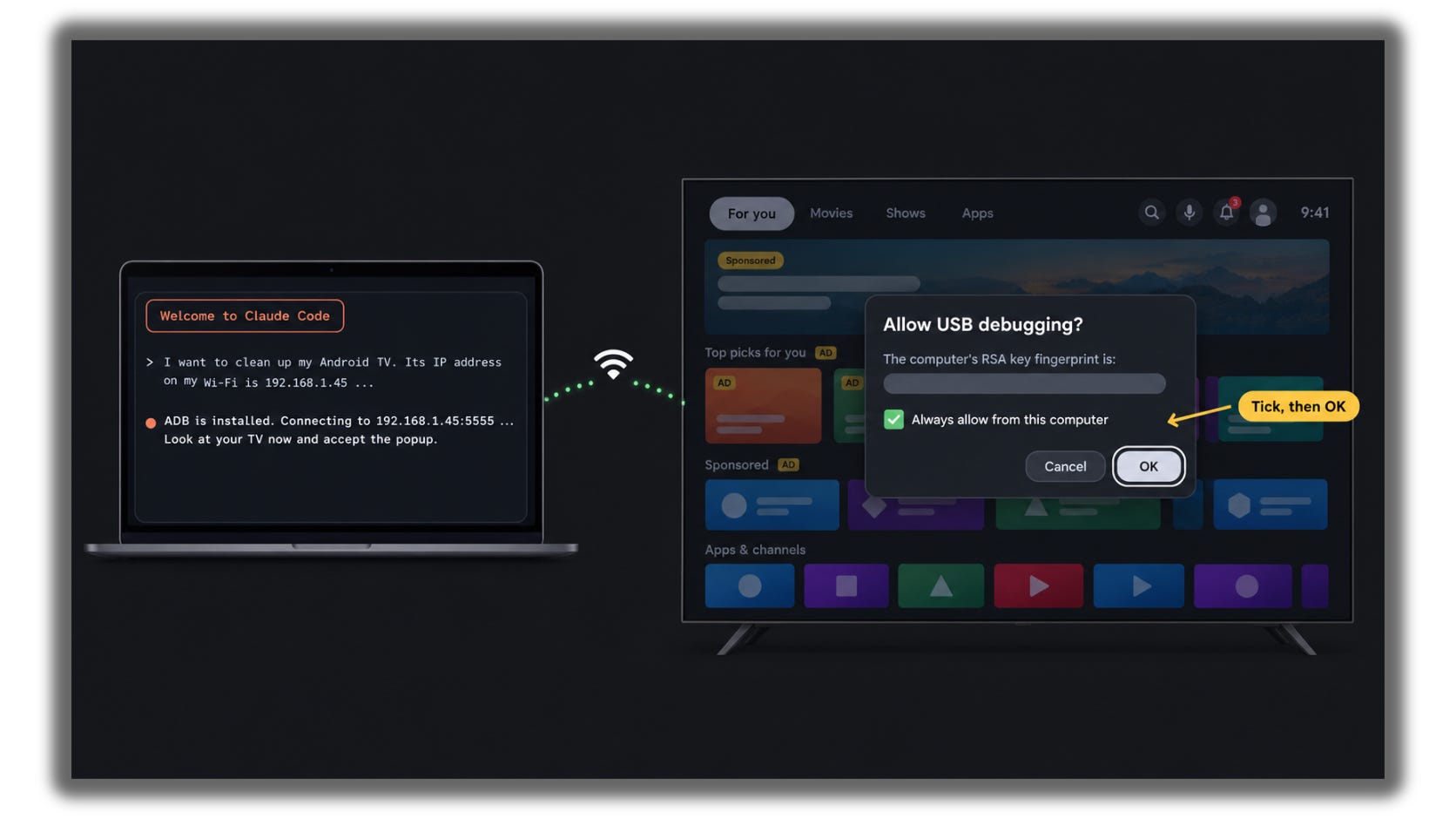
A pop-up appears on the TV: “Allow USB debugging?”
Tick Always allow from this computer and press OK.
If the TV shows a pairing code instead, type the code into Claude Code.
Step 7: Scan and Back Up
This step changes nothing. Claude only looks and saves a backup.
Paste this prompt:
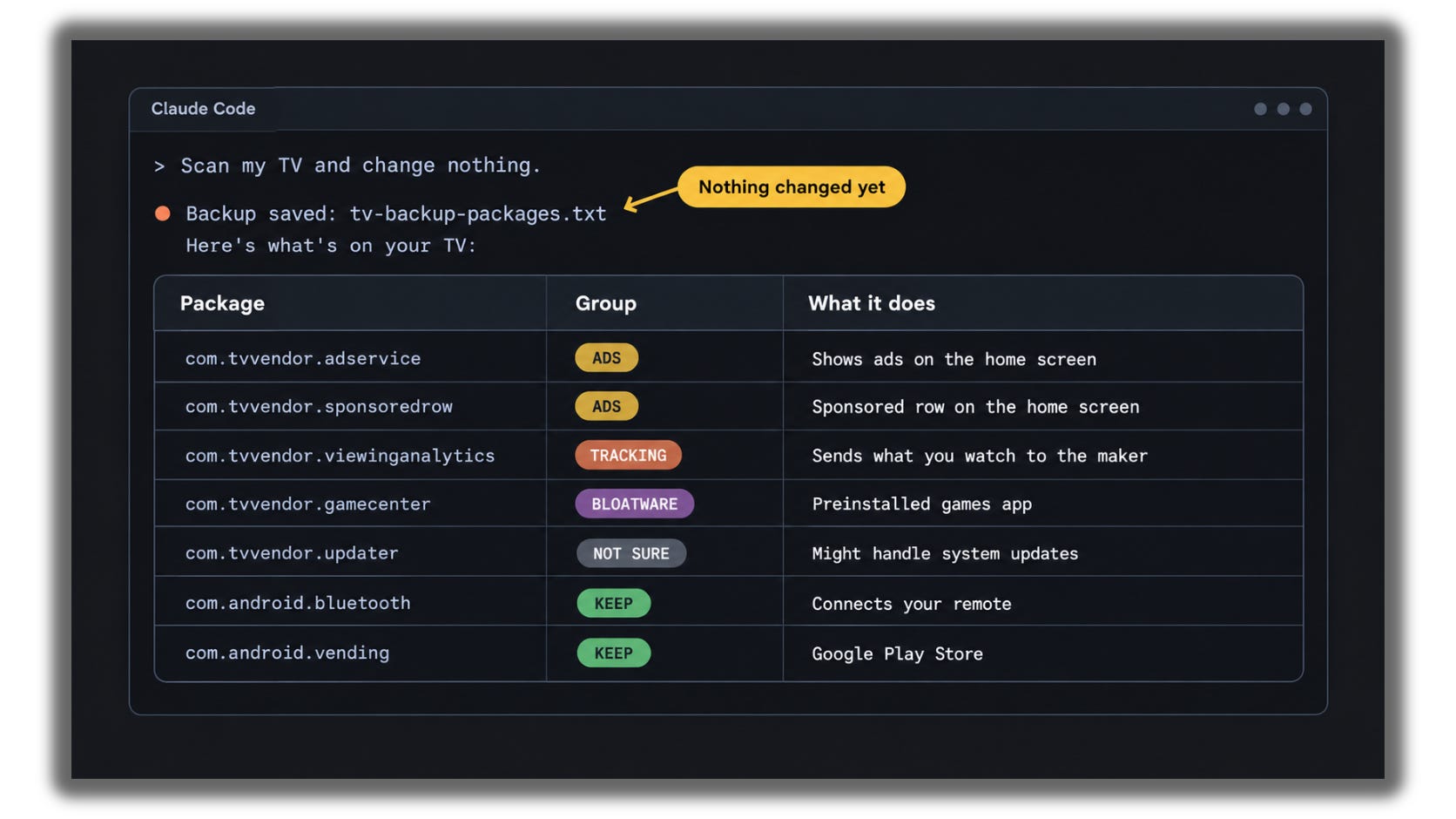
Scan my TV and change nothing.

1. List every installed package and save it to tv-backup-packages.txt on my computer.
2. Sort each package into: ADS, TRACKING, BLOATWARE, KEEP, or NOT SURE.
3. Show me a table with the package name and what it does in plain English.

If a package could affect Wi-Fi, sound, HDMI, the remote, Bluetooth, picture
or updates, put it in KEEP or NOT SURE.
Read the table Claude gives you.
If an app you use is in BLOATWARE, tell Claude to move it to KEEP.
On my TV, Claude found two packages in the ads and tracking groups.
Your friends are watching the same ads you are. Share this with the one who complains about it the most.
Step 8: Switch Off the Ads and Tracking
Paste this prompt:
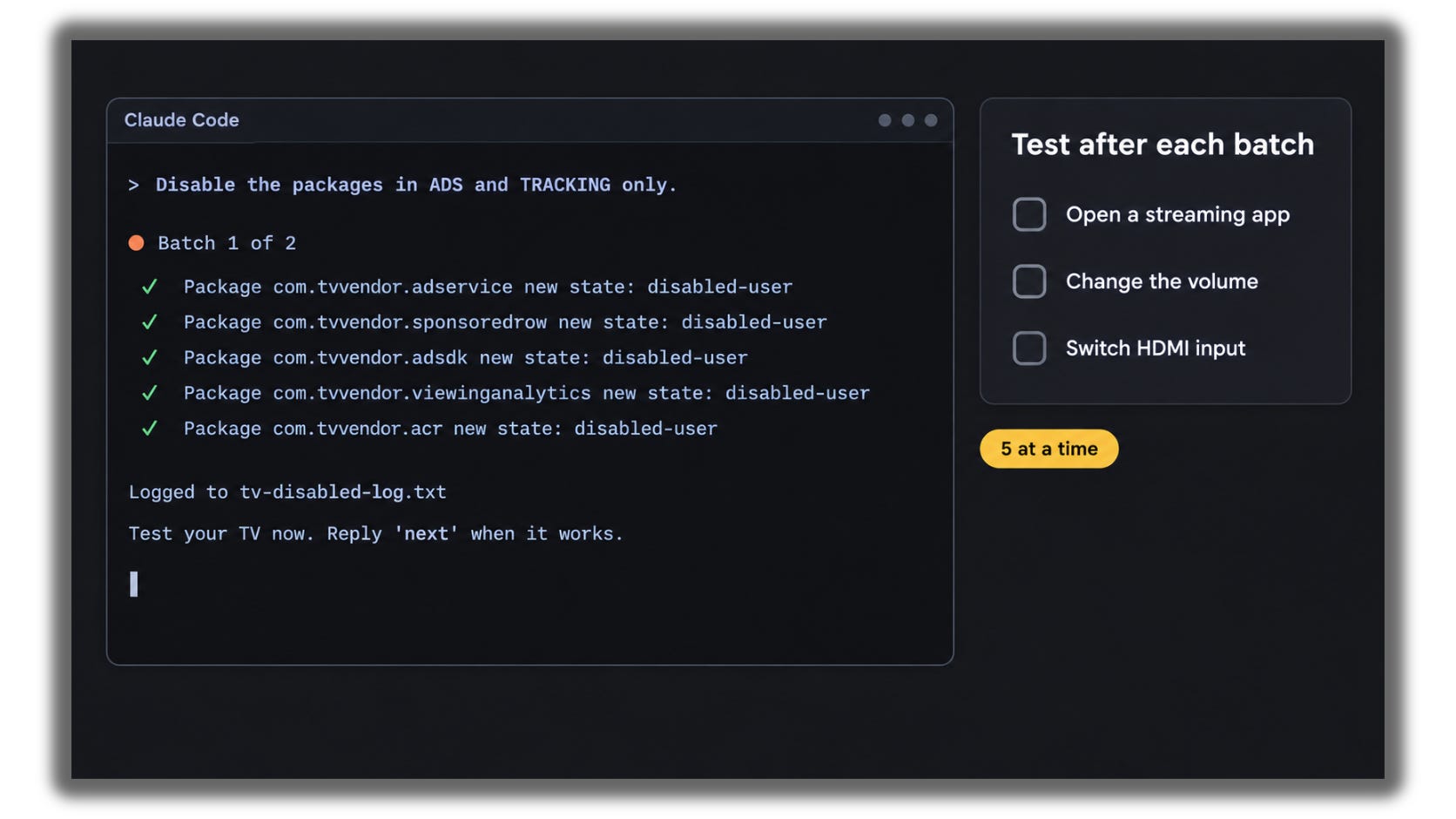
Disable the packages in ADS and TRACKING only.
Use "pm disable-user --user 0", never uninstall.
Work in batches of 5 and wait for me to test the TV after each batch.
Log every package you disable to tv-disabled-log.txt.
Don't touch the launcher or anything in KEEP or NOT SURE.
After each batch, test the TV: open Netflix or YouTube, change the volume, switch inputs.
If something stops working, tell Claude to switch the last batch back on.
When you’re done, run the same prompt for BLOATWARE. Only approve apps you’re sure you don’t use.
Step 9: Get a Clean Home Screen
Most of the ads live on the stock home screen, so you’ll replace it.
On the TV, open the Play Store.
Install Projectivy Launcher (or FLauncher).
Paste this prompt:
I've installed Projectivy Launcher on my TV.
Set it as the default home screen and ask me to press Home to confirm it opens.
Only after I confirm, disable the stock launcher and add it to tv-disabled-log.txt.
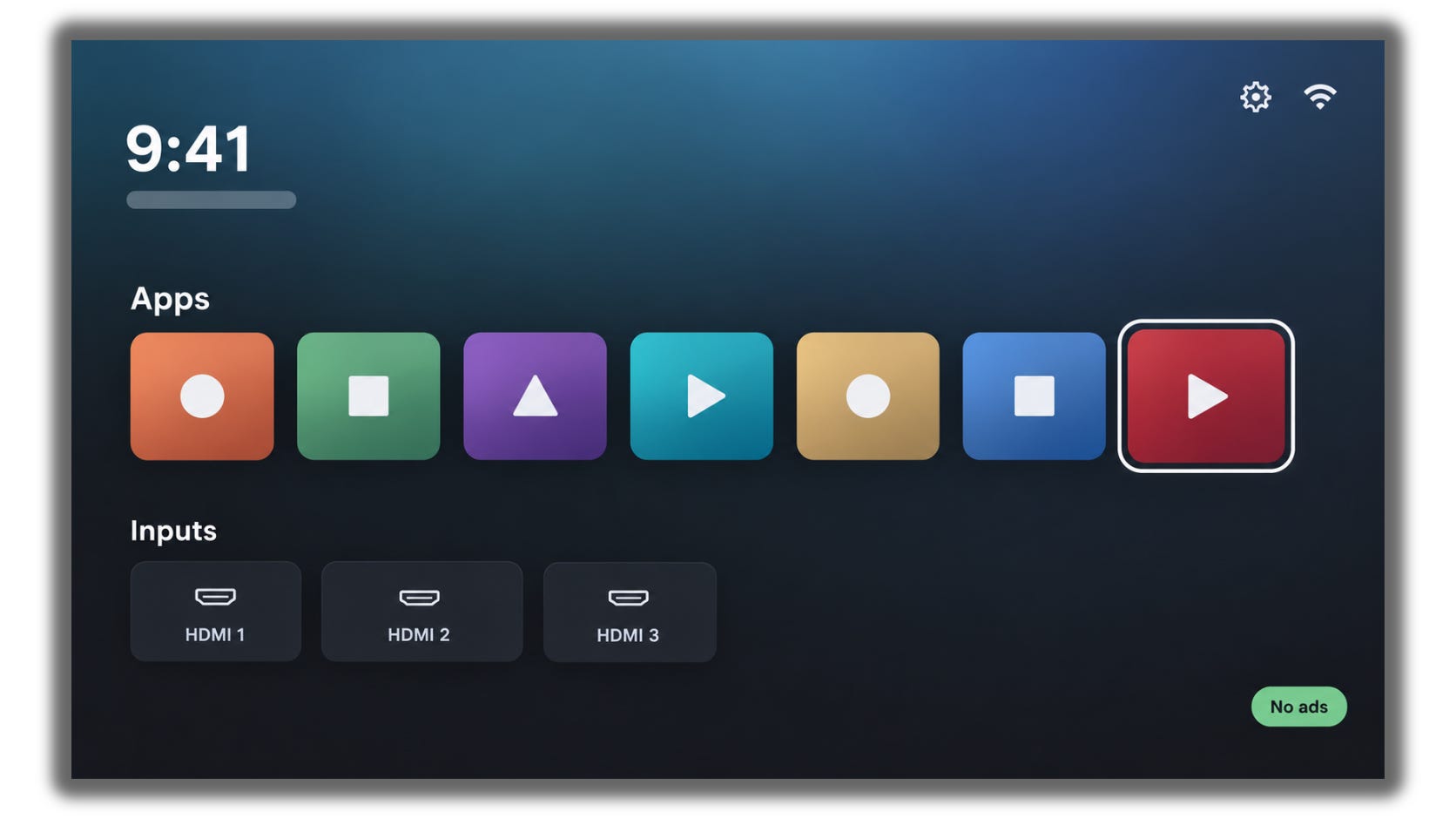
Press Home on your remote. You should see only your apps.
Always install the new launcher first. If you switch off the old one before the new one is ready, the Home button can get stuck on a factory test screen.
Step 10: Block Ads Through DNS
Paste this prompt:
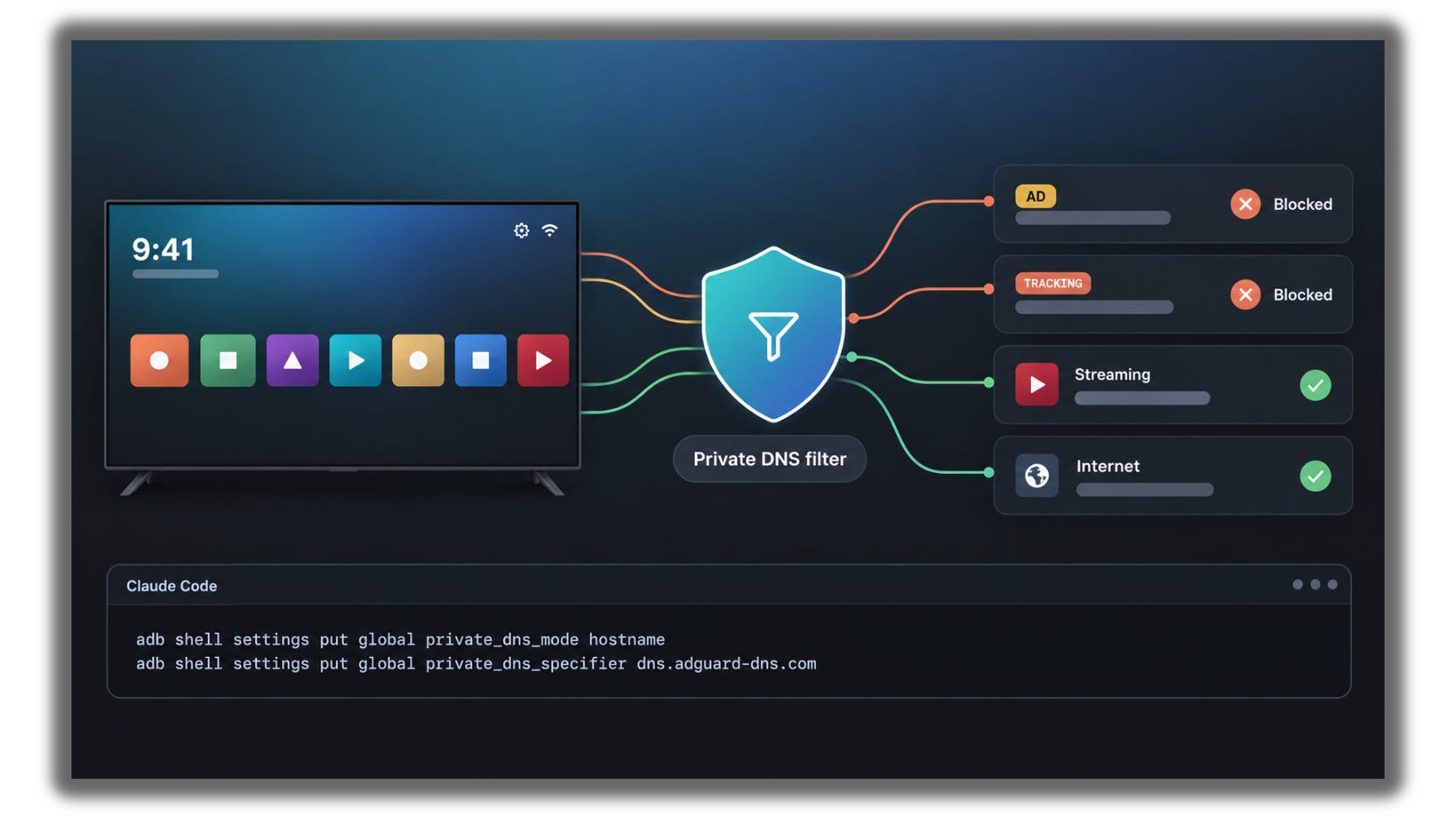
Set Private DNS on my TV to dns.adguard-dns.com.
Then check that the internet and my streaming apps still work.
If anything breaks, turn Private DNS off.
Open a couple of apps to make sure they still load.
This blocks many banner ads and tracking. It doesn’t block YouTube ads.
Step 11: Speed It Up and Finish
Paste this prompt:
Set window, transition and animator animation scale to 0.5.
Then show me a summary of every change, confirm both backup files are saved,
and disconnect ADB from the TV.
On the TV, go back to Developer options.
Turn USB debugging and Network debugging off.
Leaving debugging on means any device on your Wi-Fi could try to connect to your TV.
If Something Goes Wrong
Turn USB debugging back on (Step 4).
Paste this prompt:
Reconnect to my TV at 192.168.1.45 over ADB.
Re-enable every package in tv-disabled-log.txt with "pm enable".
Set the stock launcher back as default and turn off Private DNS.
If the TV won’t respond at all, do a factory reset from the TV’s settings. You’ll lose your sign-ins, but the TV will work like new.
Where This Won’t Work
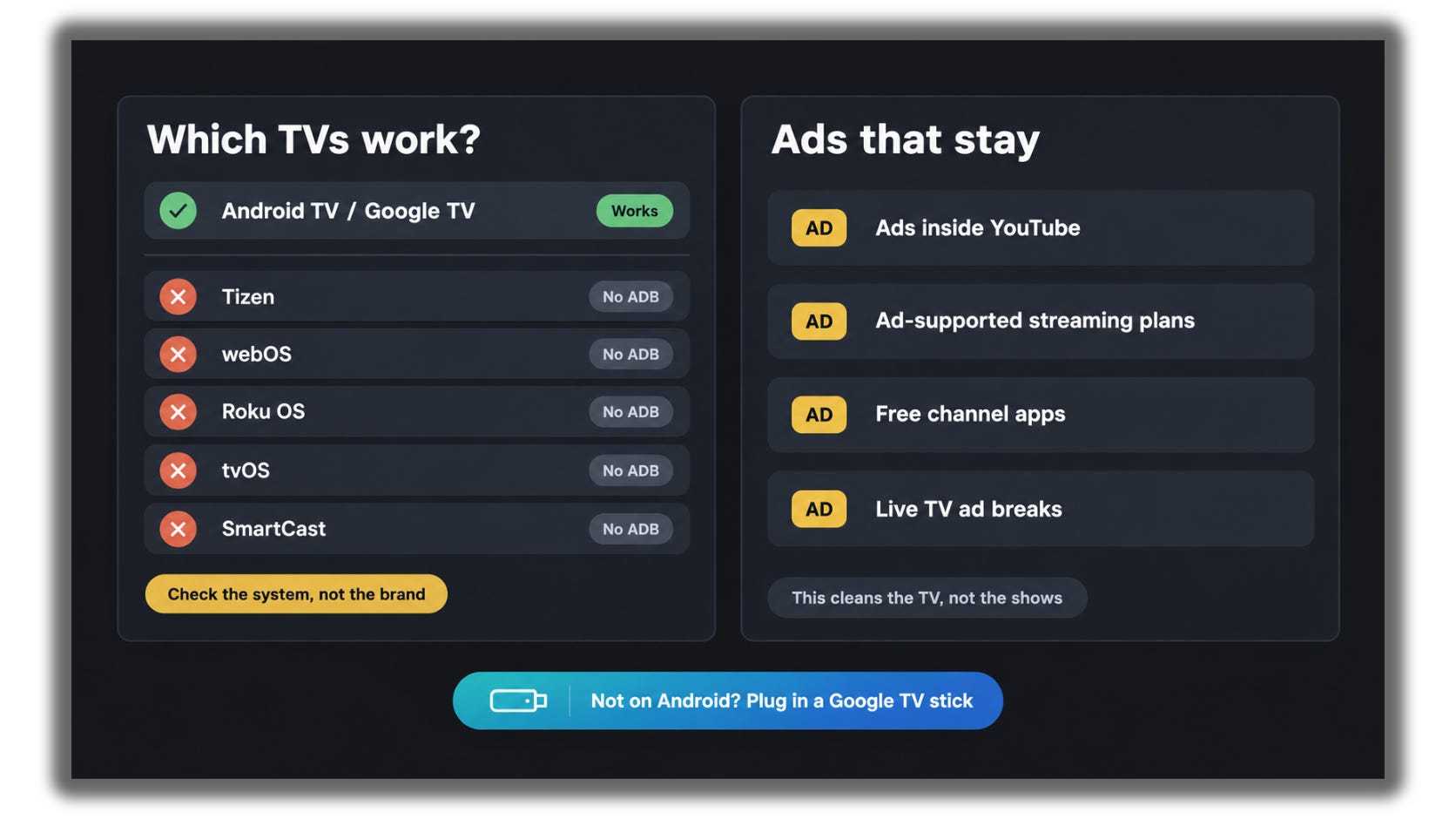
TVs that don’t run Android:
Samsung (Tizen)
LG (webOS)
Roku TVs and Roku sticks
Apple TV
Most Vizio TVs
Some brands sell both Android and non-Android models, so check the operating system, not the brand. If your TV isn’t Android, plug in a Google TV streaming stick and follow this guide on the stick.
Ads this can’t remove:
YouTube ads, because they come from the same servers as the videos
Ads on Netflix, Prime Video, Disney+, Hulu, and Max ad-supported plans
Free channel apps like Pluto TV and Tubi
Ad breaks on live TV
This guide removes ads from the TV itself, not from inside the shows you stream.
Tips
Never skip the backup in Step 7. It’s how you undo everything.
Never let Claude switch off apps in bulk. Batches of 5 keep you safe.
Keep the manufacturer’s update app on. Switching it off also stops security fixes.
After a major system update, some apps may return. Run the Step 8 prompt again.
Setting this up on your parents’ TV? Ask them first. A new home screen can confuse them.
Once your TV is clean, Claude Code can also build you a custom screensaver with your calendar or the weather. I’ll cover that in a future issue.
This guide took me four cups of coffee. Buy me the fifth one.
We tested it in public. Now use it in private.
Your TV is clean now. Somebody in your family is still watching ads before Netflix. Send them this and fix their TV next.
PS. What’s the most annoying ad your TV shows you?
Reply and tell me.
I’m collecting the worst offenders for a follow-up issue.