

You tell Claude the same thing again and again.
“Don’t touch that file.”
“Check your work.”
“Use my format.”
And Claude still gets it wrong sometimes.
The problem is where you write your rules.
Most people write all their rules in one place: a notes file called CLAUDE.md, or the chat.
Anthropic’s own help pages say a rule written there is “a request, not a guarantee.”
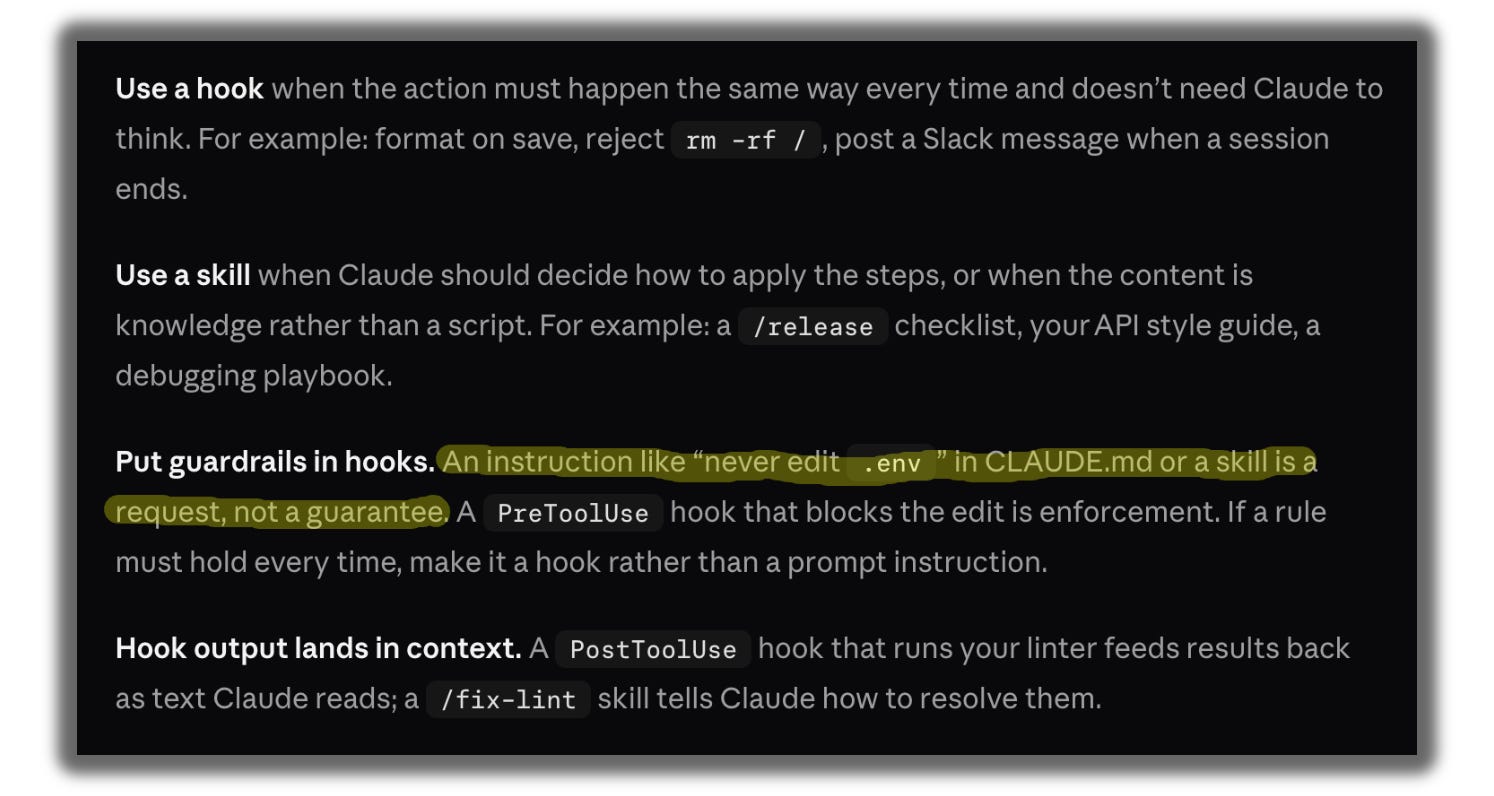
Claude reads it.
Most of the time it follows it. Sometimes it doesn’t.
Claude Code has three better places for your rules:
Skills teach Claude how to do a task.
Hooks make something happen every time.
Gates stop Claude from doing something.
When each rule is in the right place, Claude follows it.
Gift at the end
The Three-Layer Starter Pack. One skill, one hook, and two gates, ready to use.
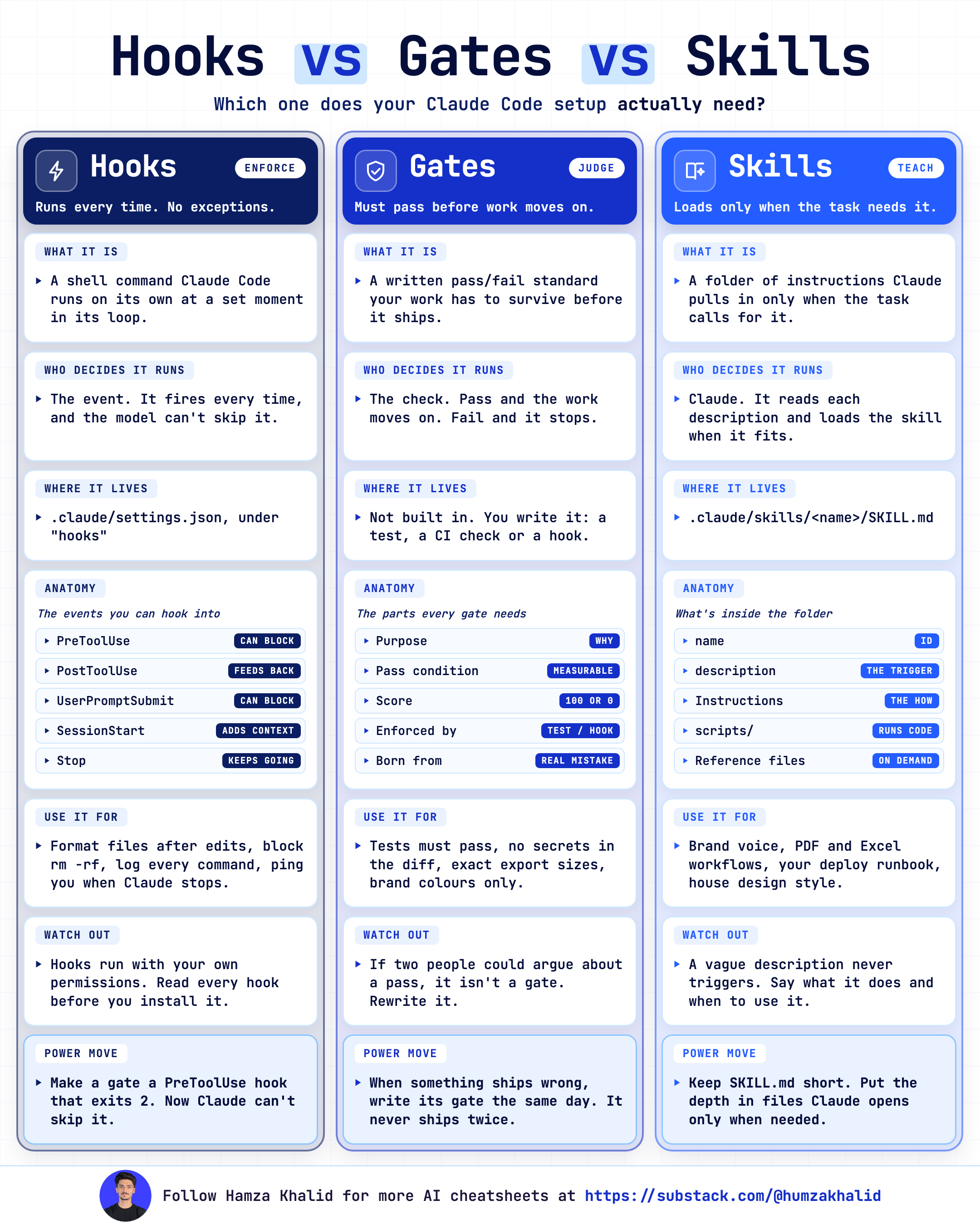
Skills vs hooks vs gates, in plain English
A skill is a saved instruction, like a checklist. Claude decides when to use it, so it works most of the time. Use it for tasks that need thinking.
A hook is an automatic action. It runs every time, at a set moment, like an alert when Claude needs you.
A gate is a lock. There are two kinds:
Hard gate: blocks an action completely, like “never change this folder.” Claude can’t skip it.
Smart gate: checks Claude’s work before it can say “done.” No proof means Claude keeps working.
I made a one-pager comparison of these; save it now and use it later…
Where does each rule go?
Ask yourself three questions:
1. Should this never happen? Use a gate. Example: “Never change my published posts.”
2. Should this happen every time, with no thinking? Use a hook. Example: “Tell me when you need me.”
3. Does Claude need to think about how to do it? Use a skill. Example: “Review my draft in my style.”
If a rule is none of these, it’s just a fact about your project.
Keep it in CLAUDE.md.
Step 0: Set up Claude Code
Already have Claude Code? Skip to Build 1.
Two words to know: The terminal is a window where you type commands.
A project folder is a normal folder where we’ll save everything.
Install Claude Code
On a Mac:
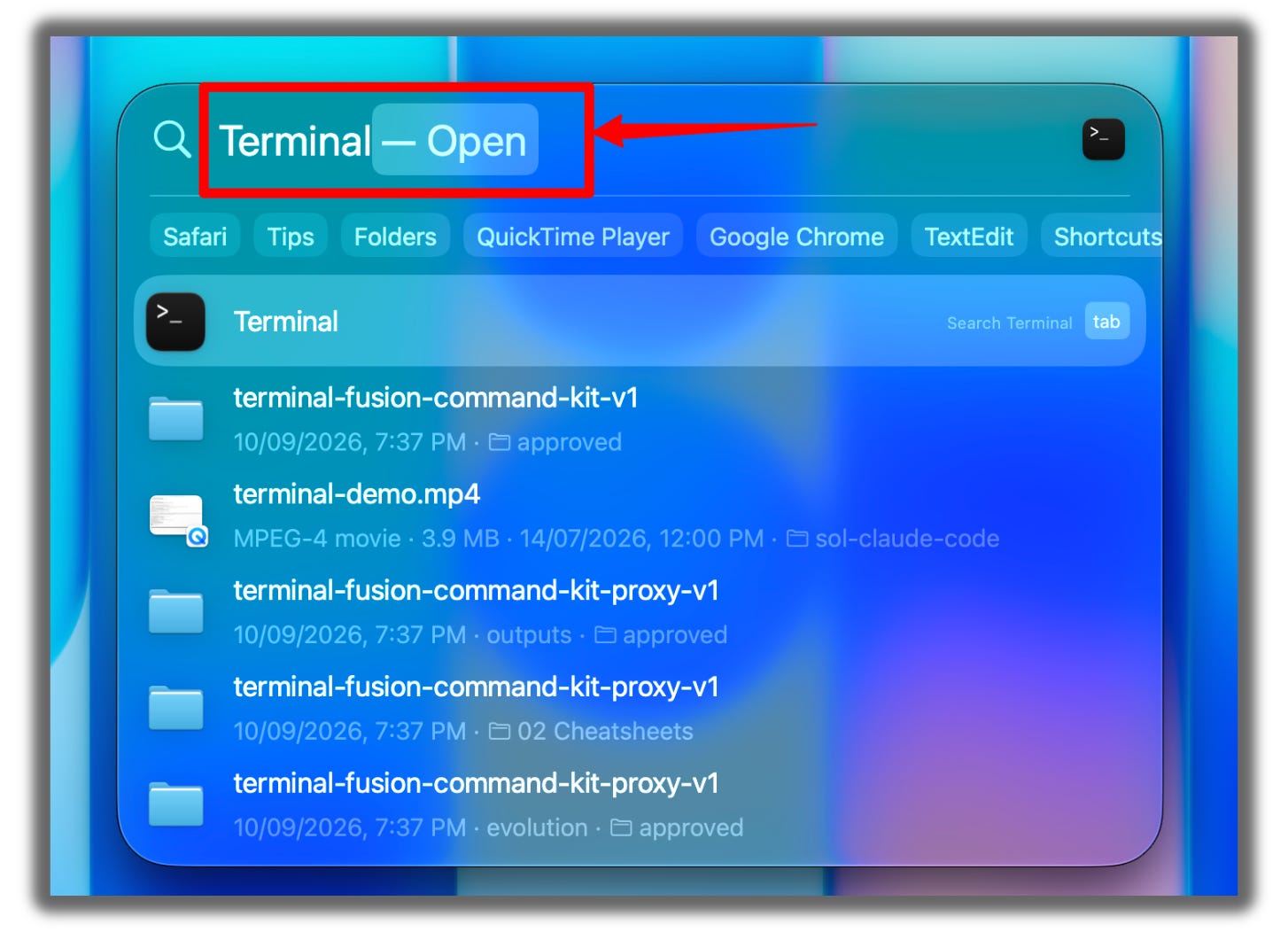
Press
Cmd + Space.Type
Terminaland press Enter.
Copy this line, paste it in the window, and press Enter:
curl -fsSL https://claude.ai/install.sh | bash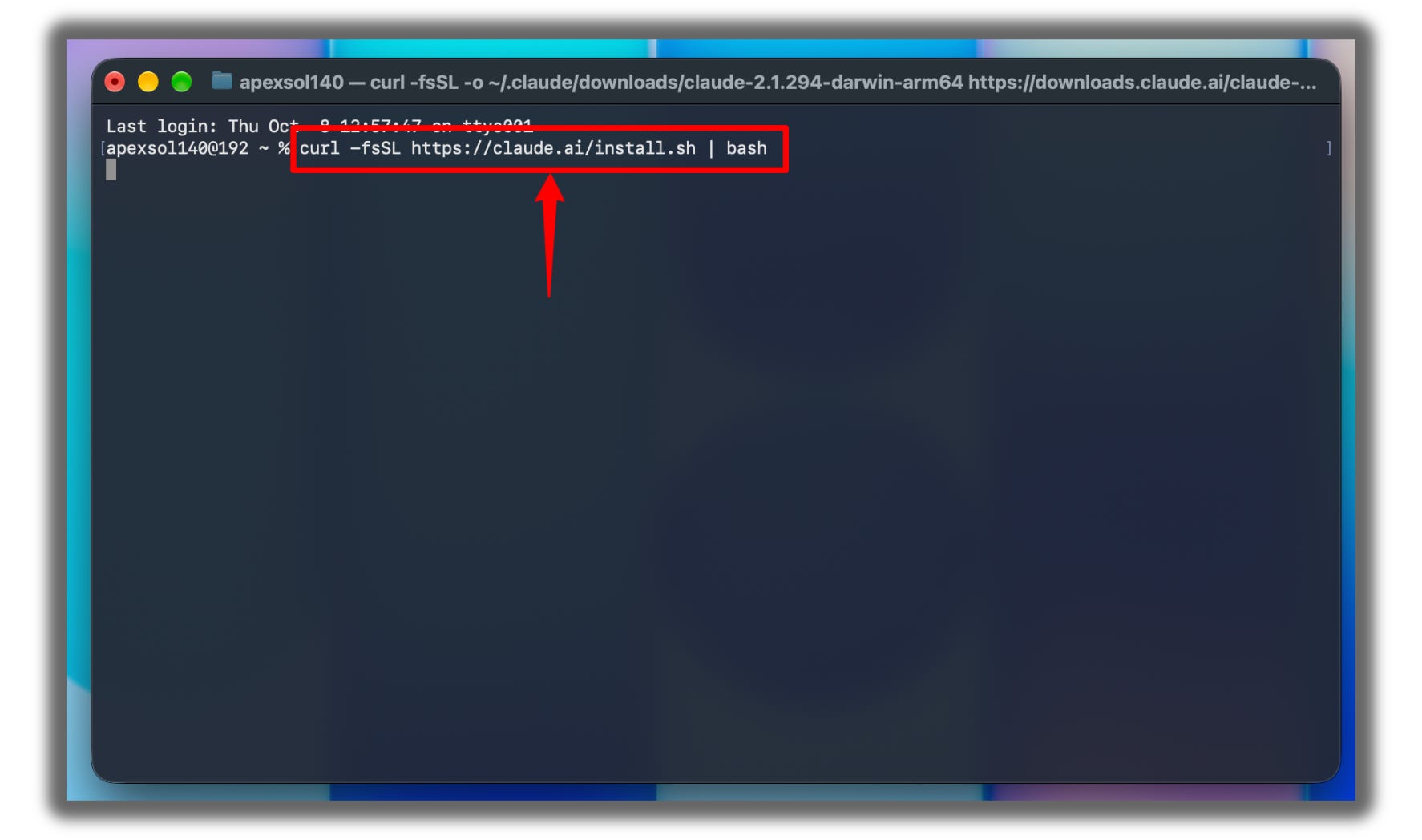
Wait about a minute until the text stops.
Close the window. Open Terminal again.
Type
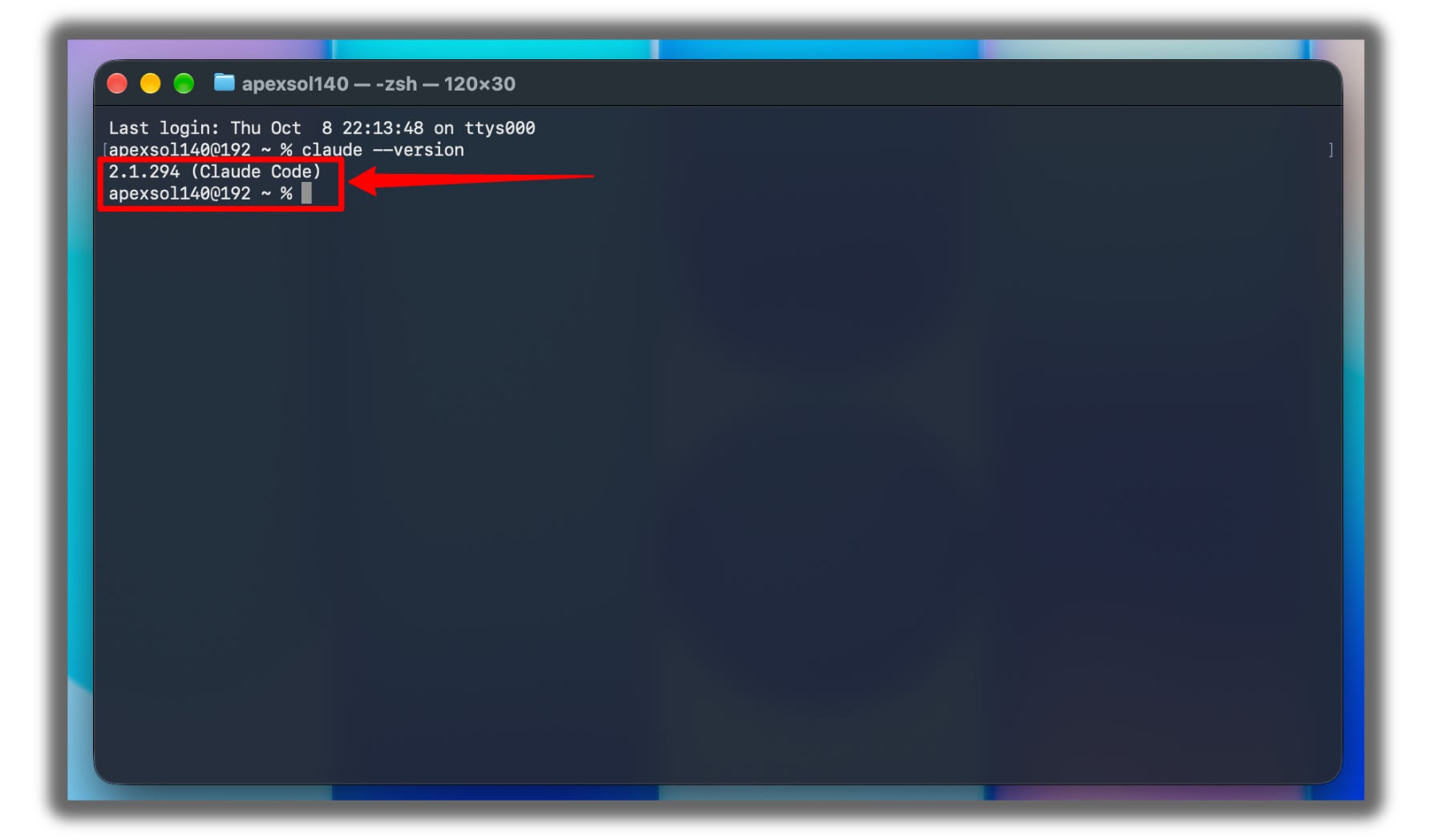
claude --versionand press Enter.If you see a number, it worked.
On Windows:
Click the Start button.
Type
PowerShelland press Enter.

Copy this line, paste it in the window, and press Enter:
irm https://claude.ai/install.ps1 | iex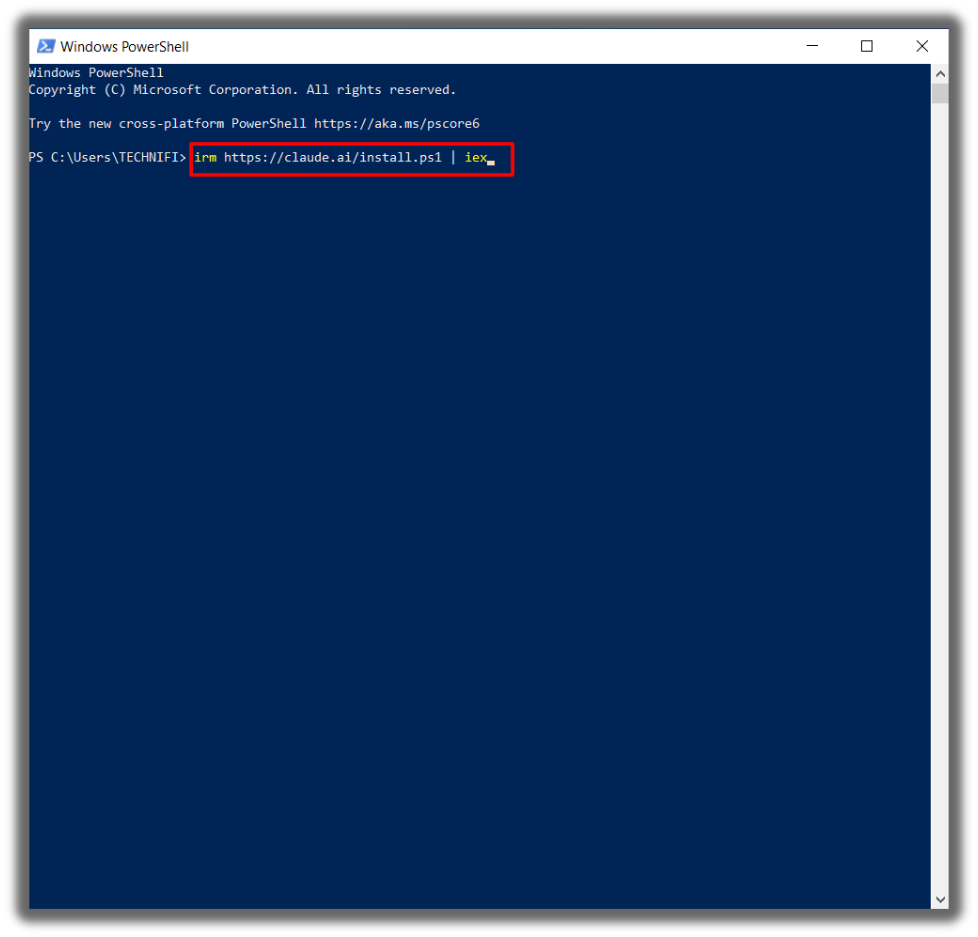
Wait until the text stops.
Close the window. Open PowerShell again.
Type
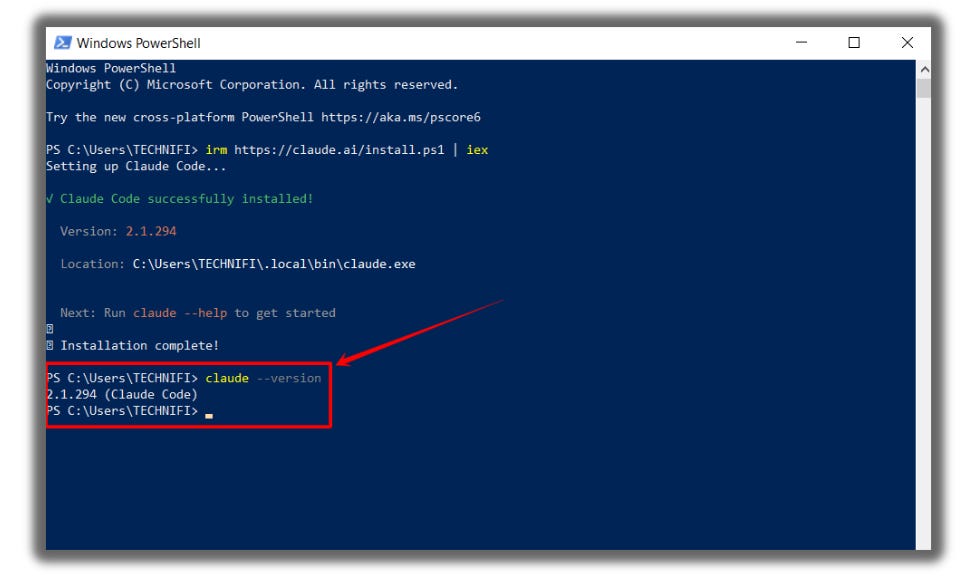
claude --versionand press Enter.If you see a number, it worked.
Make your folder and sign in
Type
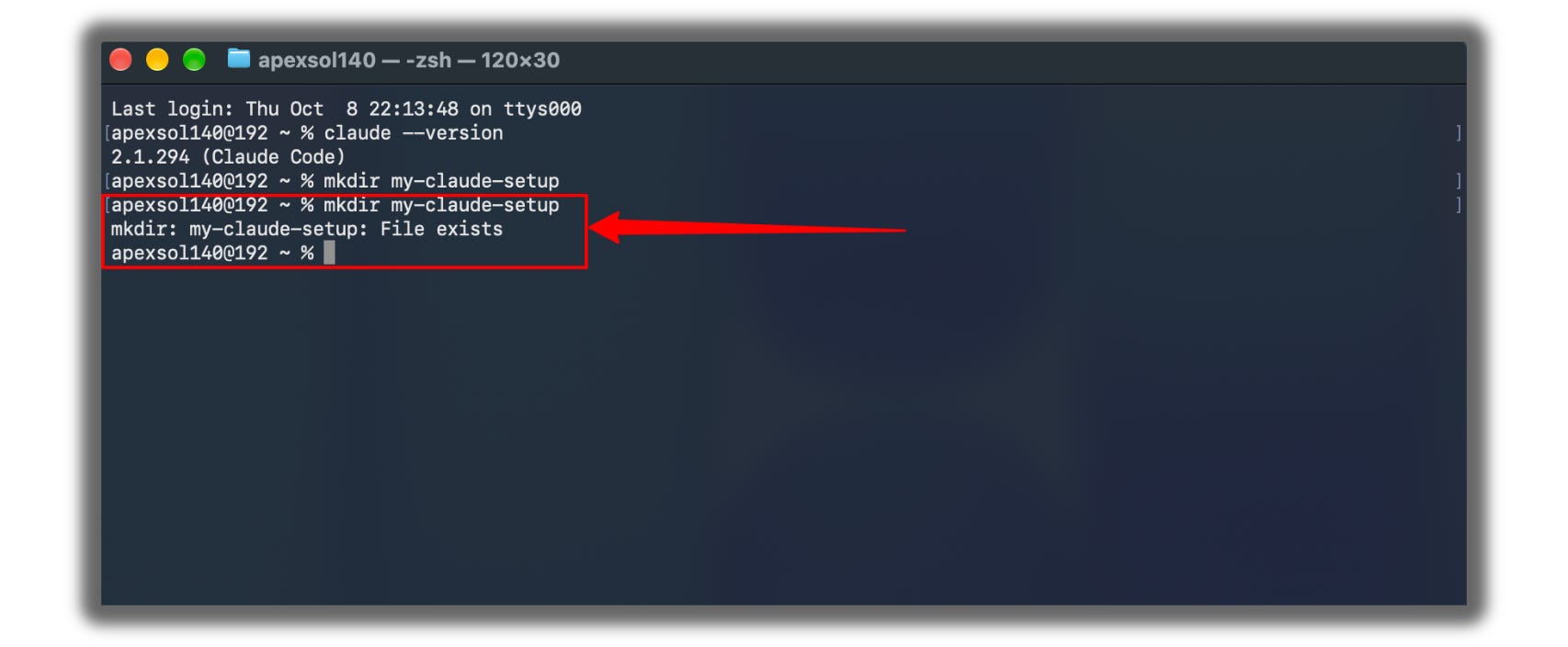
mkdir my-claude-setupand press Enter. This makes a new folder.
Type
cd my-claude-setupand press Enter. This opens the folder.
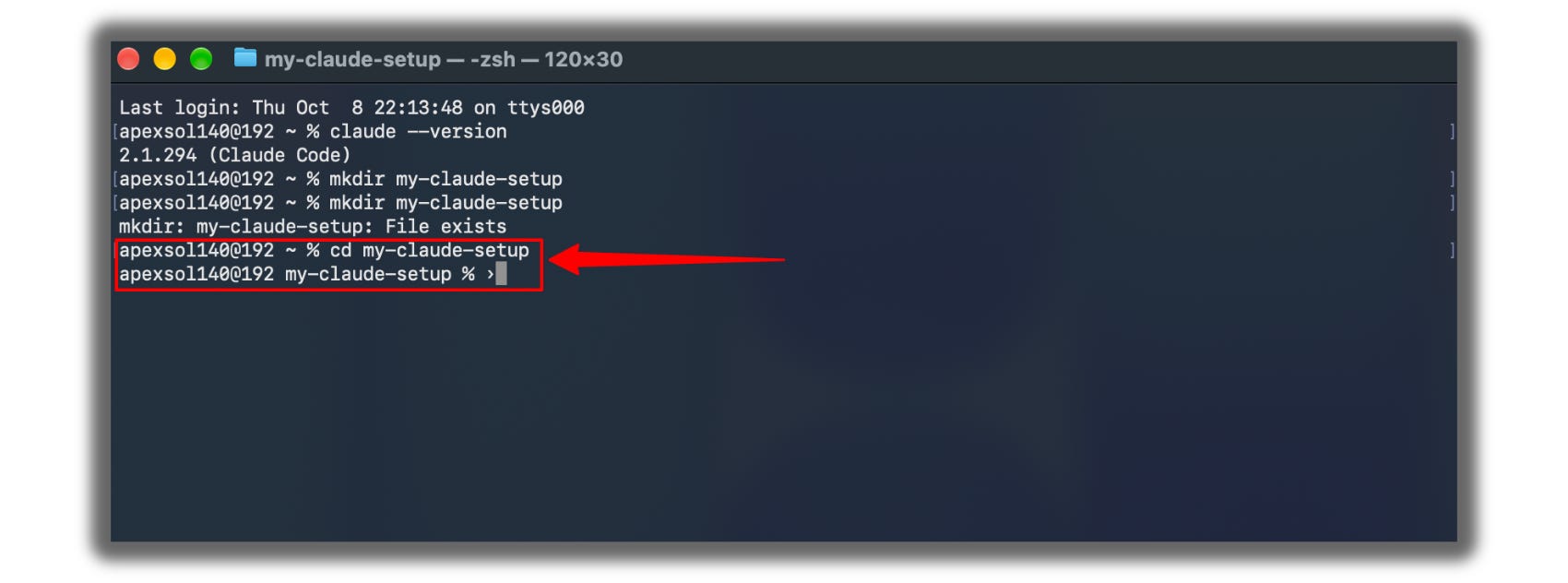
Type
claudeand press Enter.A browser window opens. Sign in to your Claude account.
Go back to the terminal.
Claude asks if you trust this folder. Choose Yes.
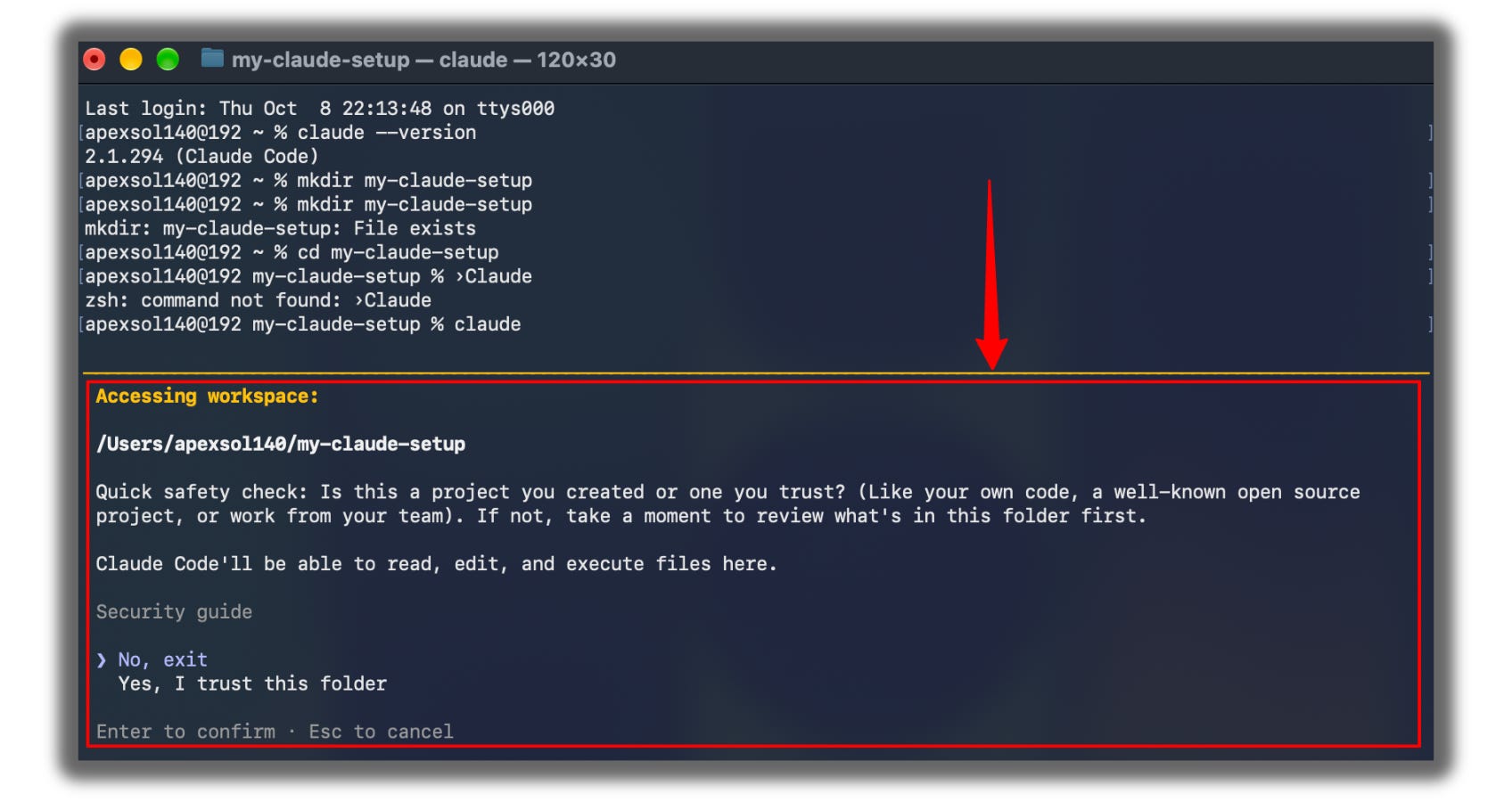
You’ll do these three things a lot:
Say yes: when Claude asks to make a file, use the arrow keys to pick Yes, then press Enter.
Restart: type
/exitand press Enter. Then typeclaudeand press Enter.Come back later: open the terminal, type
cd my-claude-setup, press Enter, then typeclaudeand press Enter.
Build 1: Your first skill (5 minutes)
This skill reviews your writing before you publish it.
Copy this prompt, paste it into Claude Code, and press Enter:
Create a skill file at .claude/skills/review-draft/SKILL.md with exactly this content:

---
name: review-draft
description: Review a written draft before it is published. Use when the user asks to review, check, edit, or polish a newsletter, post, email, or article.
---

Review the draft in this order:

1. Find every claim that needs a source. List each one with the source it needs.
2. Flag any sentence over 25 words. Suggest a shorter version.
3. Flag any placeholder text such as TODO, TBD, [INSERT], or lorem ipsum.
4. Check that every link is written as a full URL.
5. Report what you found as a numbered list. Do not rewrite the draft unless asked.
Claude asks to make the file. Pick Yes.
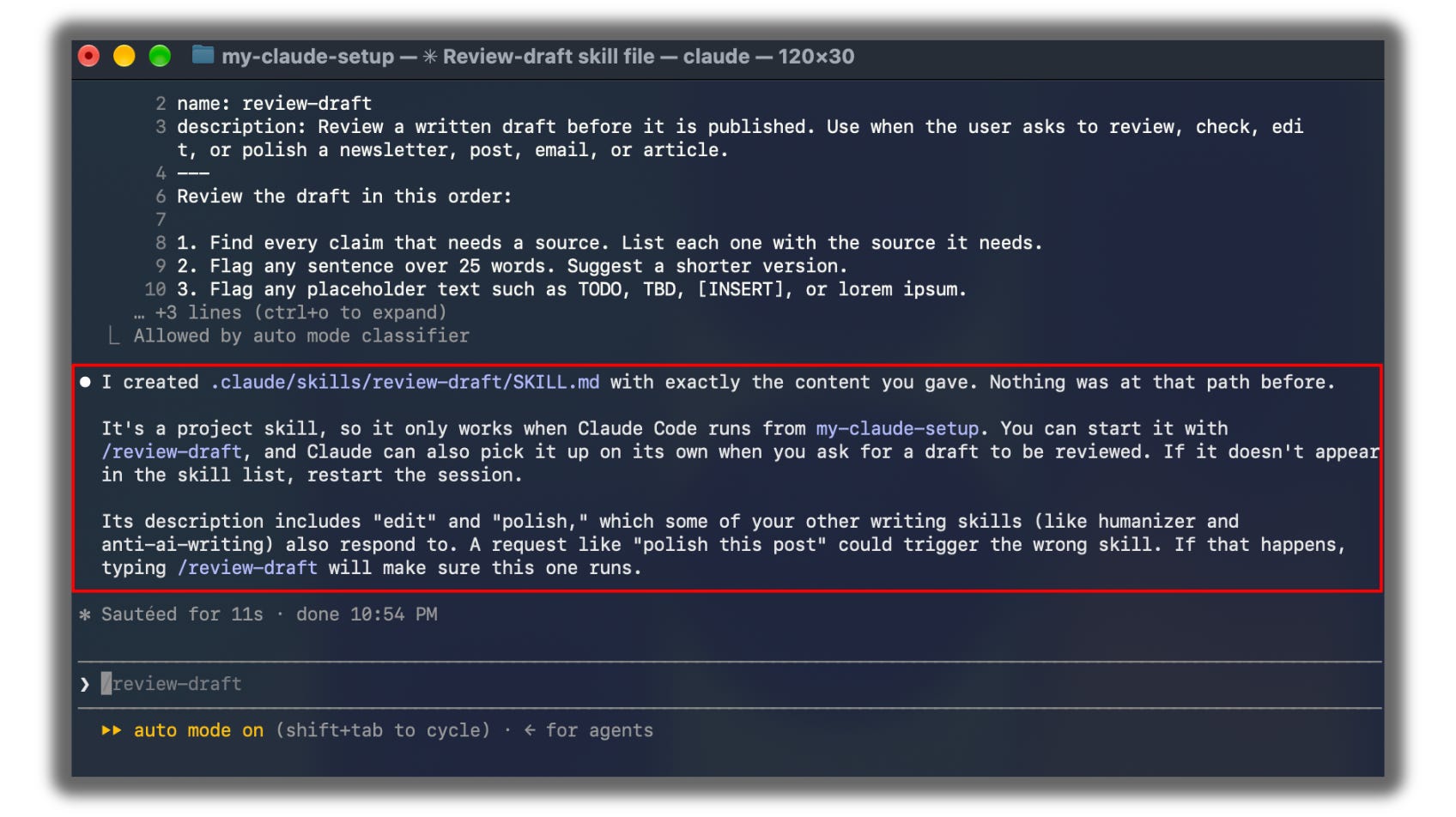
Type
/skillsand press Enter.Check that you see review-draft in the list.

Press
Escto close the list.Type
/review-draft, paste some of your writing, and press Enter.
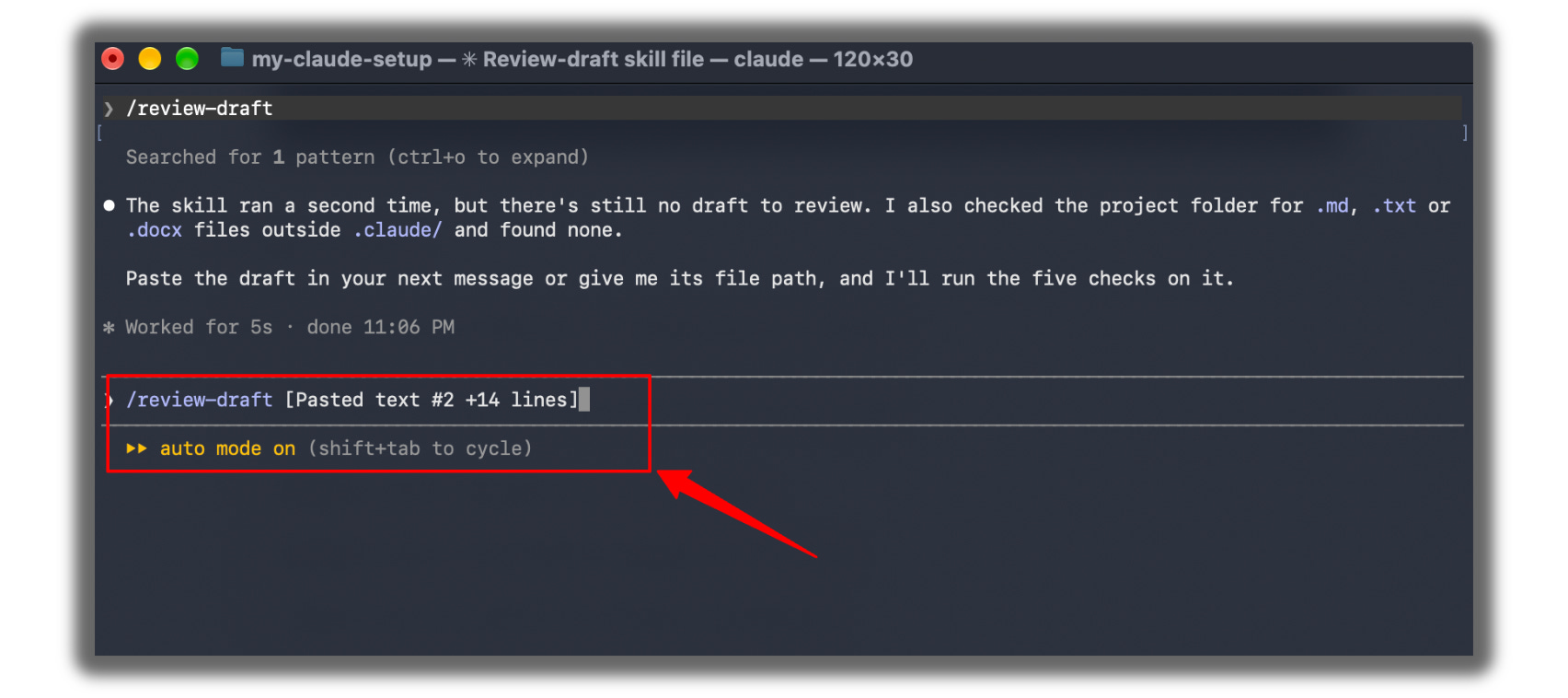
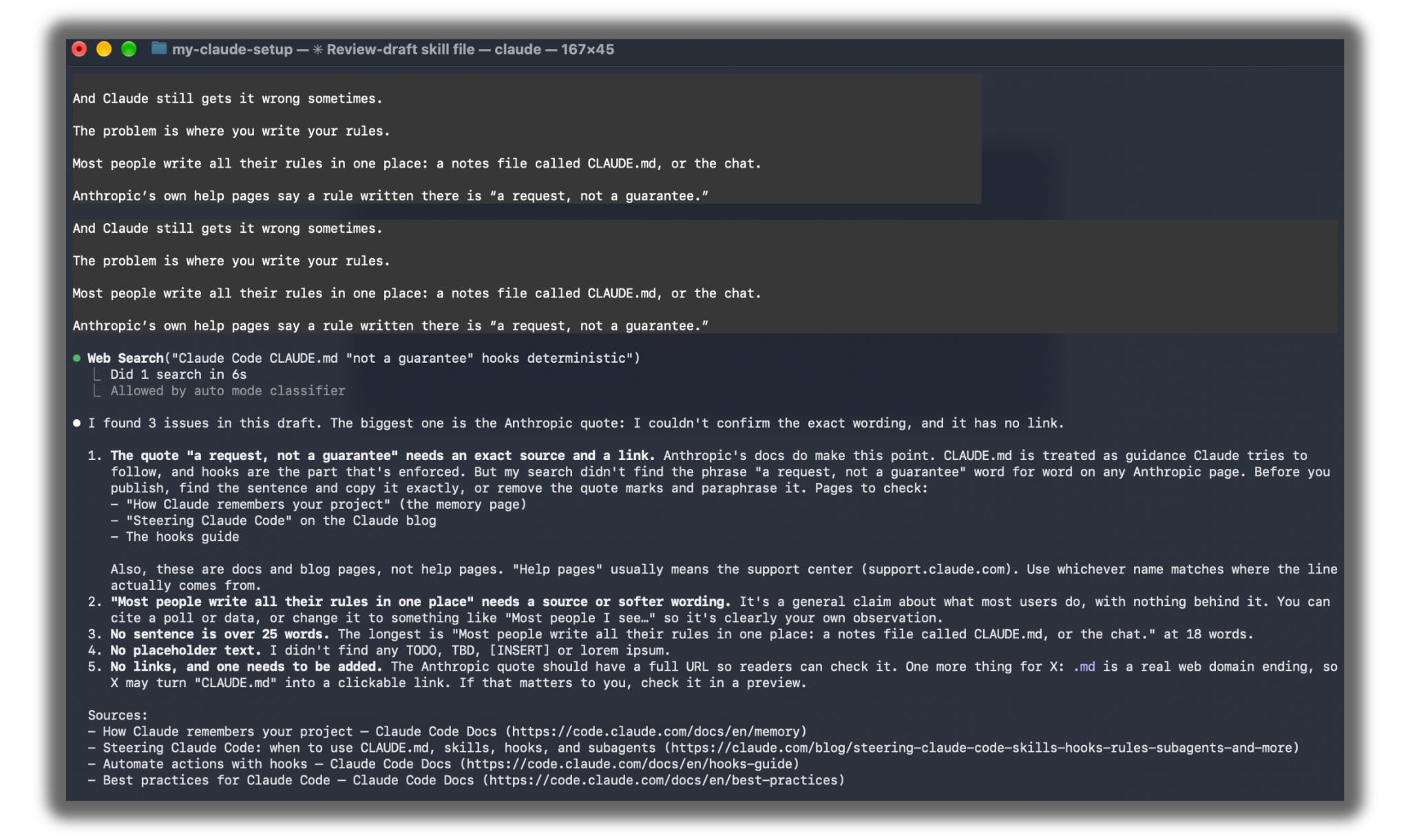
Now you can also just say “review my post,” and Claude knows to use this skill.
Build 2: Your first hook (5 minutes)
This hook shows an alert on your screen when Claude is waiting for you, so you can stop checking the window.
Mac users, do this first. Macs block these alerts until you allow them once.
Open a new Terminal window.
Paste this line and press Enter:
osascript -e 'display notification "Test" with title "Claude Code"'If an alert appears in the top right corner, you’re ready.
If nothing appears, open System Settings, click Notifications, find Script Editor, and turn on Allow Notifications. Run the line again.
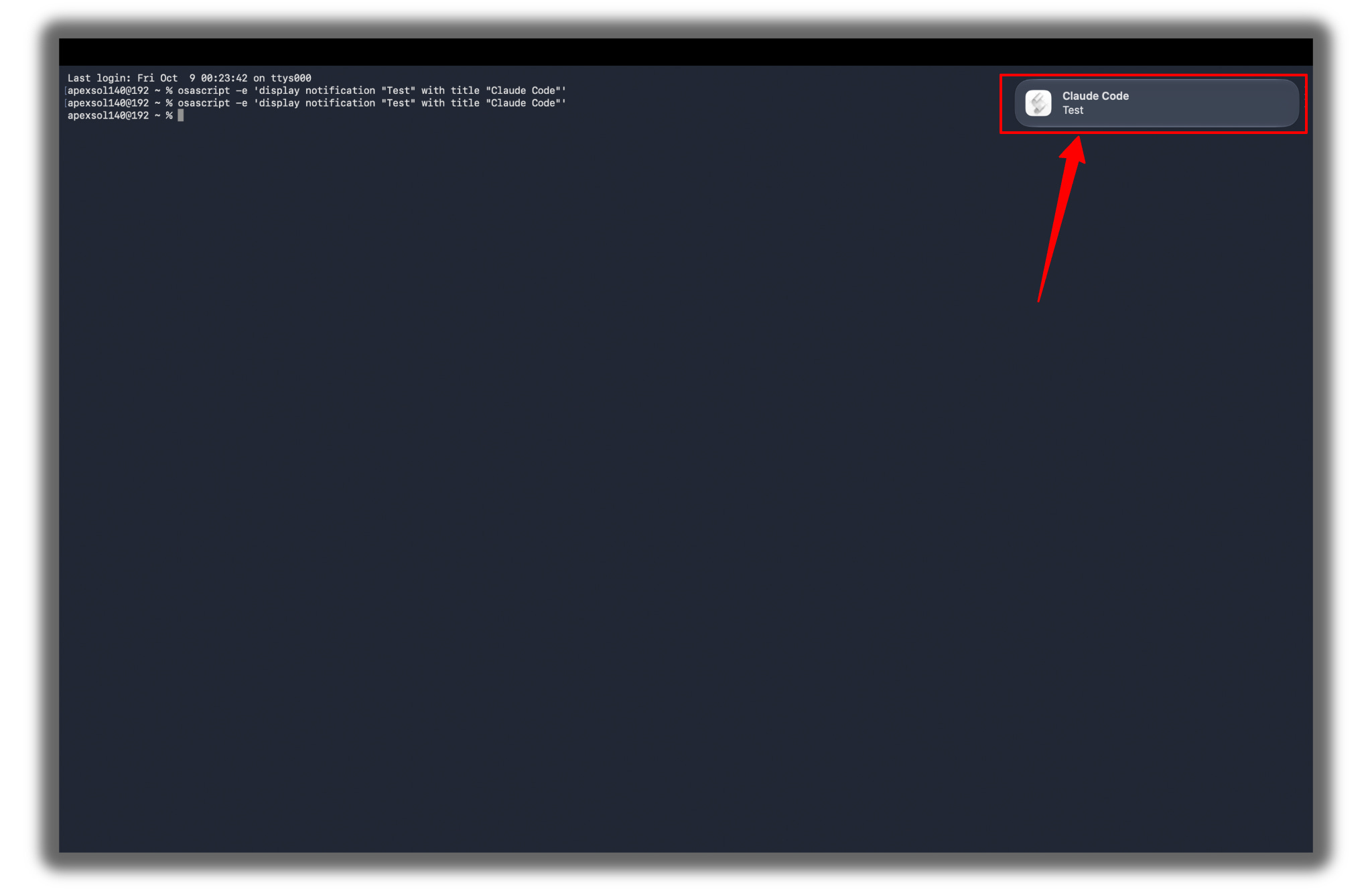
Now add the hook:
Go back to Claude Code.
Paste the prompt for your computer into Claude Code and press Enter.
Mac:
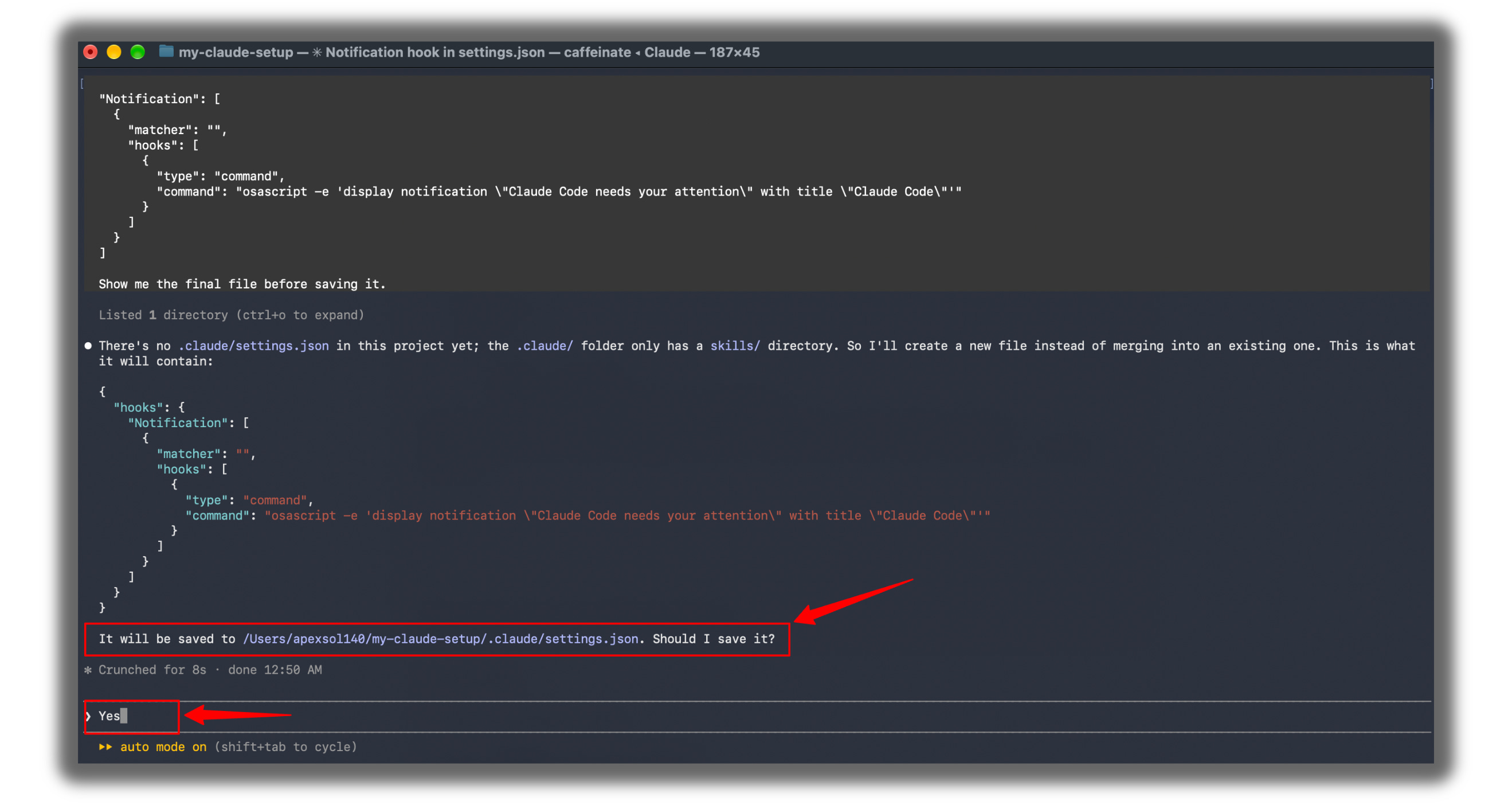
Add a Notification hook to .claude/settings.json in this project. If the file already exists, keep everything in it and add this inside "hooks":

"Notification": [
  {
    "matcher": "",
    "hooks": [
      {
        "type": "command",
        "command": "osascript -e 'display notification \"Claude Code needs your attention\" with title \"Claude Code\"'"
      }
    ]
  }
]

Show me the final file before saving it.
I found an error here:
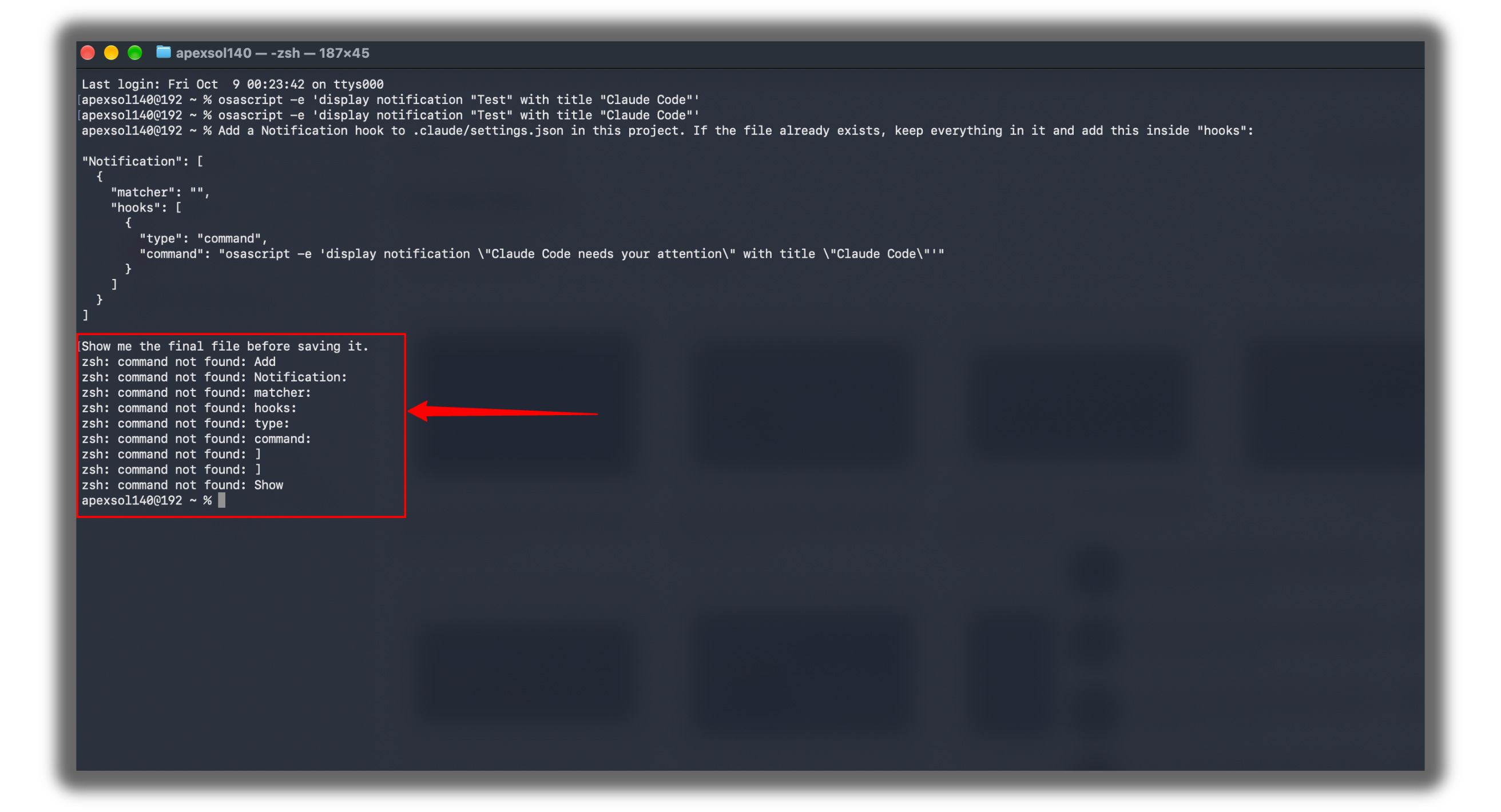
Here is the fix for this error if you also find this kind of error:
In the same Terminal window, type
cd my-claude-setupand press Enter.
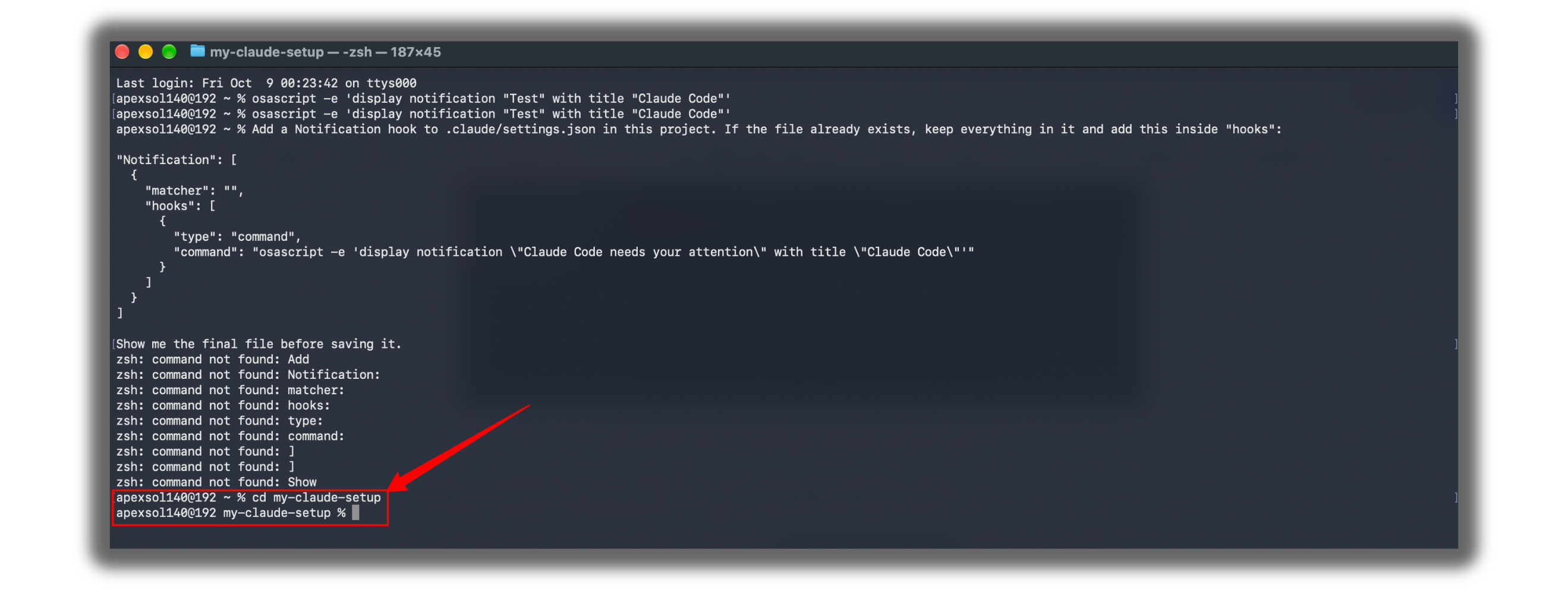
Type
claudeand press Enter.Wait until Claude Code opens. You’ll see Claude’s input box instead of a line ending in
%.
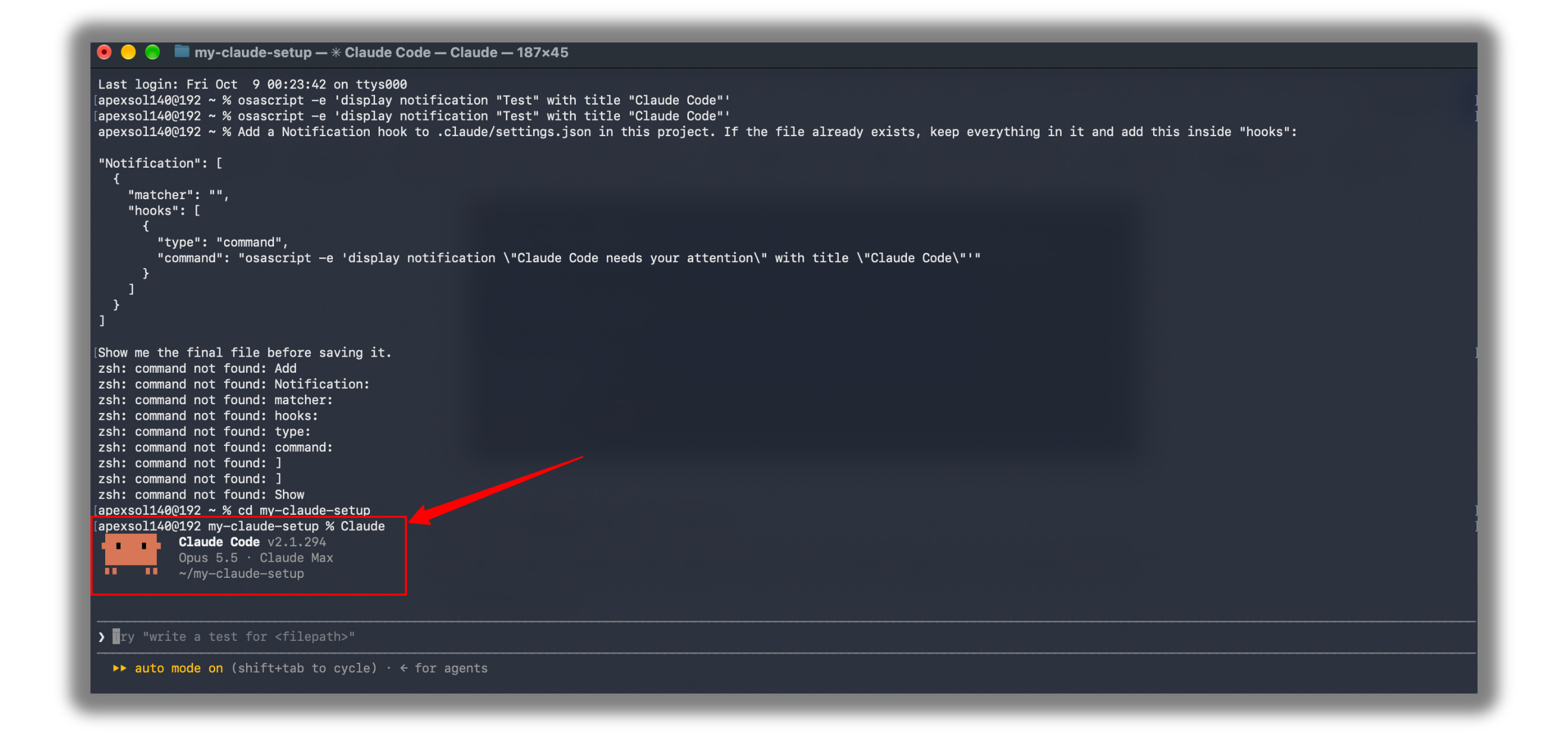
Now paste the prompt (Mac: same one as above) and press Enter.
Windows:
Add a Notification hook to .claude/settings.json in this project. If the file already exists, keep everything in it and add this inside "hooks":

"Notification": [
  {
    "matcher": "",
    "hooks": [
      {
        "type": "command",
        "command": "powershell.exe -Command \"[System.Reflection.Assembly]::LoadWithPartialName('System.Windows.Forms'); [System.Windows.Forms.MessageBox]::Show('Claude Code needs your attention', 'Claude Code')\""
      }
    ]
  }
]

Show me the final file before saving it.
Pick Yes.
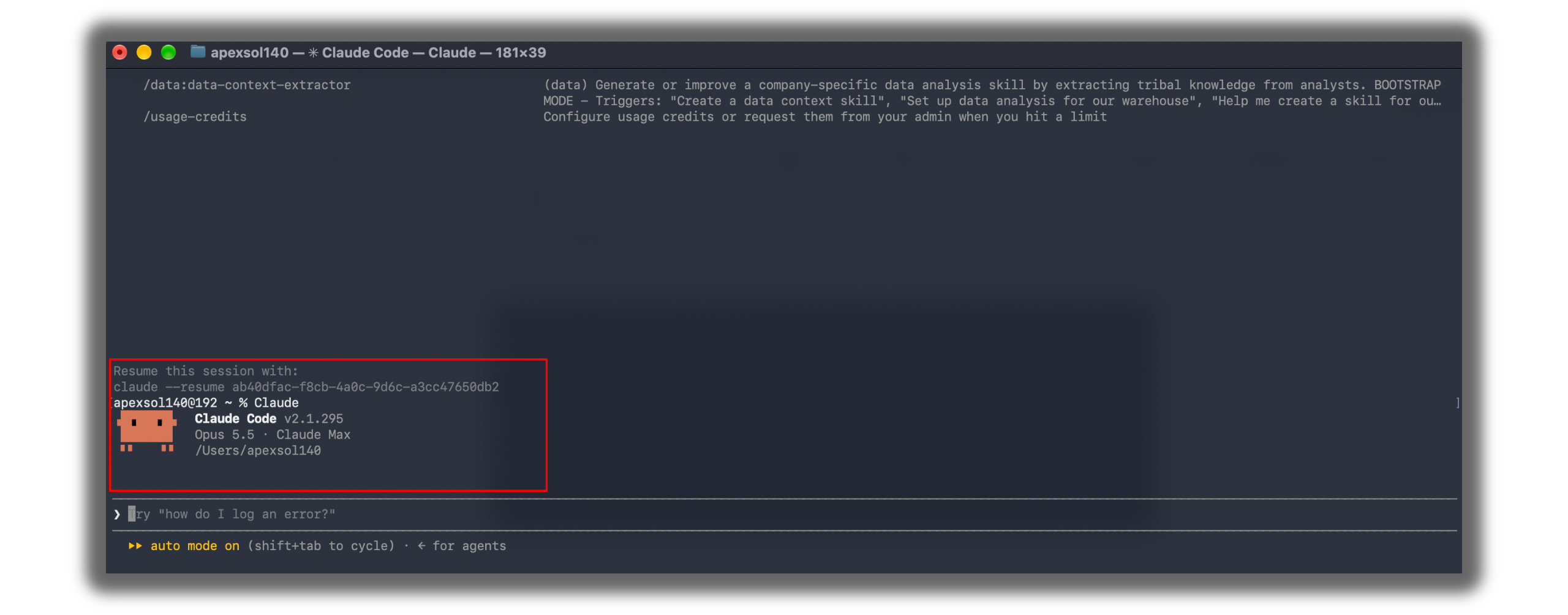
Restart Claude Code (to restart it, type
/exitand then again typeclaude
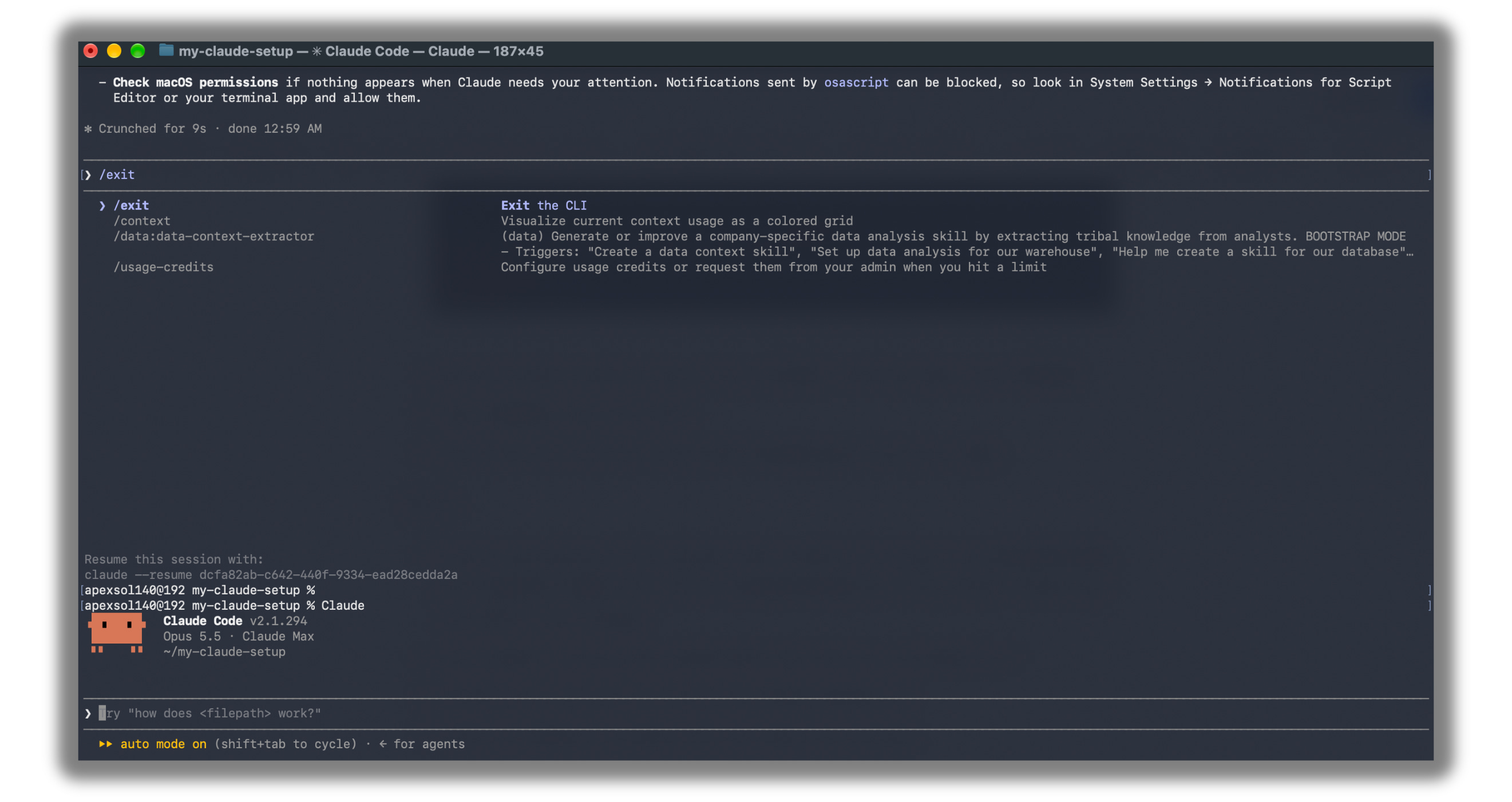
Type
/hooksand press Enter.
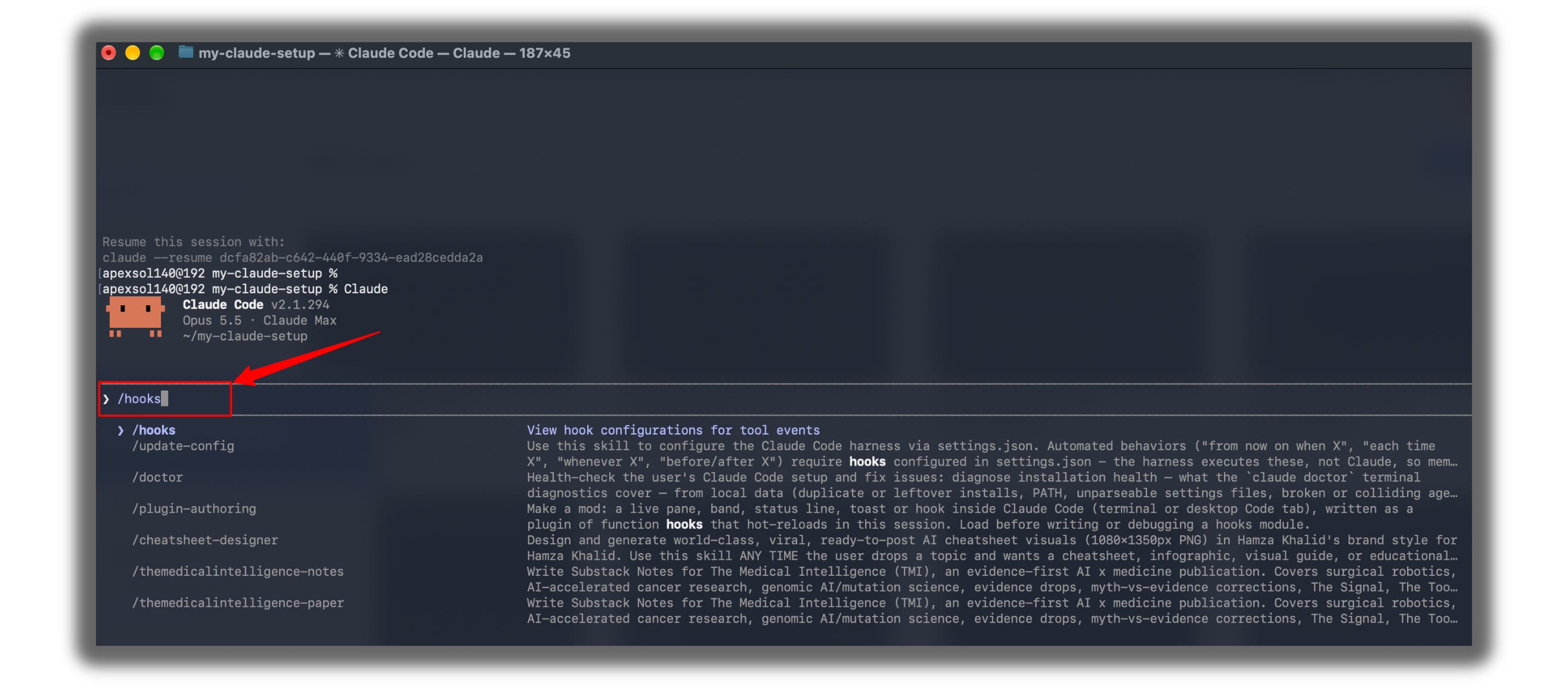
Check that you see your hook under Notification, then press
Esc.
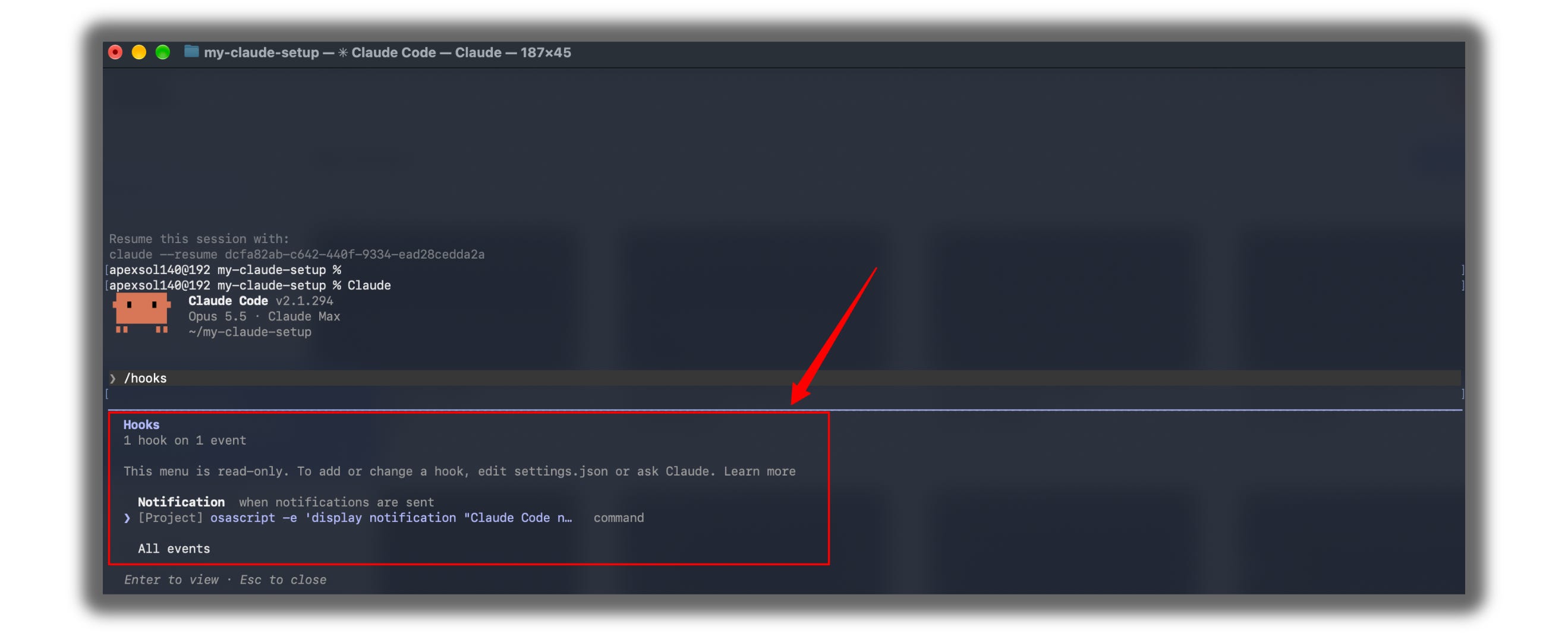
Test it:
Look at the bottom of the Claude Code window. If it doesn’t say manual mode, press
Shift + Tabuntil it shows manual mode on. In this mode, Claude asks you before every change.
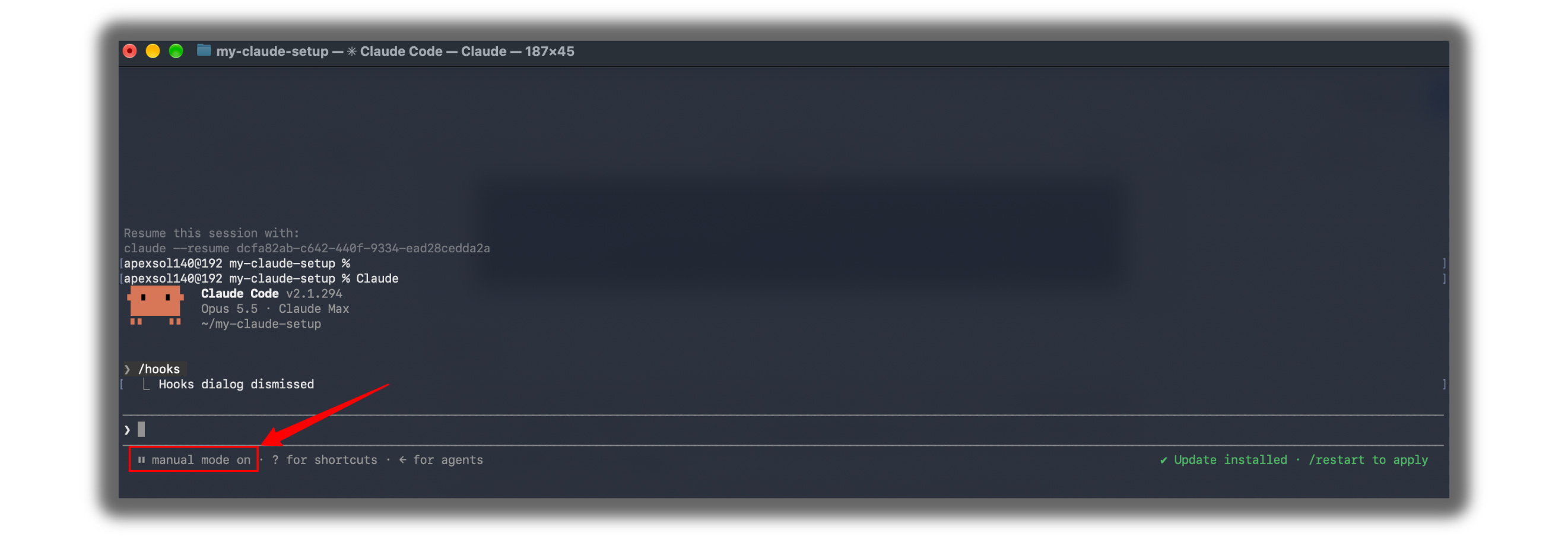
Ask Claude: “Create a file called hello.md with the word Hello in it.”

Claude stops and asks for permission. Don’t answer yet.
Click on a different window and wait about ten seconds.
The alert appears. Go back and pick Yes.

Still no alert? Ask Claude: “Show me my .claude/settings.json file.” Check that the Notification part is inside “hooks”. If it isn’t, paste the prompt again.
On Windows, the alert is a pop-up box that can open behind other windows. Check your taskbar.
If it still doesn’t work after this, send the screenshot. Tell me whether you’re on Mac or Windows, and whether you used the terminal or the Claude desktop app, so I can find the exact cause.
Build 3: Your first hard gate (3 minutes)
This gate locks a folder. Claude can never change the files inside it. Use it for work that’s already published.
Ask Claude: “Create a folder called published with a file called live-post.md that says This post is live.”
Pick Yes.
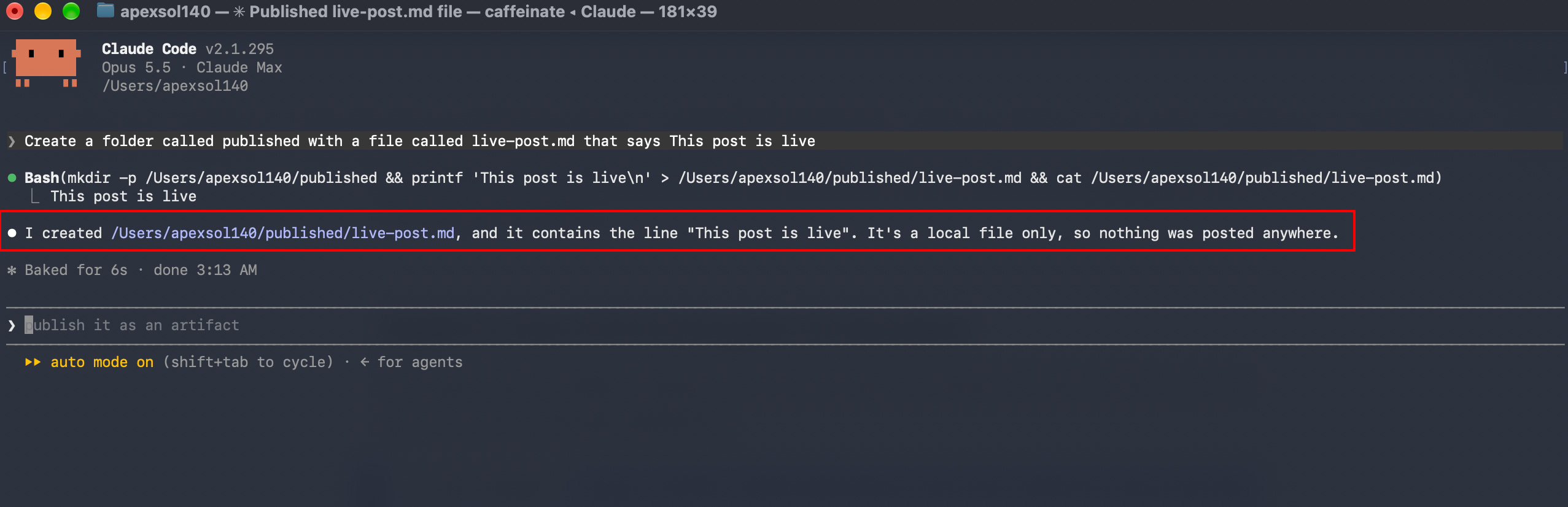
Copy this prompt, paste it into Claude Code, and press Enter:
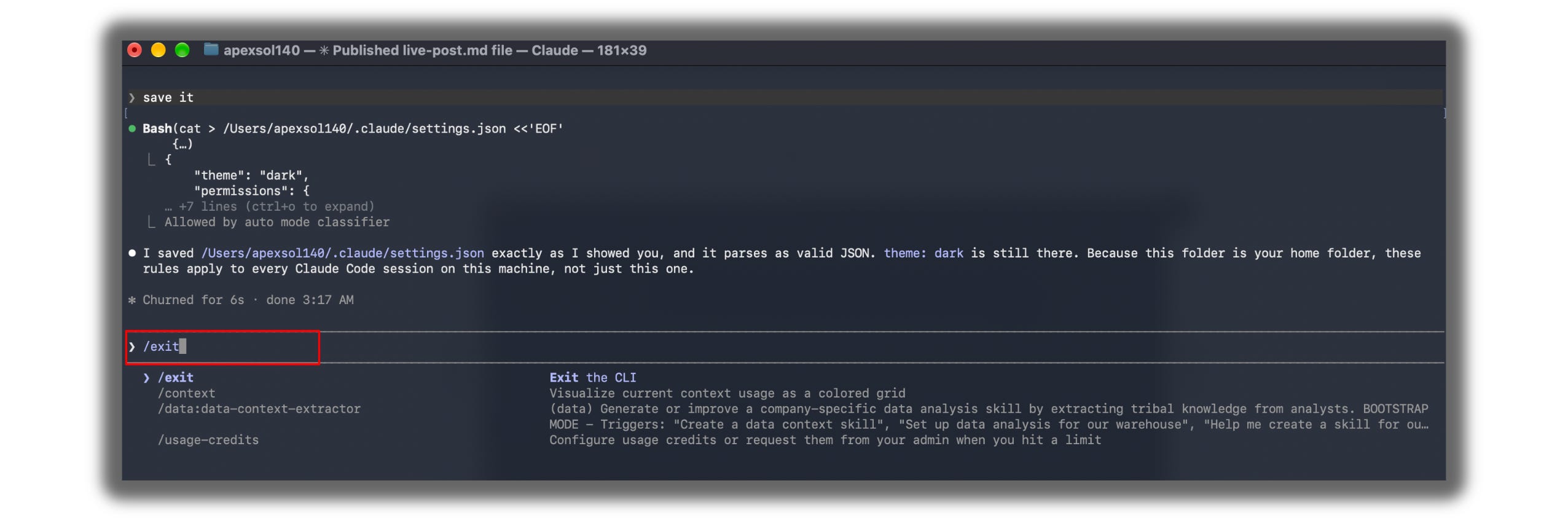
Add these permission deny rules to .claude/settings.json in this project. Keep the existing hooks exactly as they are.

"permissions": {
  "deny": [
    "Read(./.env)",
    "Edit(./published/**)",
    "Bash(rm *)"
  ]
}

Show me the final file before saving it.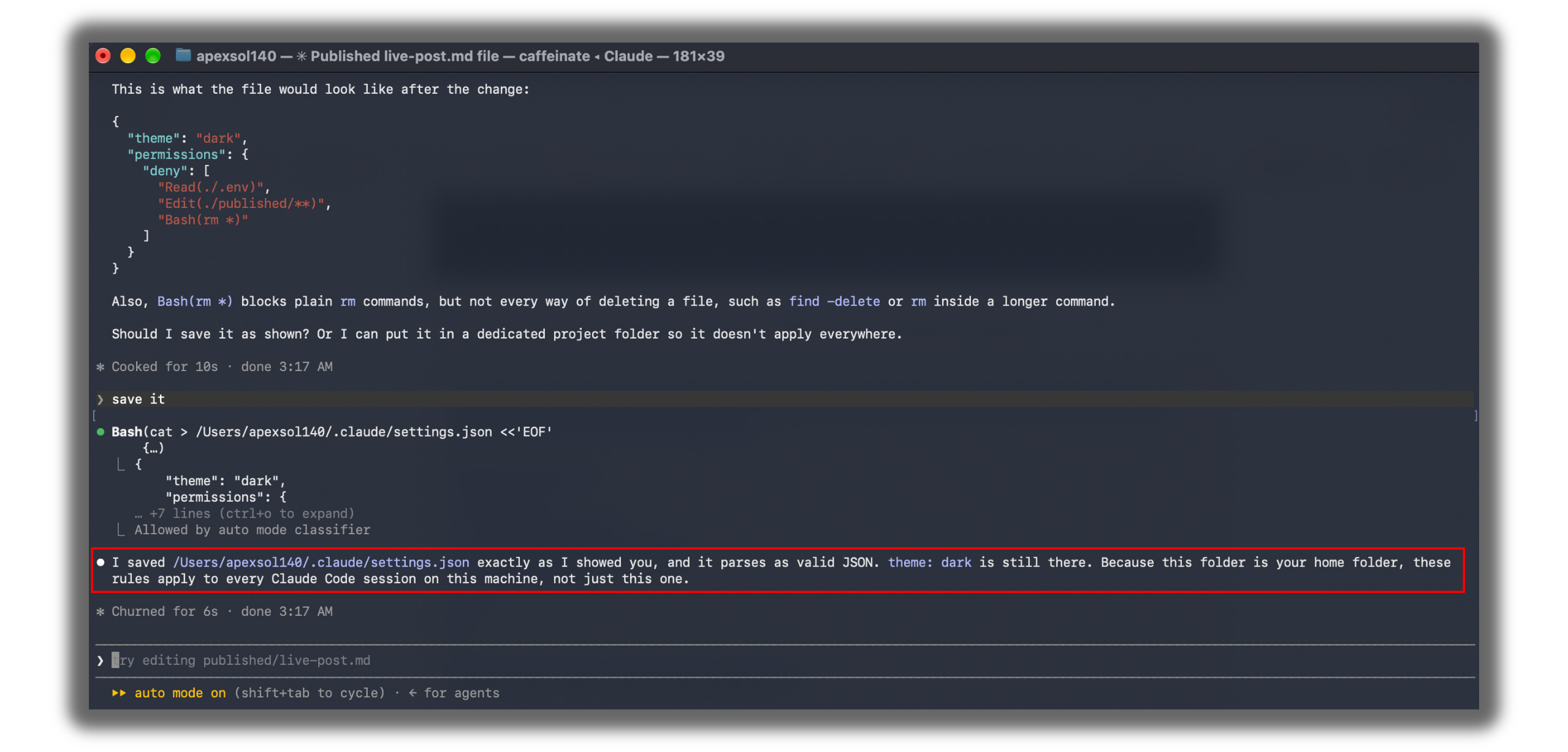
Pick Yes.
Restart Claude Code.
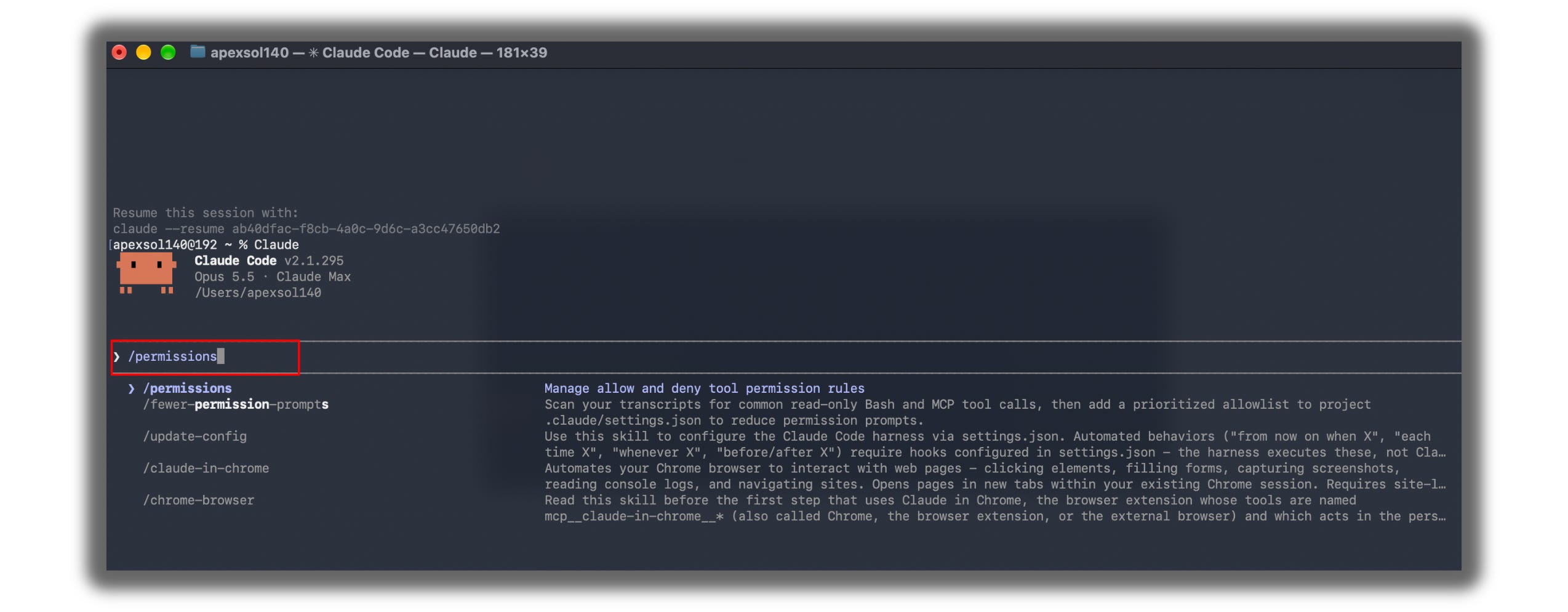
Type
/permissionsand press Enter.
Check that you see all three rules.
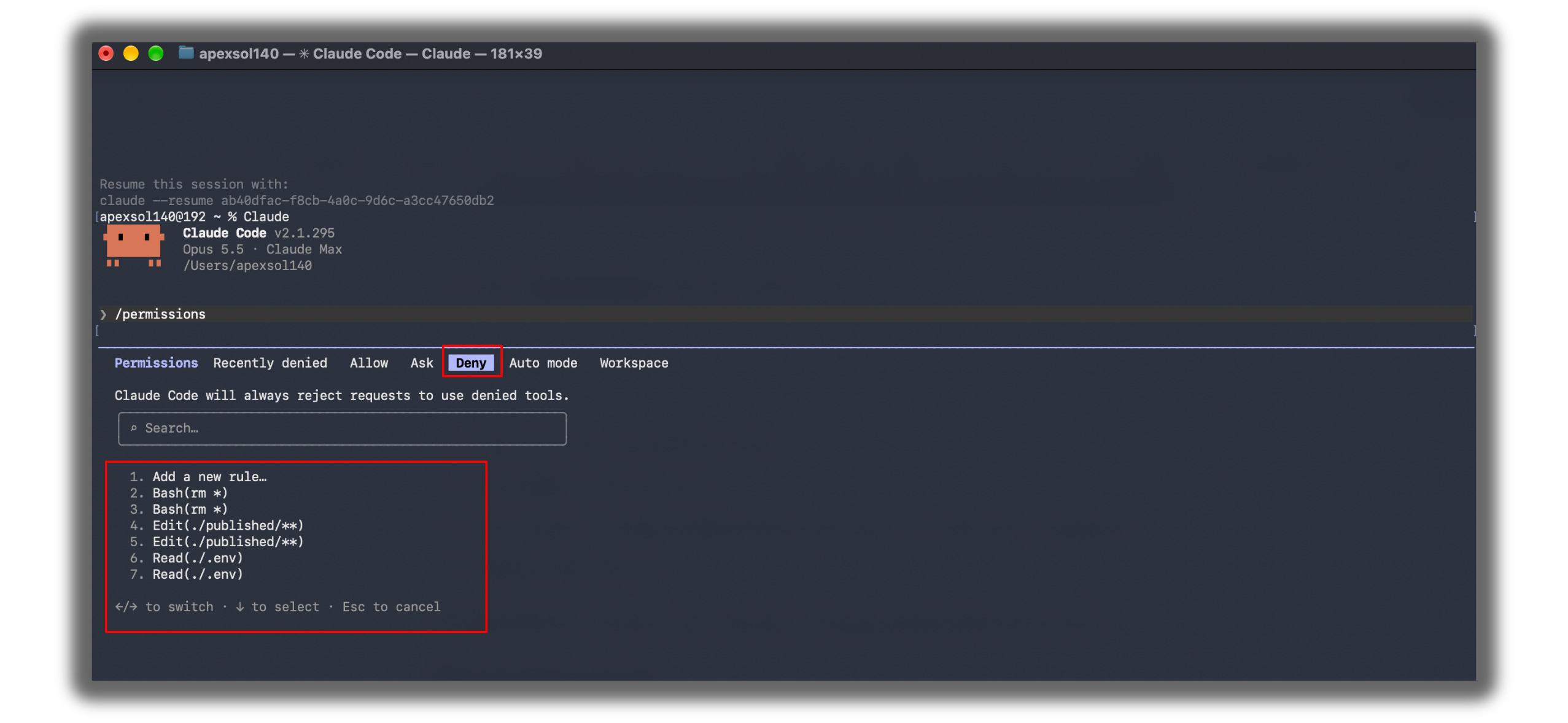
Press
Escto close the list.Ask Claude: “Change published/live-post.md to say This post is updated.”
Claude Code says no.

What the three rules do:
Read(./.env)keeps Claude out of the file where apps store passwords.Edit(./published/**)locks your published folder.Bash(rm *)stops the normal delete command.
4 mistakes that break a gate
These come from Anthropic’s help pages: https://code.claude.com/docs/en/hooks
1. A typo turns the gate off. Claude Code shows a small error and keeps going. After you add a gate, always check it with /hooks or /permissions.
2. A slow gate gets skipped. If a gate takes too long, Claude Code lets the action happen anyway.
3. A gate only blocks the exact command. Bash(rm *) stops rm file.txt. It doesn’t stop /bin/rm file.txt.
4. A smart gate can get stuck. If Claude can never pass the check, it keeps trying. Claude Code stops it after eight tries. So make your checks possible to pass.
One prompt to sort your old rules
Already have a long CLAUDE.md file? Paste this into Claude Code:
Read my CLAUDE.md file. Sort every rule into one of four groups:

1. GATE: anything that must never happen. Write the matching permission deny rule for .claude/settings.json.
2. HOOK: anything that must happen every time at a set moment, with no judgment. Name the hook event it belongs to.
3. SKILL: anything that needs judgment or is a multi-step procedure. Suggest a skill name and a one-line description.
4. KEEP: facts about the project that Claude should always know.

Show the result as a table with columns: Rule, Group, What to write.
Do not change any files yet. Wait for my approval.
Don’t build everything tonight. Think of the last mistake Claude made. Ask the three questions. Build that one fix.
Quick recap
[ ] Skills teach Claude. Claude decides when to use them.
[ ] Hooks run by themselves, every time.
[ ] Gates stop Claude. Claude can’t skip them.
[ ] CLAUDE.md is for facts about your project.
[ ] Test every new gate by trying to break it.
Know someone whose Claude keeps ignoring their rules? Send them this issue:
Your gift, as promised
The Three-Layer Starter Pack.
One skill, one hook, two gates, and where each file goes.
→ Click here to grab your gift
We tested it in public. Now use it in private.
Make Yourself Irreplaceable with AI. LLMs don’t think; you do.
PS: Reply and tell me the one rule Claude keeps breaking for you.
I’ll tell you if it should be a skill, a hook, or a gate.

"A request, not a guarantee" is the line more people need to hear. Writing a rule louder in the notes file doesn't turn it into a rule. The three-question sort (should it never happen, should it always happen, does it need thinking) is a clean way to decide where each one lives.