You don’t hate making videos.
You hate editing them.
The idea takes five minutes.
The script takes twenty.
Then you open an editor, stare at an empty timeline, and two hours later you’re still dragging clips around trying to get one caption to line up.
That’s the part CapCut just tried to delete.
On October 24, at its first CapCut World event, CapCut announced a plugin that runs inside ChatGPT.
You describe a video.
It builds an editable draft with a real timeline.
You fix it by chatting.
Most coverage says it’s “coming soon.” In many regions, it’s already live.
So I tested it.
I spent a full day on this with my laptop and three cups of coffee, so you don’t have to spend yours. Support me by refilling my coffee cup.
At the end of this issue, there’s a CapCut × ChatGPT Prompt Pack: 20 video prompts and 15 edit commands, ready to paste. Built from what actually worked in my test, not what sounded good on paper.
Keep reading.
It’s waiting for you at the bottom.
I made a full cheat sheet on how to use CapCut in ChatGPT to create and edit videos. Save it for the future.
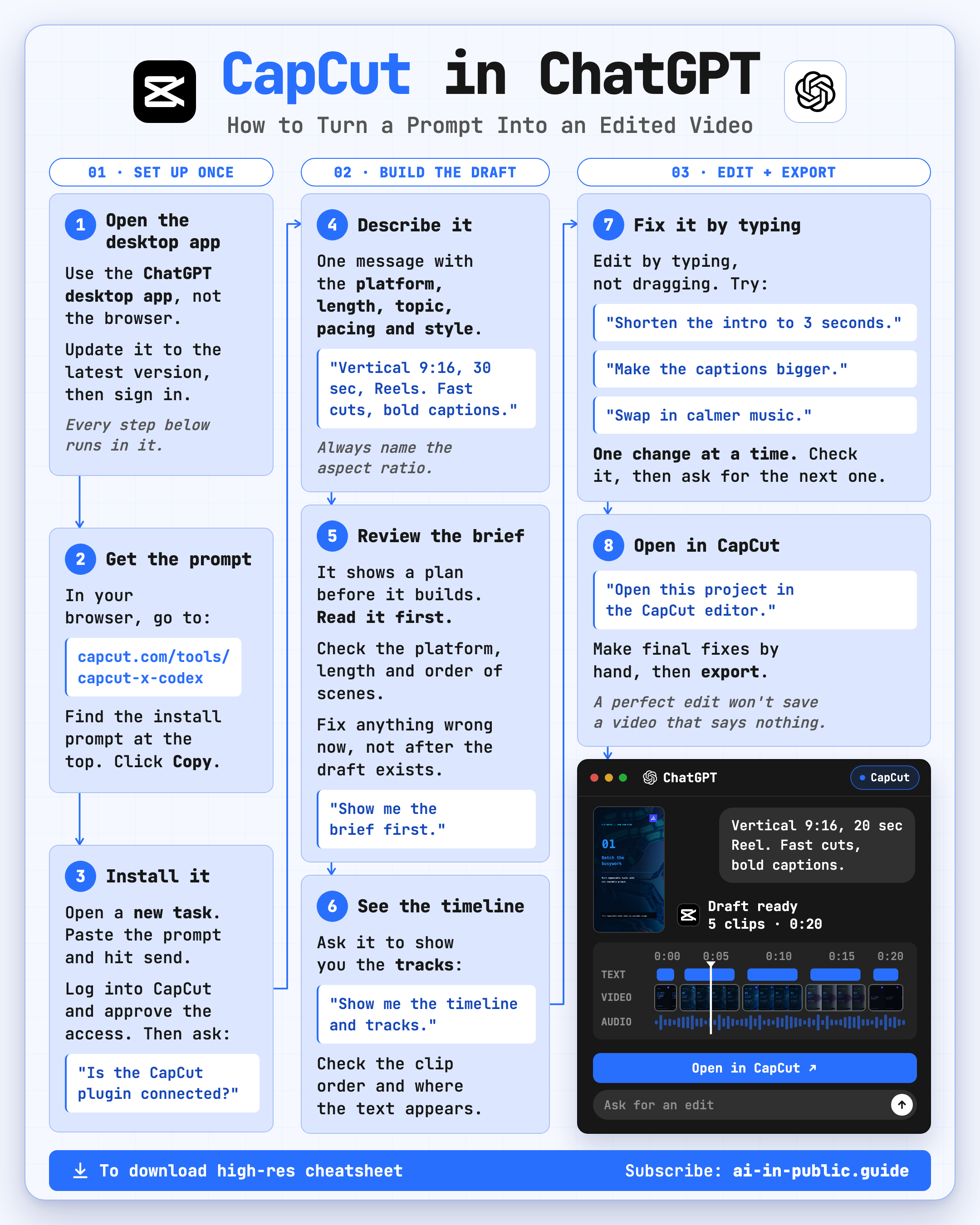
Know a creator who still edits every video by hand? This will give them their evenings back.
Why I Tested This Today
I make videos
for X, LinkedIn, and Substack every week.
Every single one hits the same wall.
The thinking is fast.
The editing is slow.
When CapCut posted the announcement, the replies were split.
Half the people said editing was dead.
The other half said it was a demo that would never work for real creators.
I didn’t want an opinion.
I wanted a result.
So I decided to test it.
What You’ll Be Able to Do After This
By the end of this issue, you’ll be able to:
→ Install the CapCut plugin inside ChatGPT in under 10 minutes
→ Turn one sentence into an editable video draft
→ Edit that draft by typing, not dragging
→ Know exactly where it breaks, so you don’t waste an afternoon finding out
You stop being the person who has ideas but no time to edit.
You become the person who ships.
Step-by-Step: Install CapCut in ChatGPT
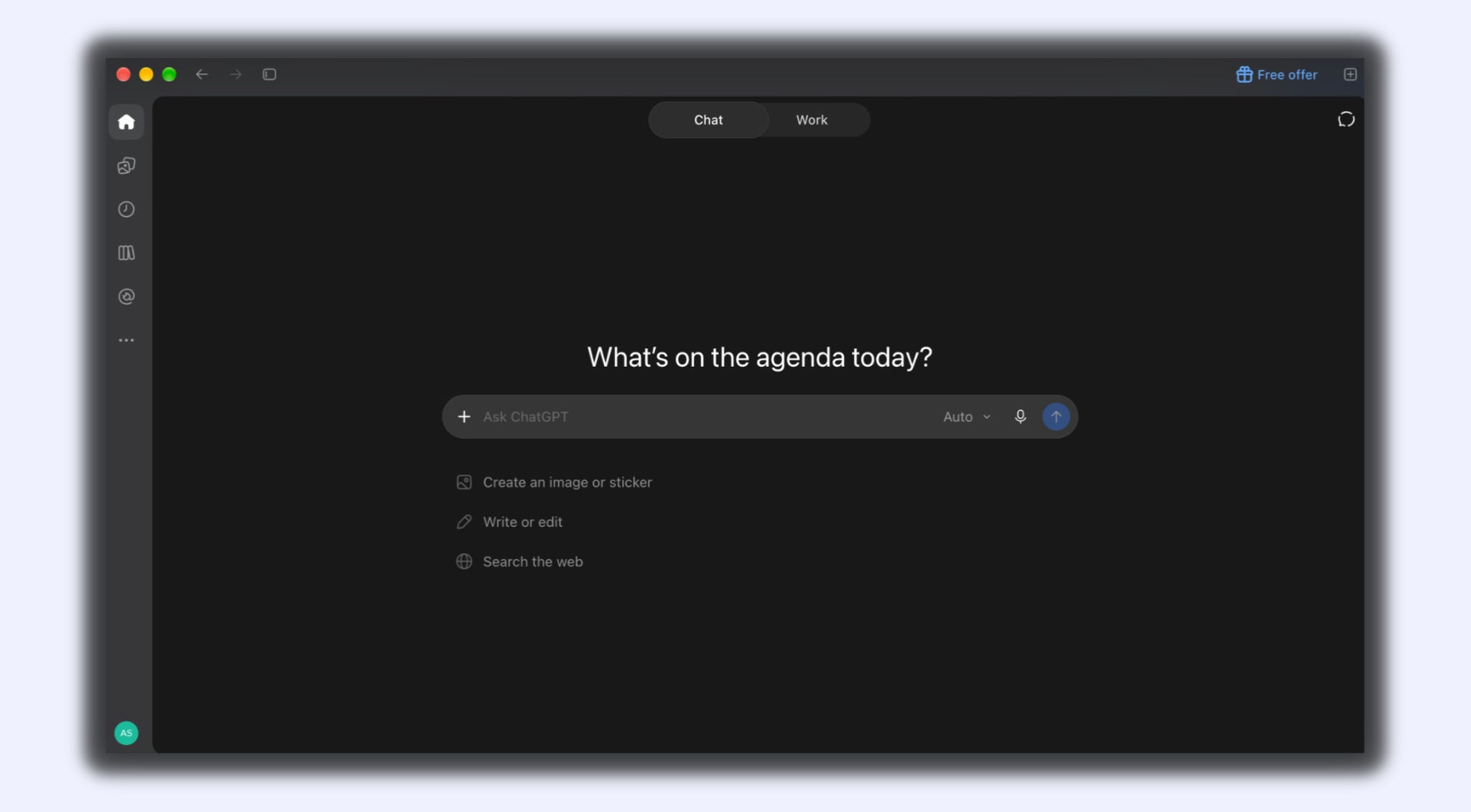
Step 1: Update the app
Open the ChatGPT desktop app.
Update it to the latest version.
Sign in.
Step 2: Get the install prompt
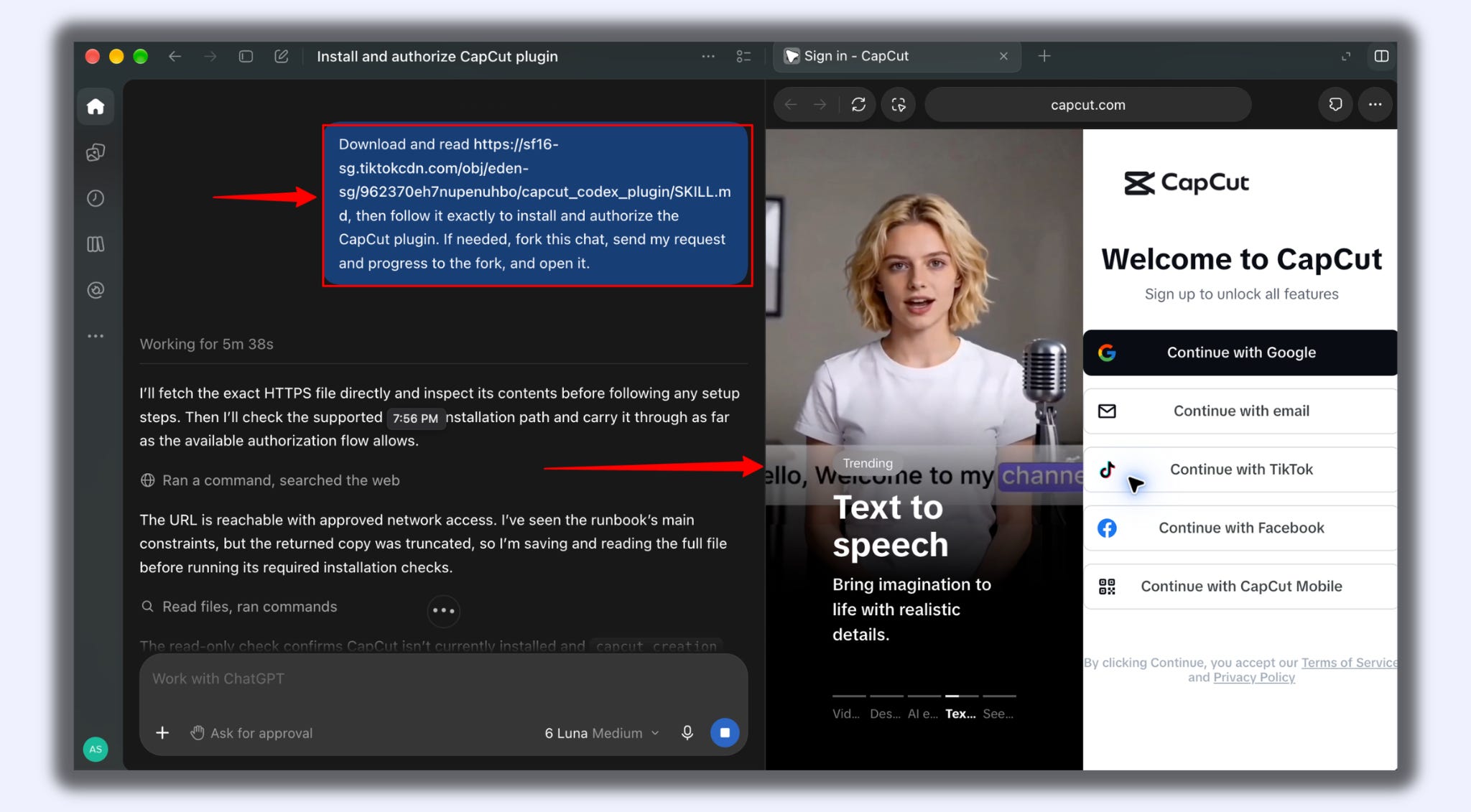
Go to capcut.com/tools/capcut-x-codex in your browser.
Find the install prompt at the top of the page. Click Copy.
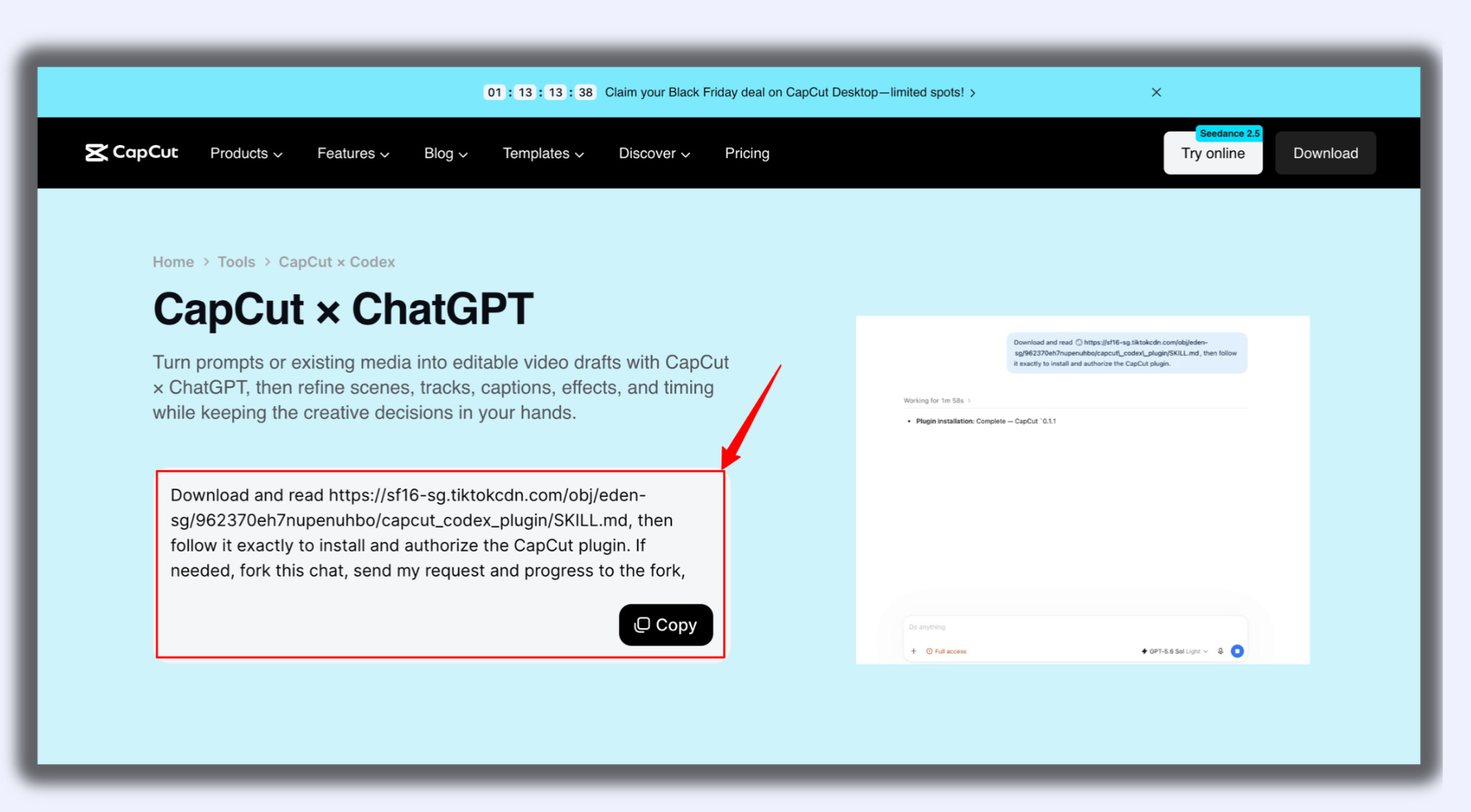
Here’s the prompt, if you’d rather copy it from here:
Download and read https://sf16-sg.tiktokcdn.com/obj/eden-sg/962370eh7nupenuhbo/capcut_codex_plugin/SKILL.md, then follow it exactly to install and authorize the CapCut plugin. If needed, fork this chat, send my request and progress to the fork, and open it.Step 3: Install it
Start a new task in the ChatGPT desktop app.
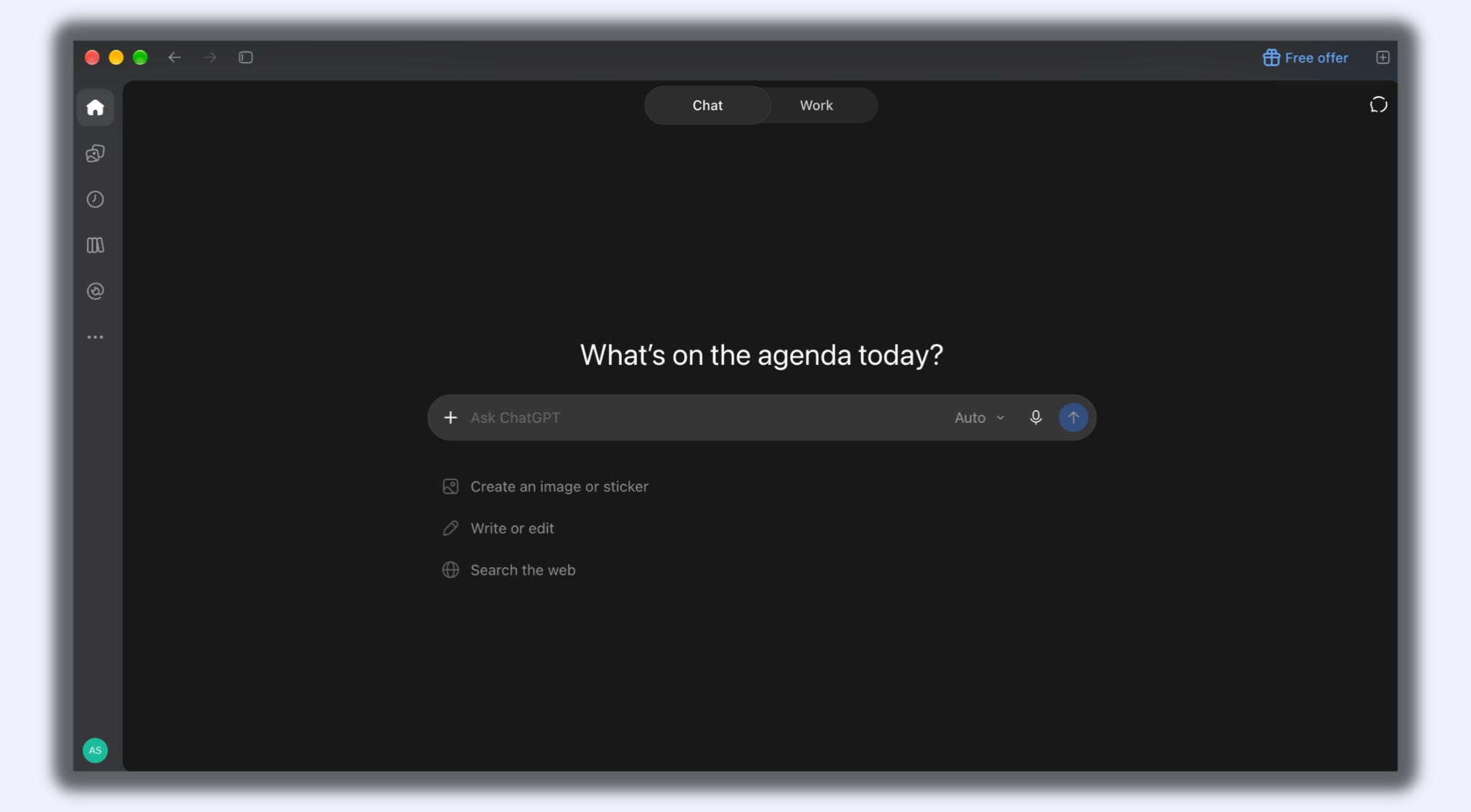
Paste the prompt.
Hit send.
Step 4: Authorize CapCut
Follow the authorization steps ChatGPT shows you.
Log in to your CapCut account when asked.
Approve the connection.
Step 5: Check it worked
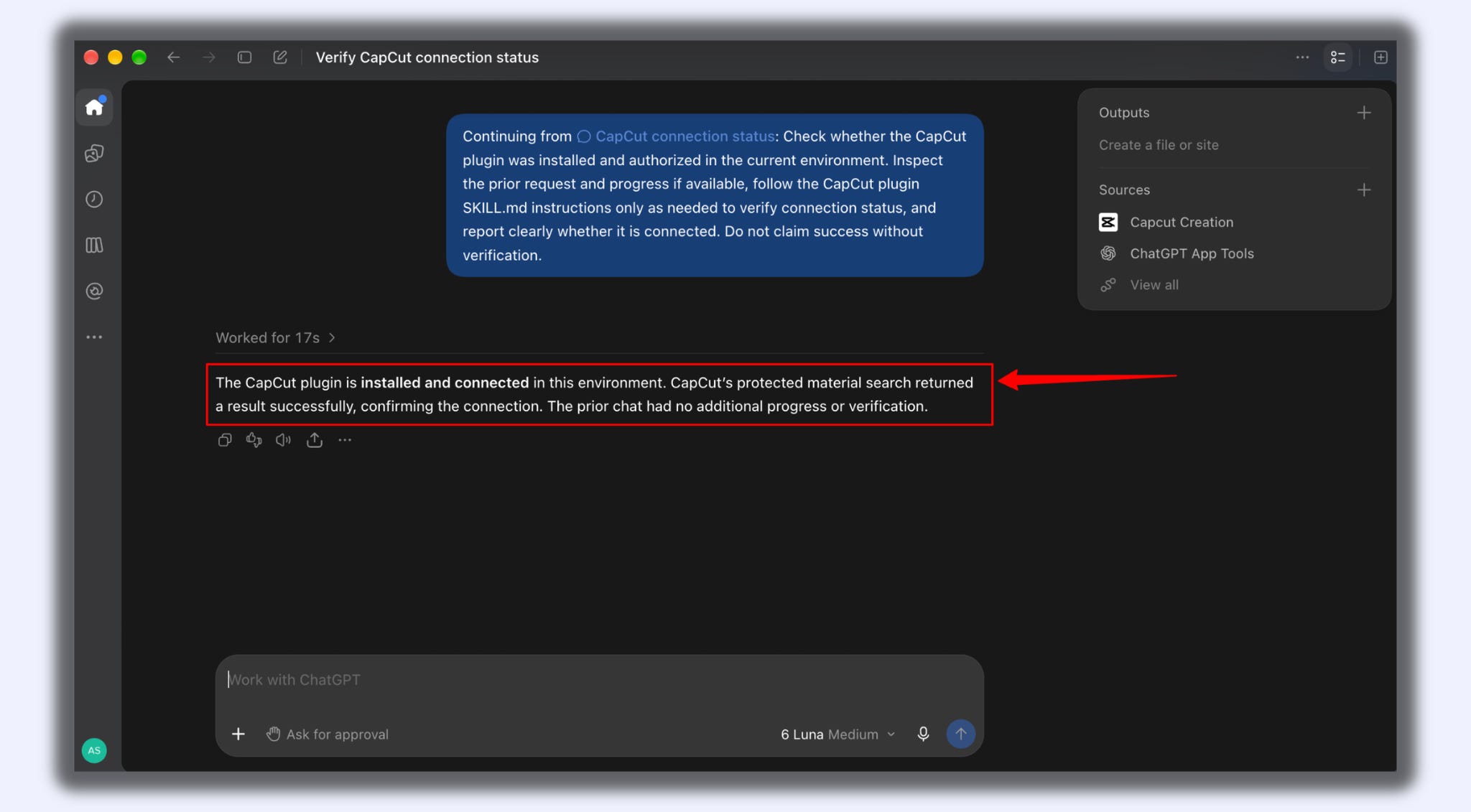
Start a fresh task.
Type: “Is the CapCut plugin connected?”
That’s the setup. Now the fun part.
Step-by-Step: Make Your First Video
Step 1: Describe the video
Tell it the platform, length, topic, pacing, and style in one message.
Be specific about aspect ratio.
“Vertical” or “9:16” works.
Make a 30-second vertical 9:16 video for LinkedIn and X titled "3 AI Habits That Save Me 5 Hours a Week." Use a deep black background (#0A0A0F) with primary blue (#2979FF) as the main accent color and cyan (#00E5FF) for highlights. All on-screen text in white, JetBrains Mono font, bold. Show one habit per scene with a big number in blue. Clean, minimal, modern tech style. Calm electronic music. Captions throughout.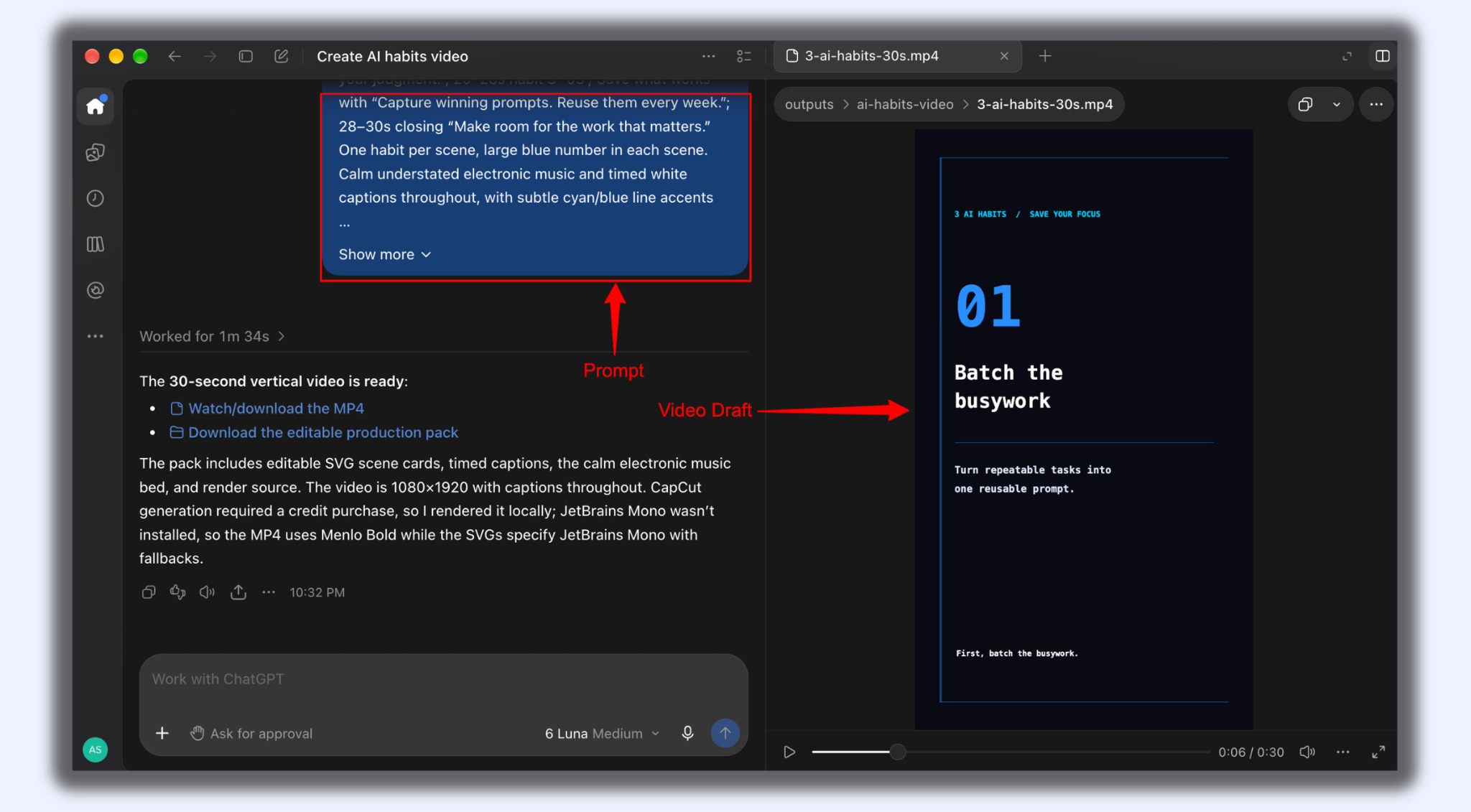
Step 2: Review the brief
Read the plan it gives you before it builds.
Correct anything wrong now, not later.
Before you build, show me the brief: scene list, length of each scene, on-screen text for each scene, colors, font, and music style. Confirm every scene uses the black background with blue (#2979FF) accents. Wait for my approval before building.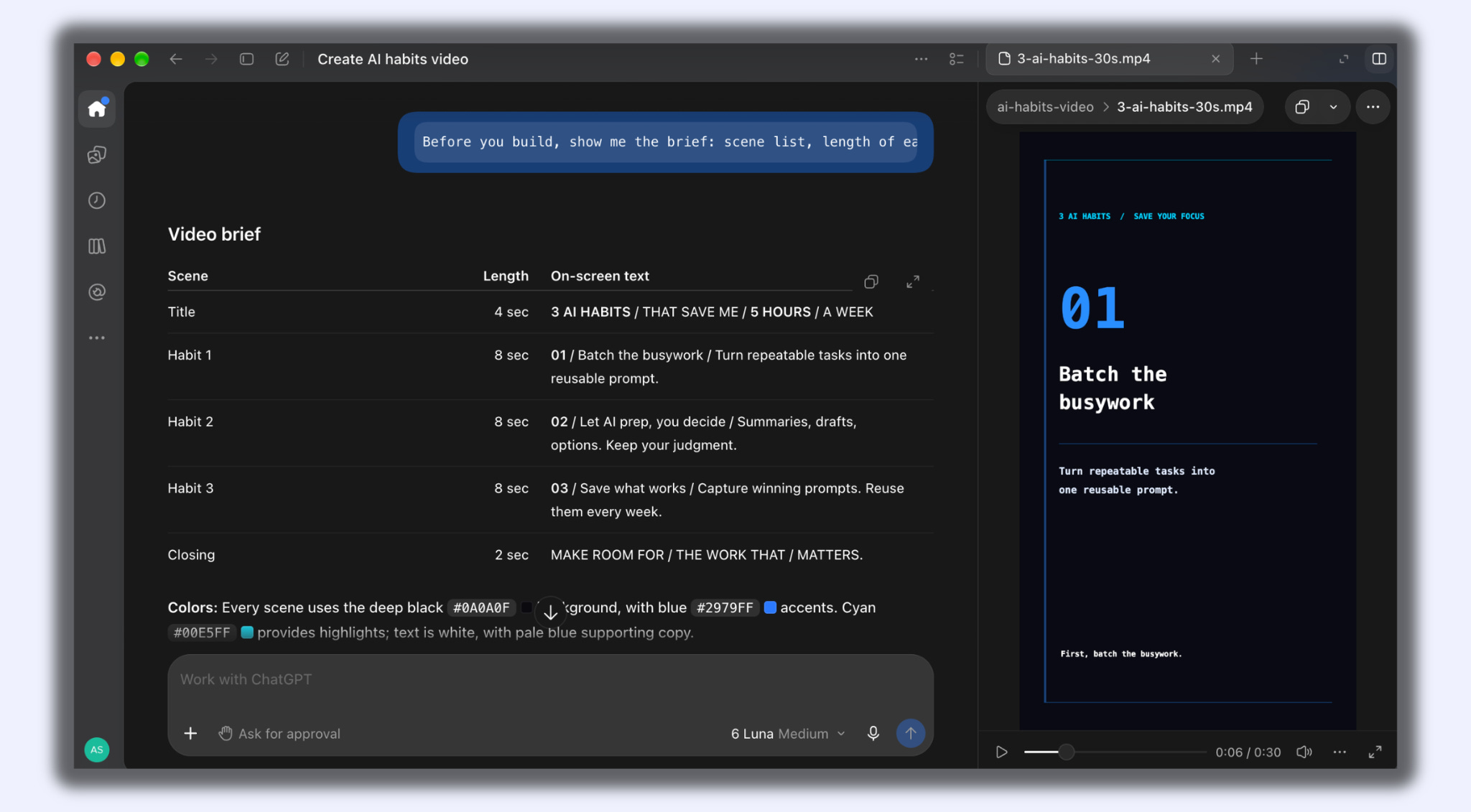
Step 3: Look at the timeline
Ask it to show you the timeline and tracks.
Check the order of clips and where text appears.
Show me the full timeline with every track: video, text, captions, and audio. List each clip with its start time, end time, and the on-screen text it carries.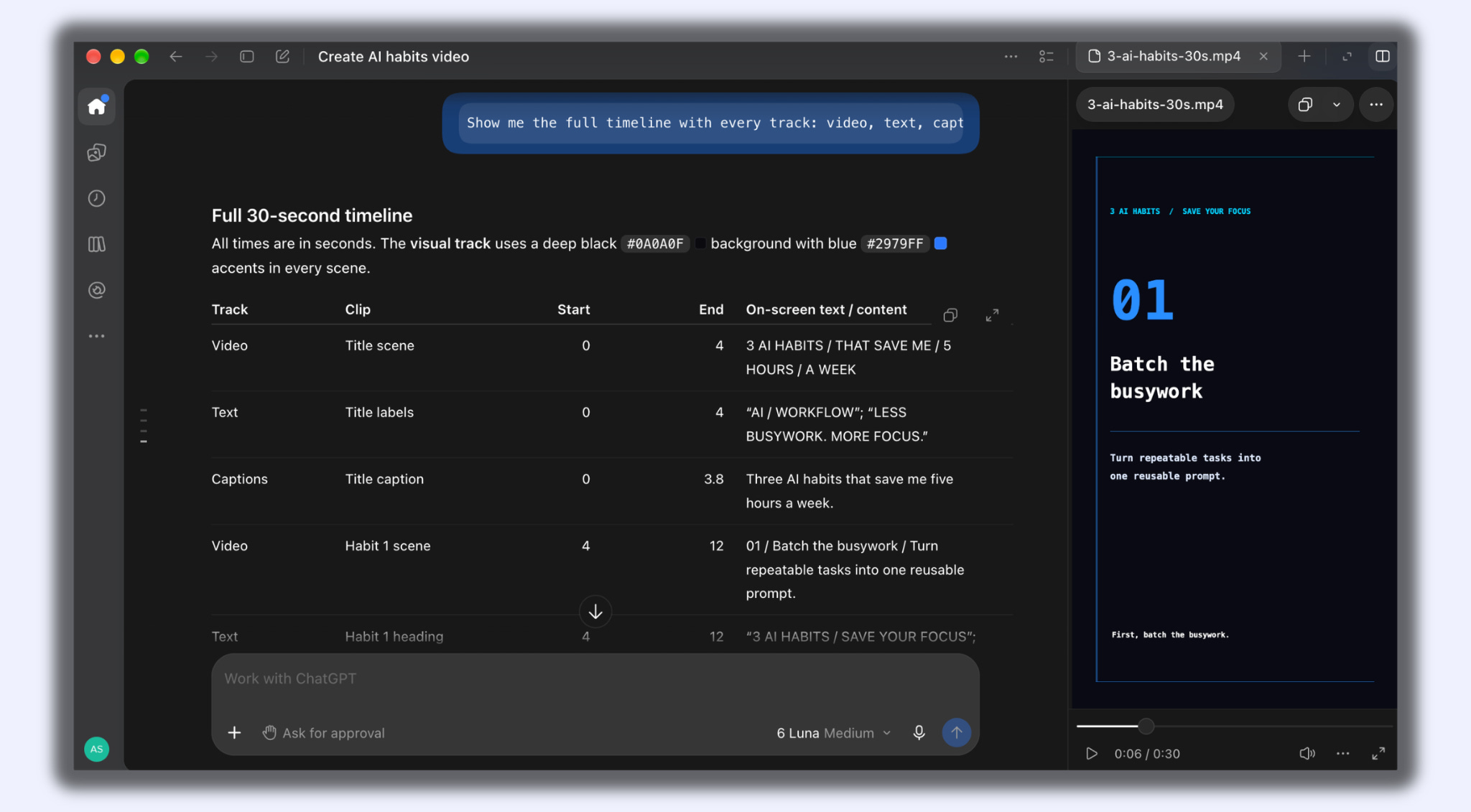
Step 4: Fix it by typing
Ask for one change at a time. Check the result before asking for the next one.
Make every headline text primary blue (#2979FF) and every caption white with a thin cyan (#00E5FF) outline. Keep the JetBrains Mono font on all text.
Add a closing scene for the last 3 seconds: black background, the text "AI In Public" in blue (#2979FF), and "humzakhalid.substack.com" in white below it.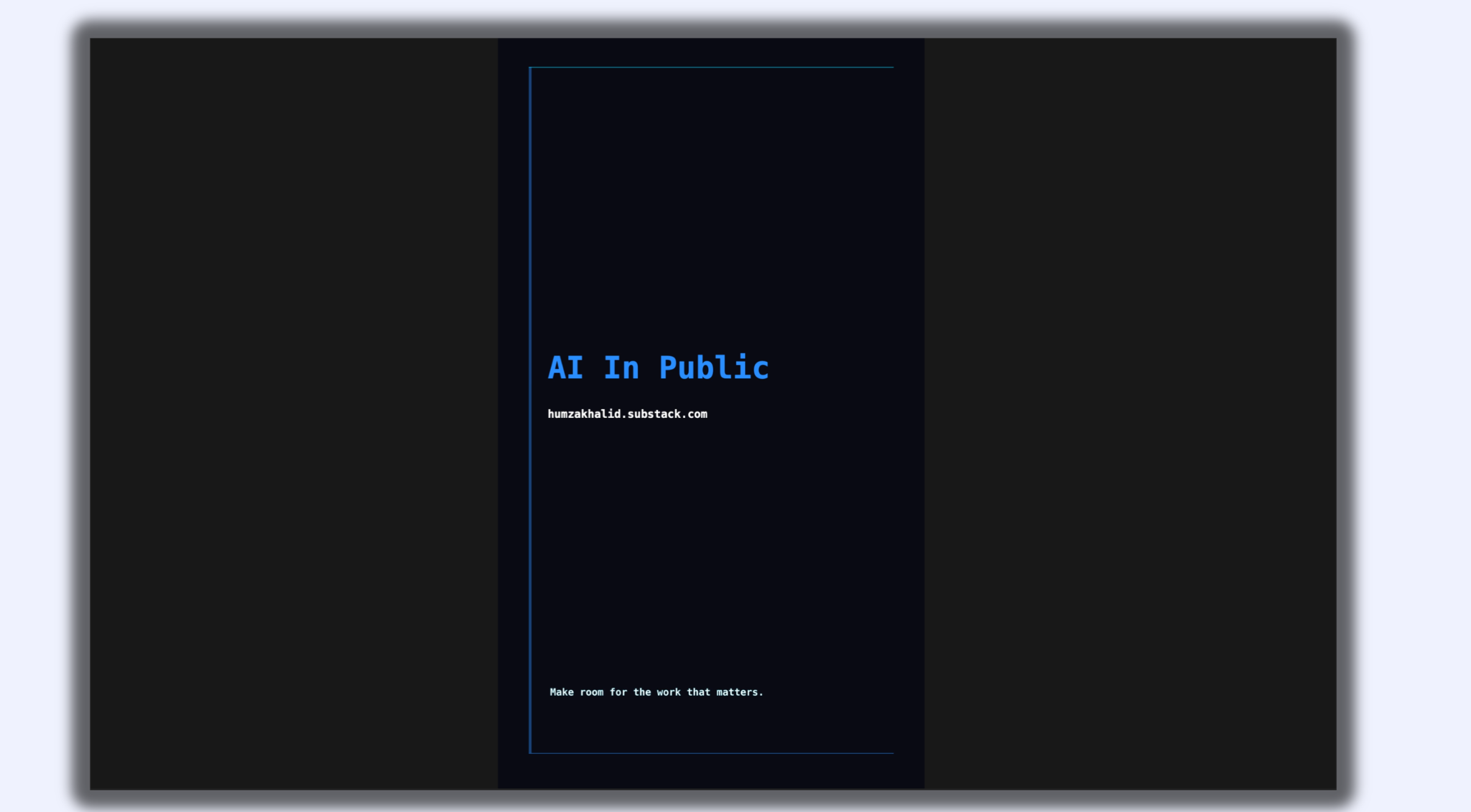
Cut the first scene to 2 seconds and add a quick blue light-sweep transition between every scene.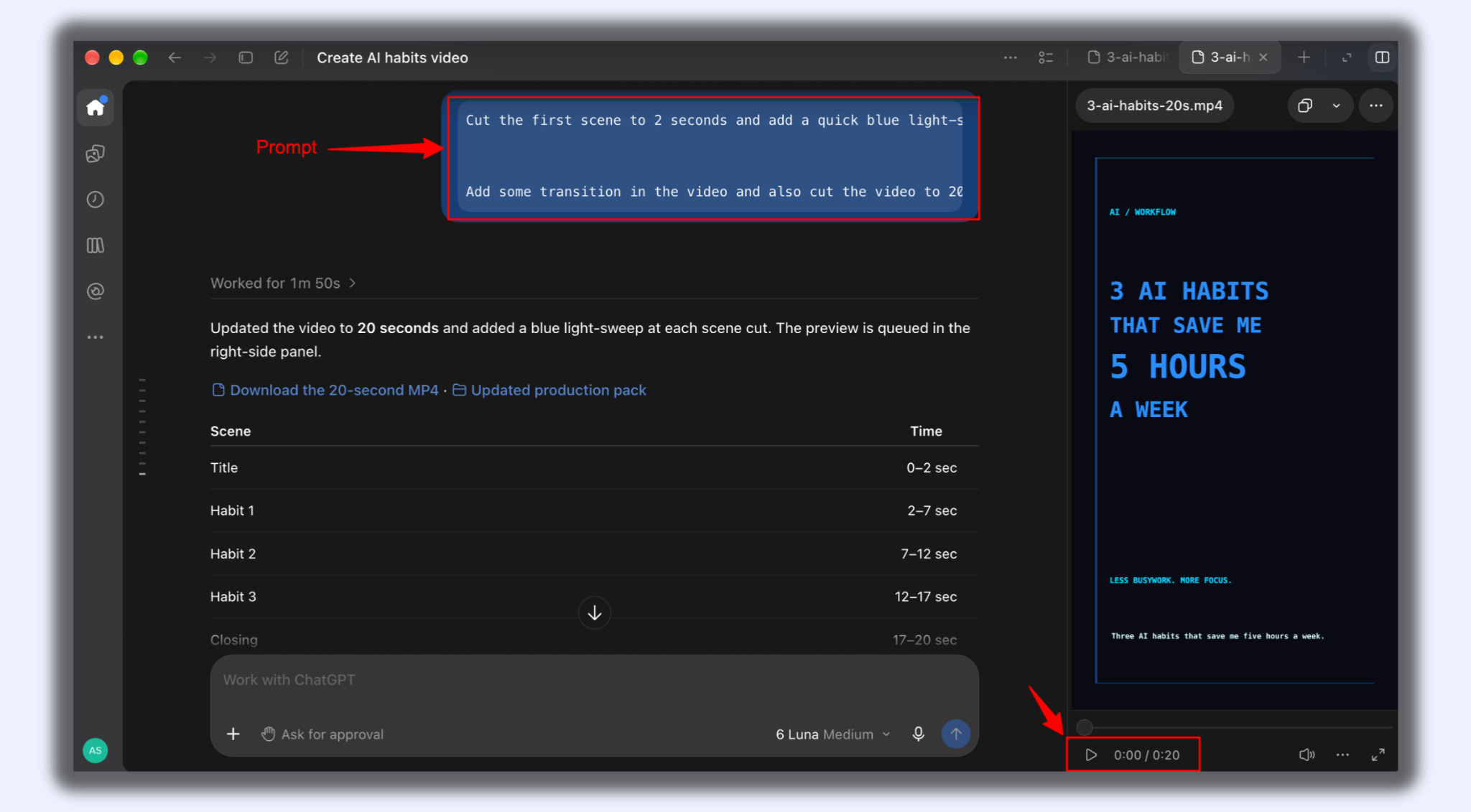
Now let’s give it a final touch because it feels generic and empty. So I am going to add some visuals here in the video.
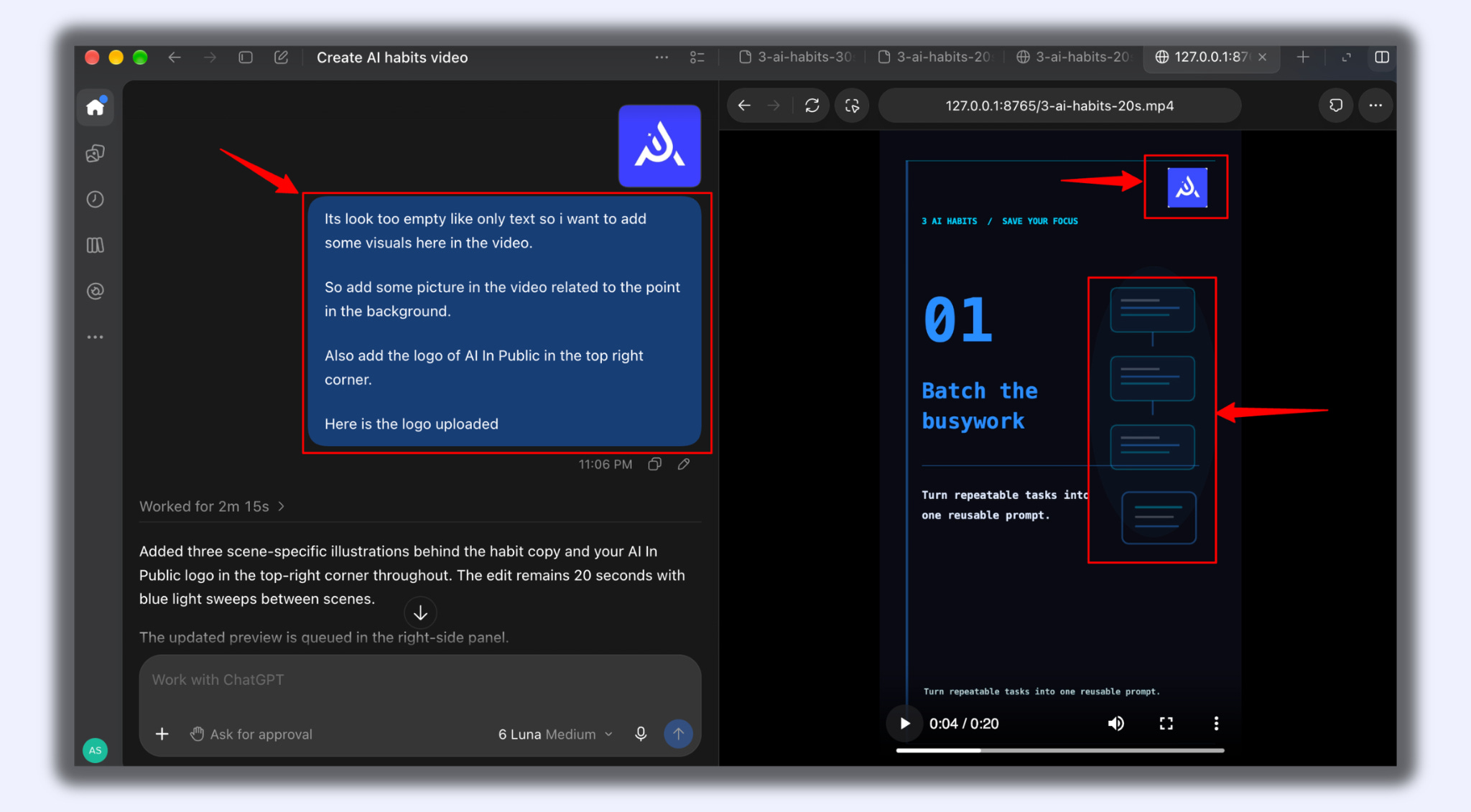
Nope, it added visuals but not images, which still isn't looking good, so now I will ask it to add images to make the video stunning.
Here is the video I got after these few changes…
It’s good, but it can be better if we give it a little bit more time with chat and add some more transitions, sounds, etc.
But it's easy to create an edited video.
That video took me one chat and two cups of coffee. If it just saved you two hours of editing, my next cup is on you.
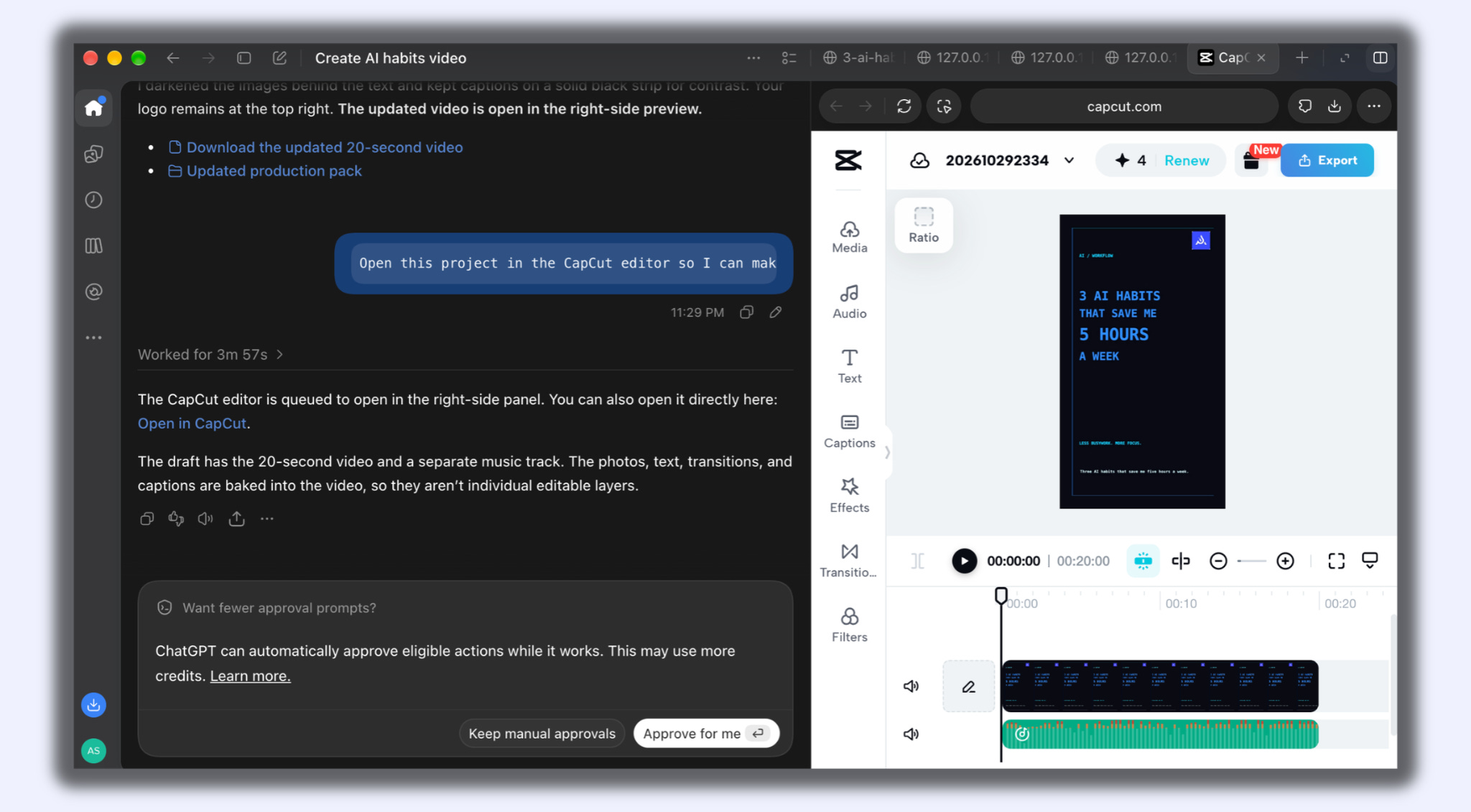
Step 5: Open it in CapCut
Ask it to open the project in the CapCut editor.
Open this project in the CapCut editor so I can make final changes and export.Make any final hands-on fixes there. Export.
Slow Down for a Second
Here’s the trap.
A tool like this makes it easy to produce ten videos a day.
That’s not the goal.
The goal is to spend your time on the part only you can do: the idea, the angle, the opinion.
Let the plugin handle the dragging and the caption timing.
If the video says nothing, a perfect edit won’t save it.
Use the time you save to think harder, not to post more.
I test a new AI tool like this every week, burn the coffee, hit the walls, and send you only what works. Don’t miss the next one and buy me a coffee cup for next breakdown.
Recap Checklist
☐ Use the ChatGPT desktop app on PC, not the browser
☐ Copy the install prompt from capcut.com/tools/capcut-x-codex
☐ Paste it into a new task and authorize your CapCut account
☐ Describe the platform, length, and style in your first prompt
☐ Review the brief before it builds
☐ Make one edit at a time
☐ Finish and export inside CapCut
Someone in your feed is about to spend three hours on a 30-second video. Save them.
Your Gift: The CapCut × ChatGPT Prompt Pack
20 video prompts
15 edit commands
Sorted by platform and use case, tested in the plugin.
We tested it in public. Now use it in private.
Good tools are better shared. Pass this to the one friend who always says “I don’t have time to edit.”
P.S. What’s the one video you’ve been putting off because the editing felt like too much?
Hit reply and tell me.
I’ll pick one and build it with this plugin in a future issue.